The Place Editor allows you to manage all location information connected to your family tree. You can add new places, update existing ones, and keep your data organized with ease. This guide explains each available function step by step.
Accessing the Place Editor
- Navigate to the Place Page
Click on the “Place” option in the main navigation menu.
This will open the complete list of places associated with your family project.

Viewing Existing Places
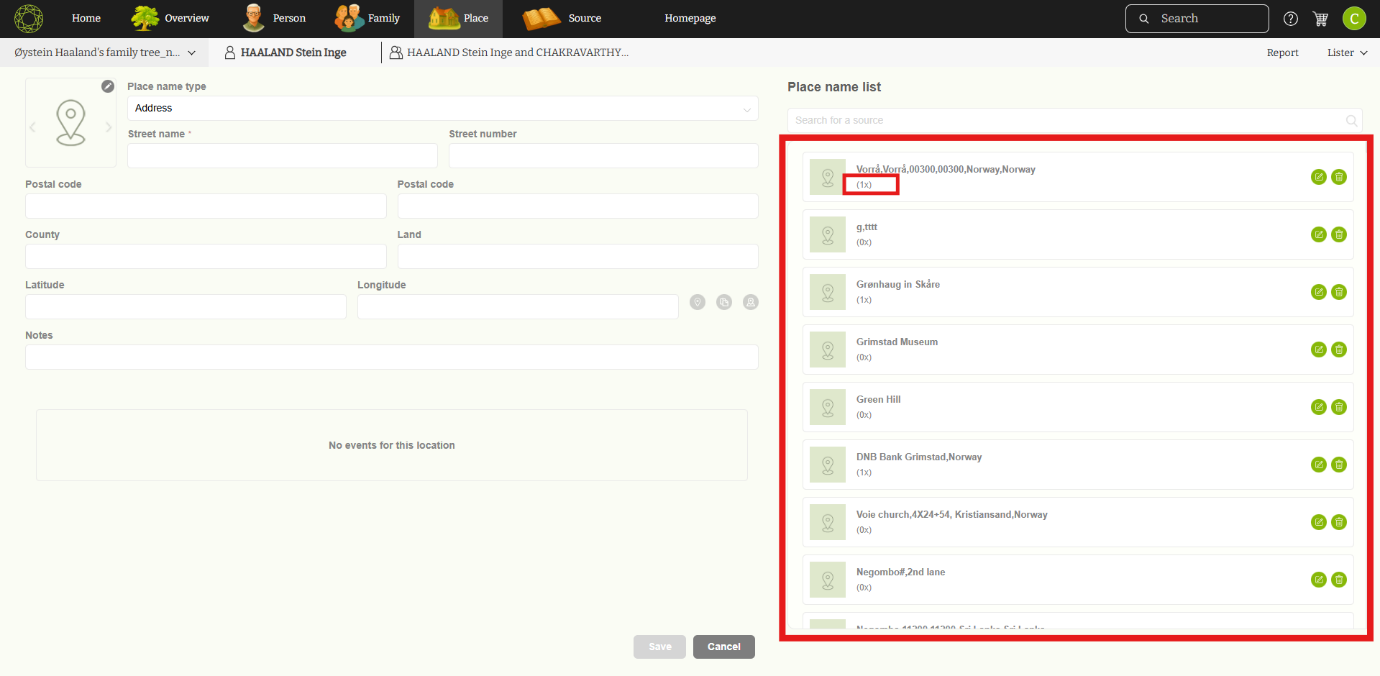
- Once you open the Place page, you will see a list of all places that are currently used within your family tree.
This includes birthplaces, marriage locations, death locations, and any other places linked to your ancestors.
Usage Count:
Under each place name, you will see how many times that place has been used in your project
Adding a New Place
You can easily add new locations using the form on the left side of the page.
- Find the Add Place form on the left panel.
- Enter the details of the new place.
- Click Save to add it.
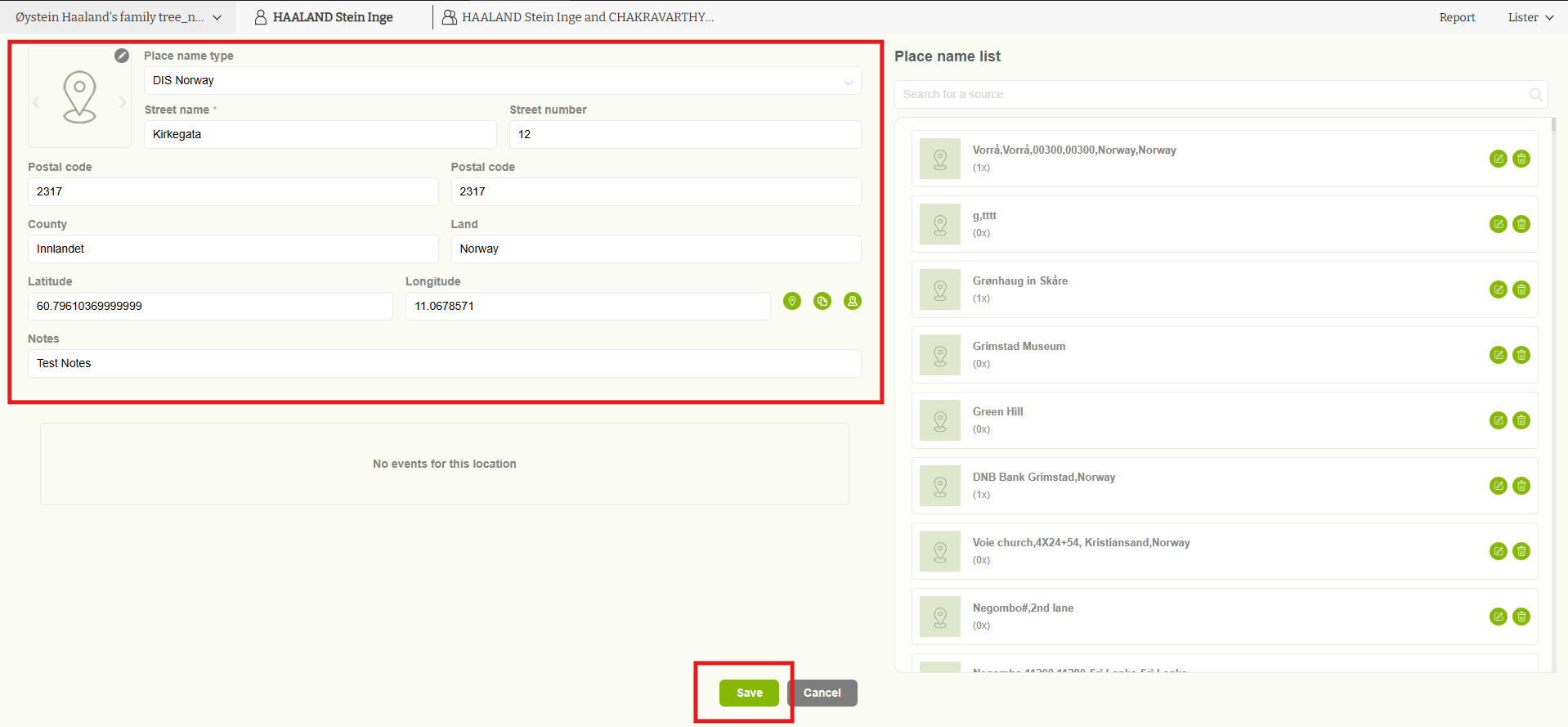
After saving, the newly added place will automatically appear in the place list on the right side.
Searching for a Place
To quickly locate an existing place:
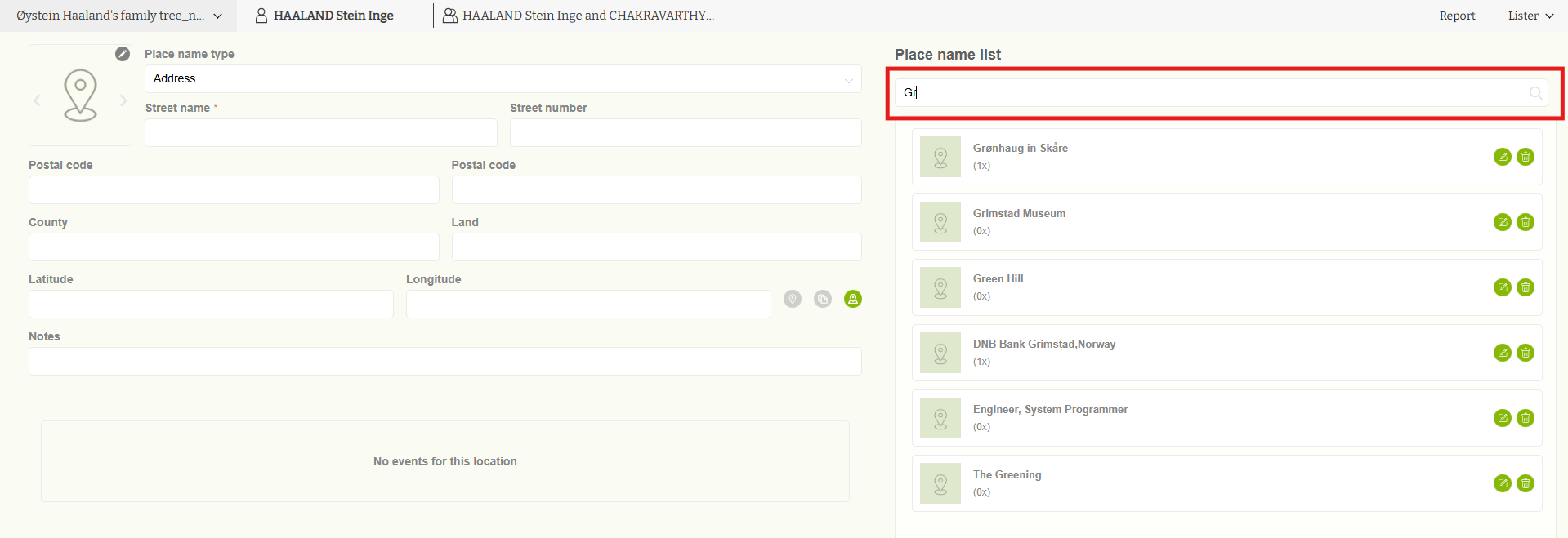
- Use the Search bar located above the place list.
You can type part or all of the place name. The list will filter based on your search, helping you find the place you need.
Editing or Deleting a Place
- Users can modify or remove places as needed:
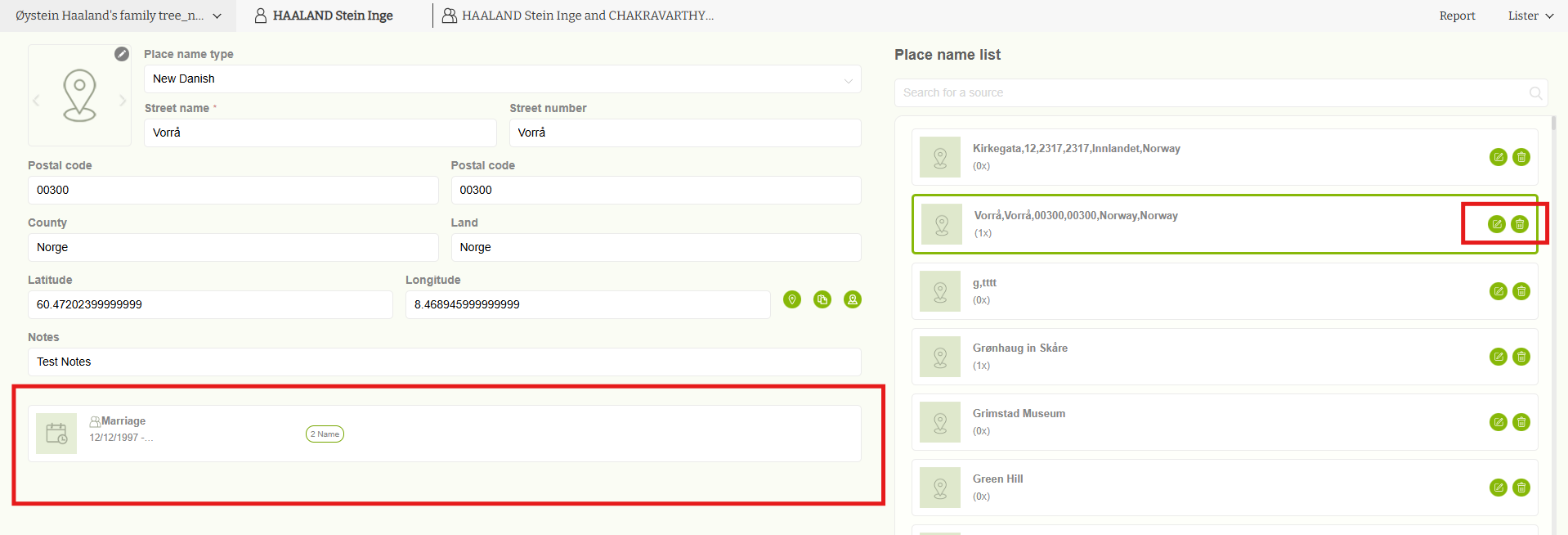
- Edit: Click the Edit icon next to a place to update its information.
- Usage Details:
Under the form fields, you will see a list of all events where this place is used (for example, Birth, Baptism, Marriage, Death).
This helps you understand exactly where the place is connected before making changes. - Delete: Use the Delete icon to remove a place from the list.
Leave a Reply