This article provides step-by-step guidance to help you restore your family project when transitioning to a new PC or using Version 9 of Embla Family Treasures.
Before starting the restoration process, please ensure that your personal details are up-to-date in Version 9, as this information is essential for accessing and restoring your backups correctly. If any details need updating, follow the steps outlined below, and then proceed with the restoration steps.
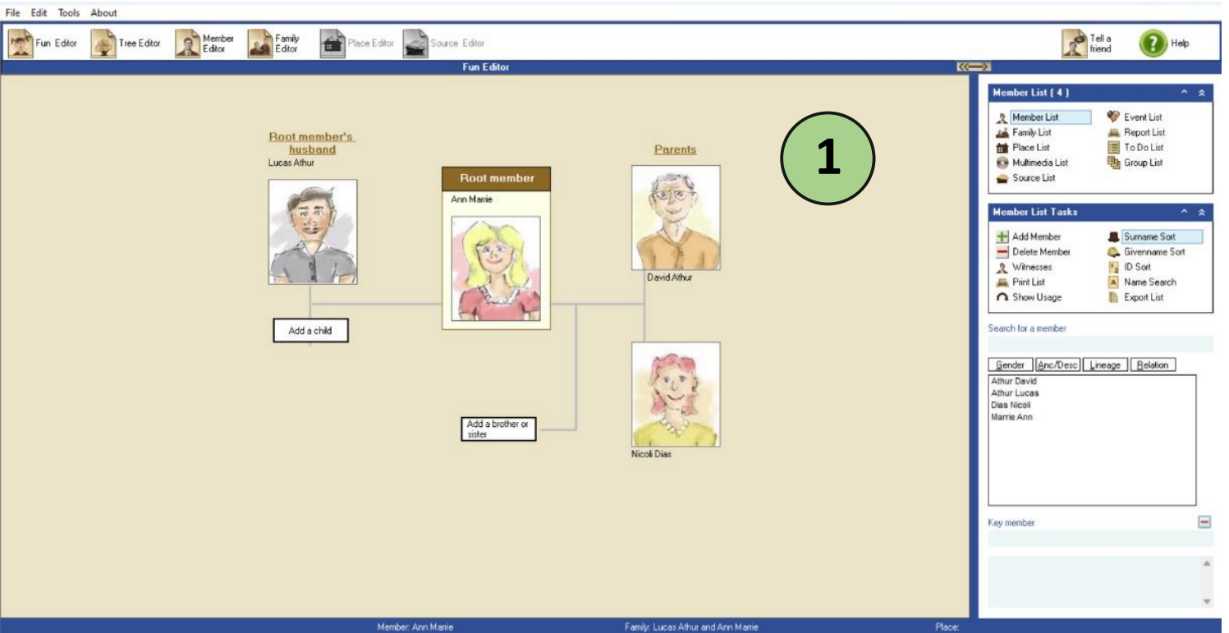
1. Open the version 9 application on your PC.
- You will get a page like below.
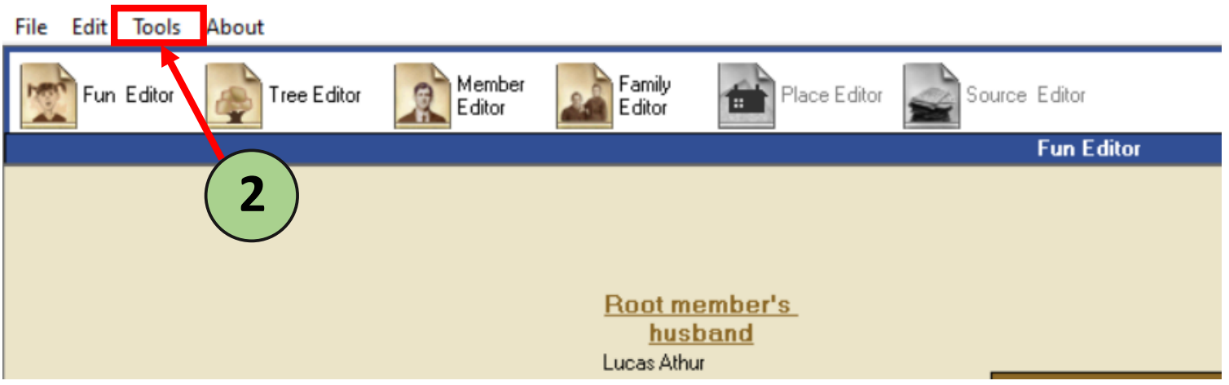
2. Click on the “Tools” link.
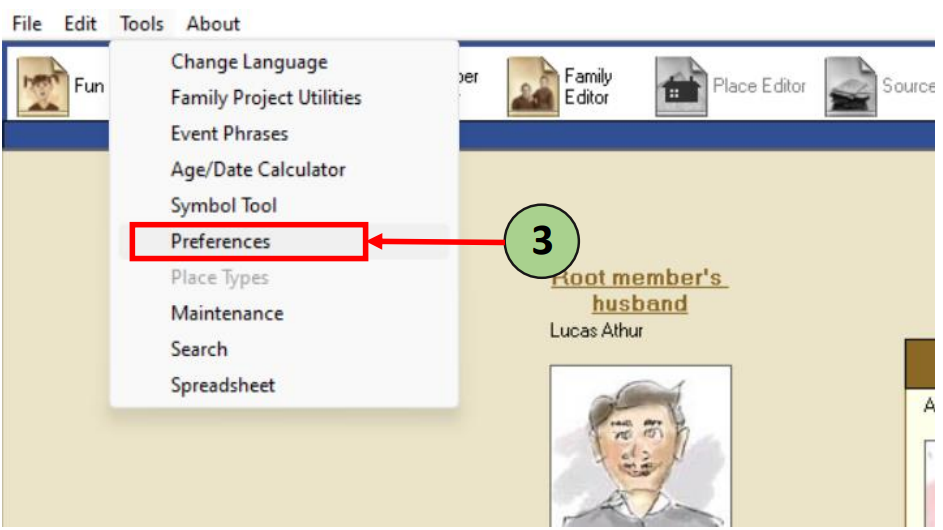
3. Select the “preferences” link.
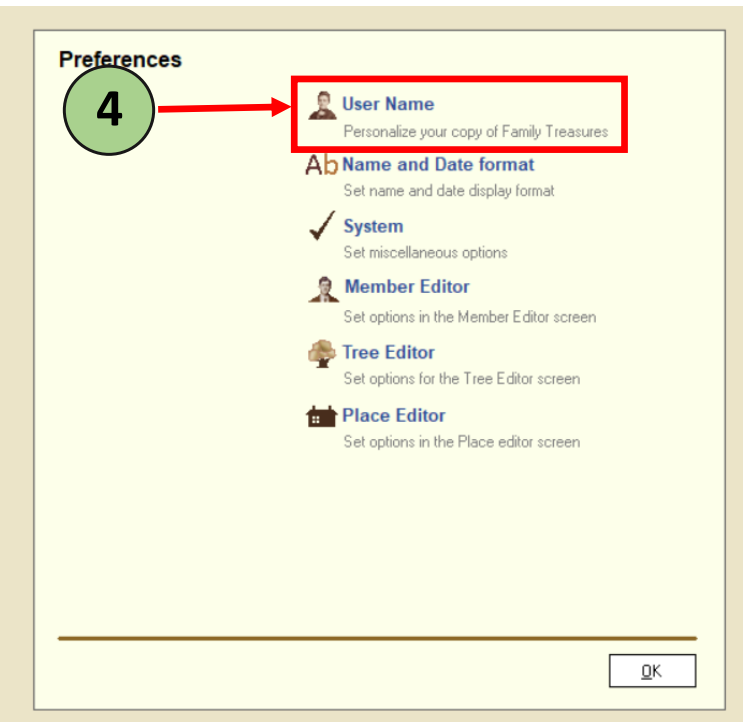
4. Click on the “User name” link.
You will be directed to a form to update your details.
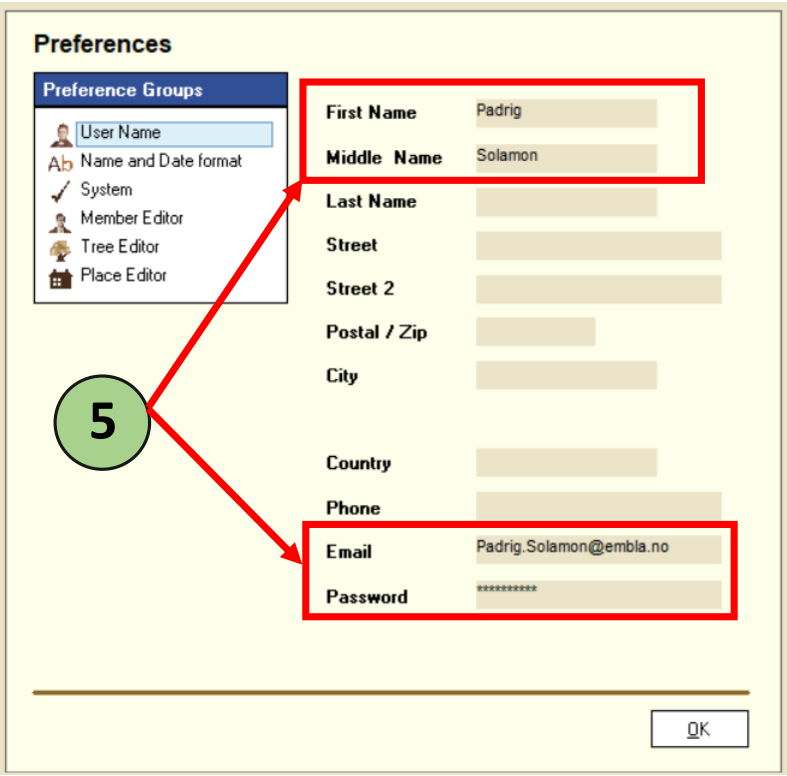
5. In there, please, fill the form.
Under “User Name” form, make sure the following details are filled in:
- First Name
- Last Name
- Password
(Please use the details you have provided when registering for the genealogy program.)
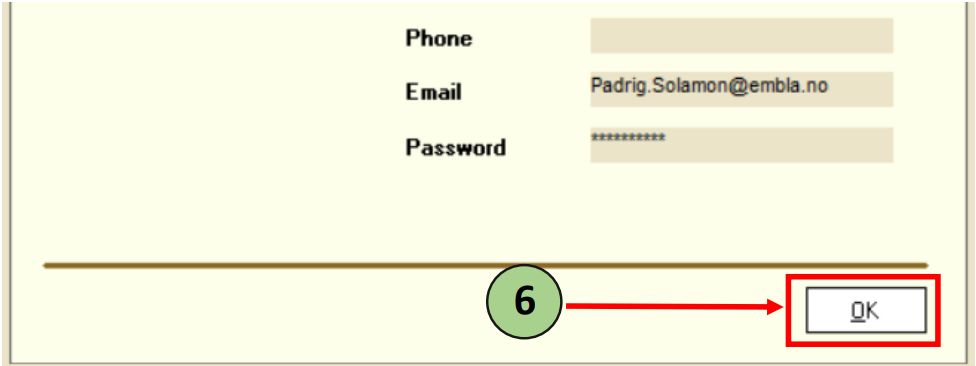
6. After completing the form, click ‘Ok’ button.
7. Close the version 9 program and reopen the version 9 application again.
If the details under the preferences section are updated successfully, you can proceed with the following steps to restore your family project:
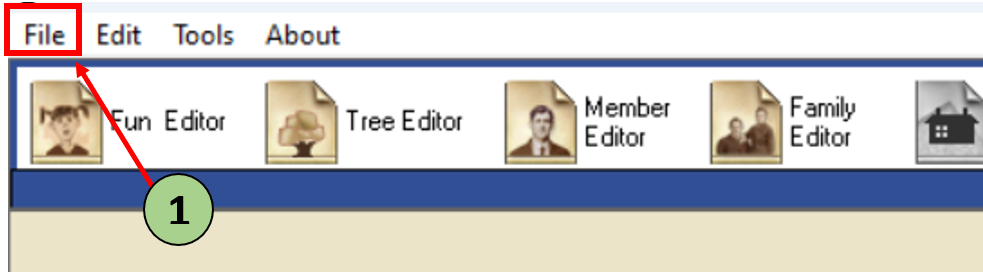
1.Open the “File” Menu.
-
- Click on the “File” link at the top of your screen.
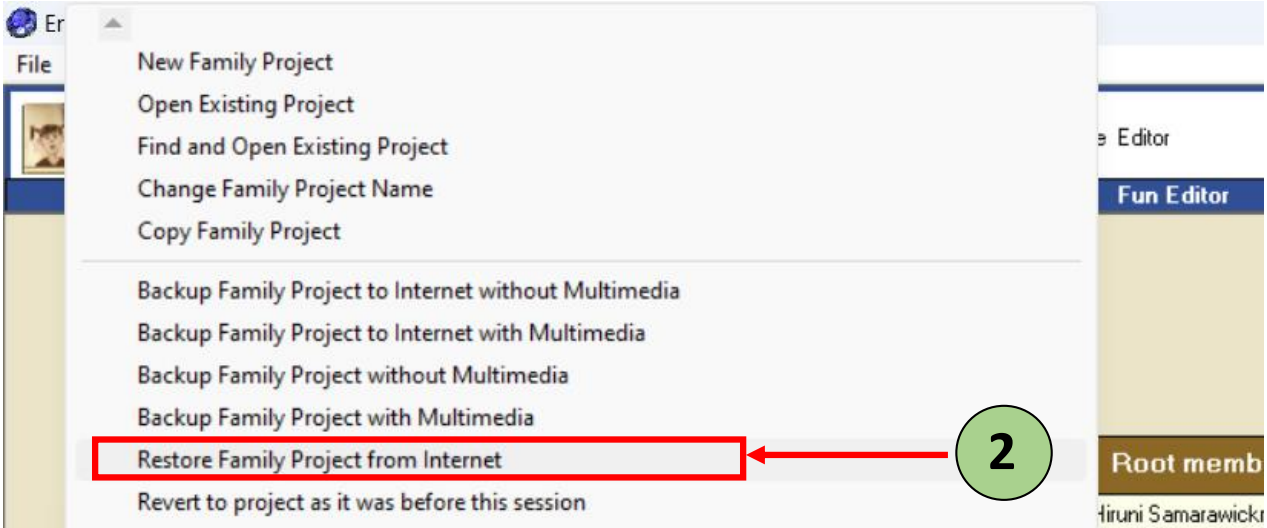
2. Select “Restore Family Project from the Internet”.
-
- Under the File menu, select Restore Family Project from the Internet.
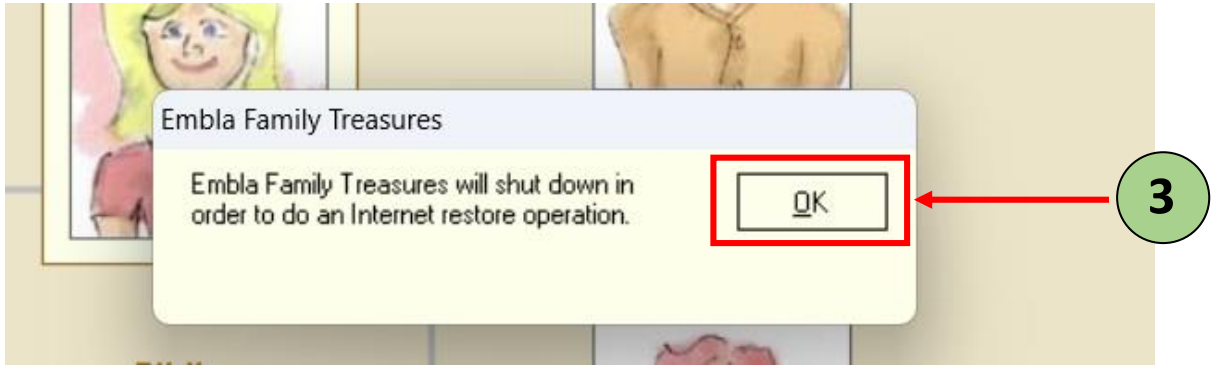
3.Confirm with “OK”.
-
- A message will appear, informing you that Version 9 will need to close to begin the restoration process from Version 10. Click OK to proceed.
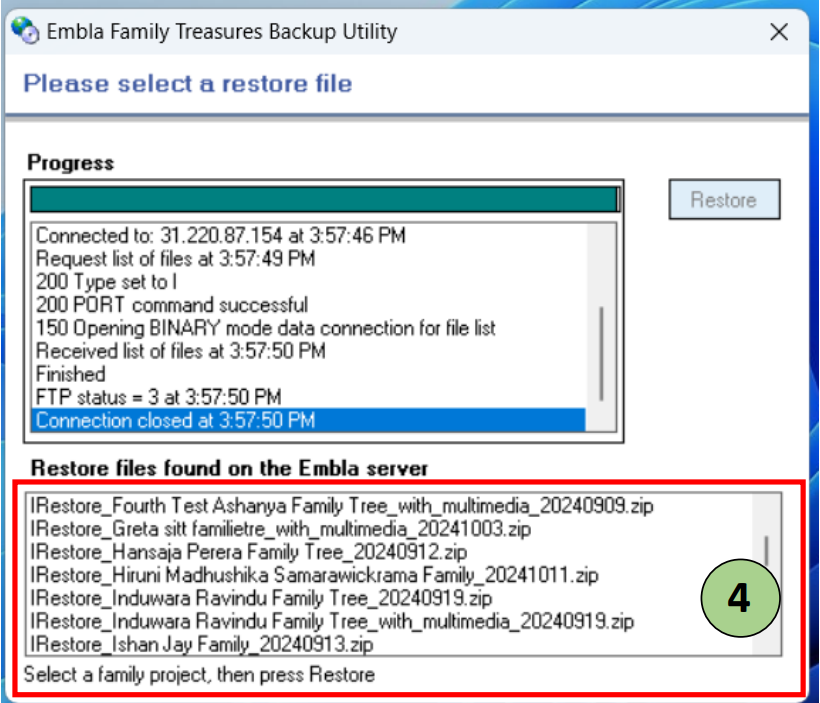
4.Close Version 9 and Load Backups from Version 10.
-
- Version 9 will close, and a new pop-up box will open, displaying a list of your family tree backups stored in Version 10. These backups will be visible under the “Restore files found on the Embla server” section.
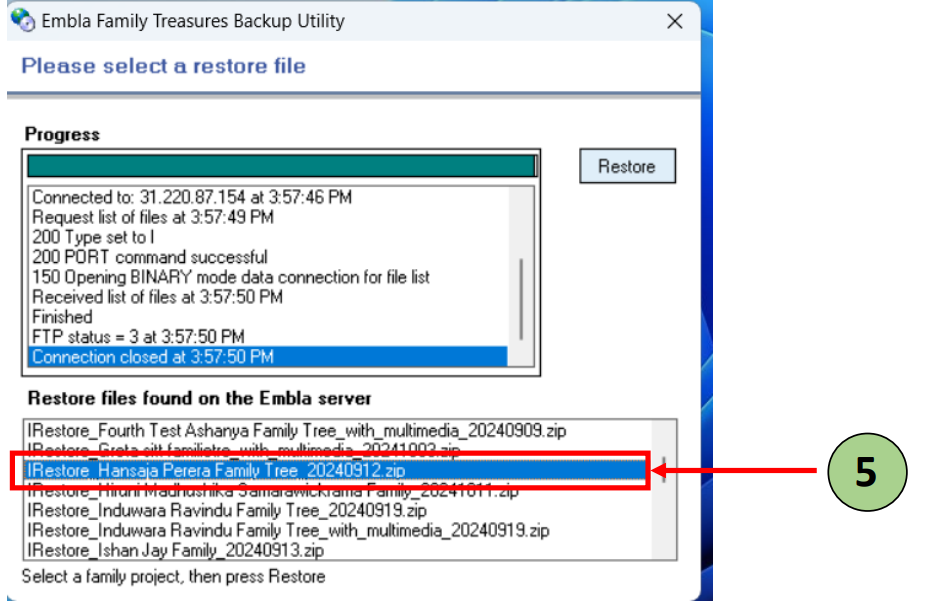
5.Select the Family Tree to Restore.
From the list, select the family tree you wish to restore to Version 9.
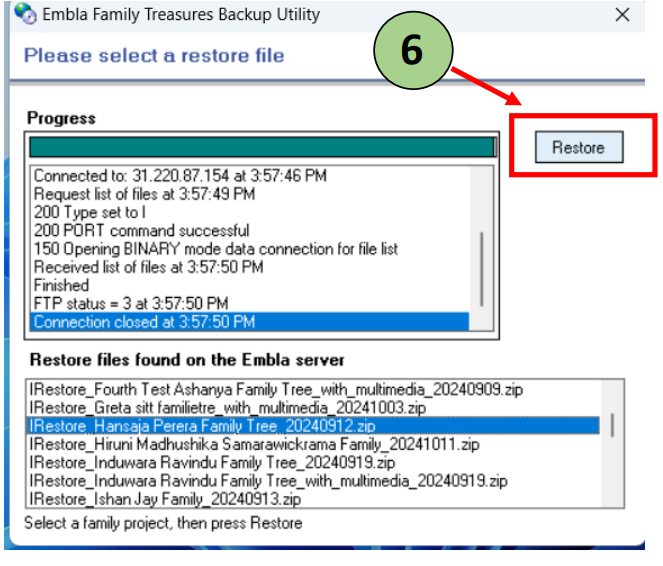
 6.Initiate the Restore Process.
Click the “Restore” button to begin. The restoration process will now start, which may take a few minutes to complete.
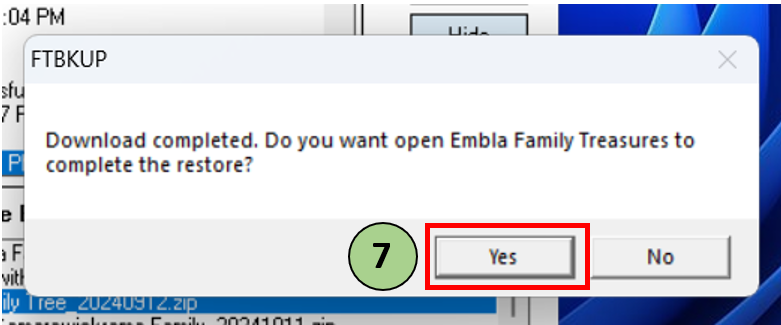
 7.Click “Yes” button to open the version 9 application with restored family tree.
By following these steps, your family project will be successfully restored with allowing you to continue your work in Embla Family Treasures.
Leave a Reply