If you encounter an error like the one shown below when trying to log in to version 10 through the version 9 site, this article provides solutions to resolve the issue. Please refer to the article and try the suggested fixes.
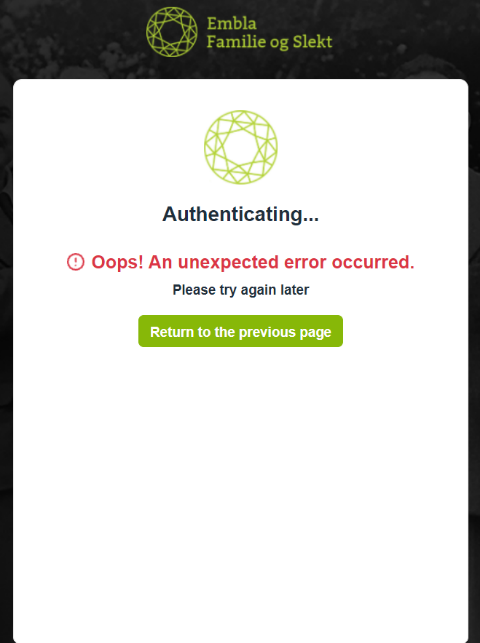
Additionally, we recommend that you avoid accessing version 10 by logging in through the version 9 site. Instead, log in directly to version 10 at www.embla.no, as shown in the following images.
We have provided two solutions here. Please kindly try them:
Solution 1:
- Go to www.embla.no using your browser (Chrome, internet Explorer, Firefox or any other).
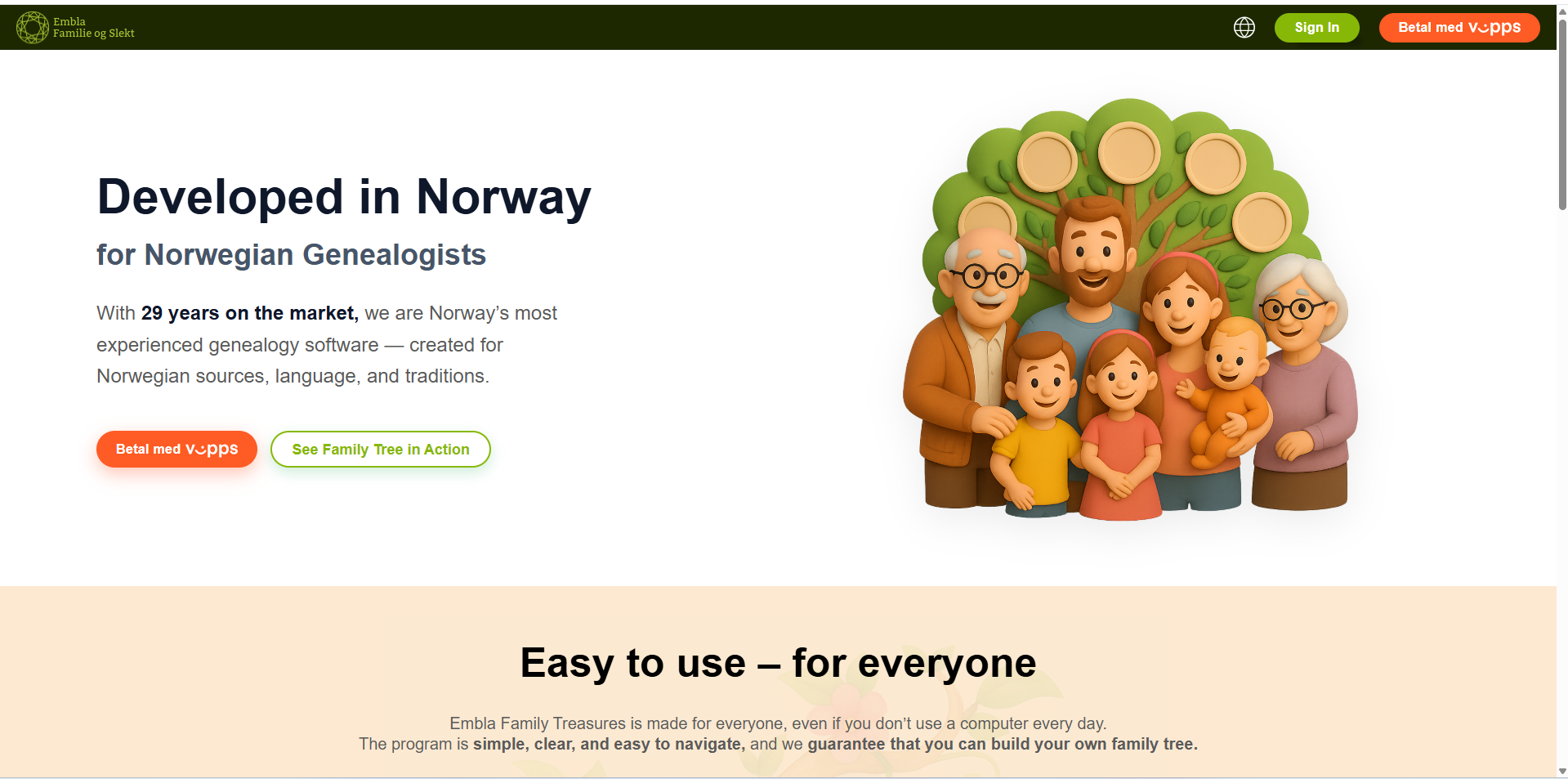
2. Hard refresh the page. To do this, follow one of the methods appropriate for your system/browser:
- Windows: Hold down Ctrl and press F5 or hold down Ctrl + Shift + R or hold down Ctrl and click the Reload button
- Mac: Hold down ⌘ cmd and ⇧ Shift and press R or hold down ⇧ Shift and click the Reload button
- Chrome or Firefox for Mac: Press Shift+Command+R
- Safari for Mac: Press Command+Option+E to empty the cache, then hold down Shift and click Reload in the toolbar
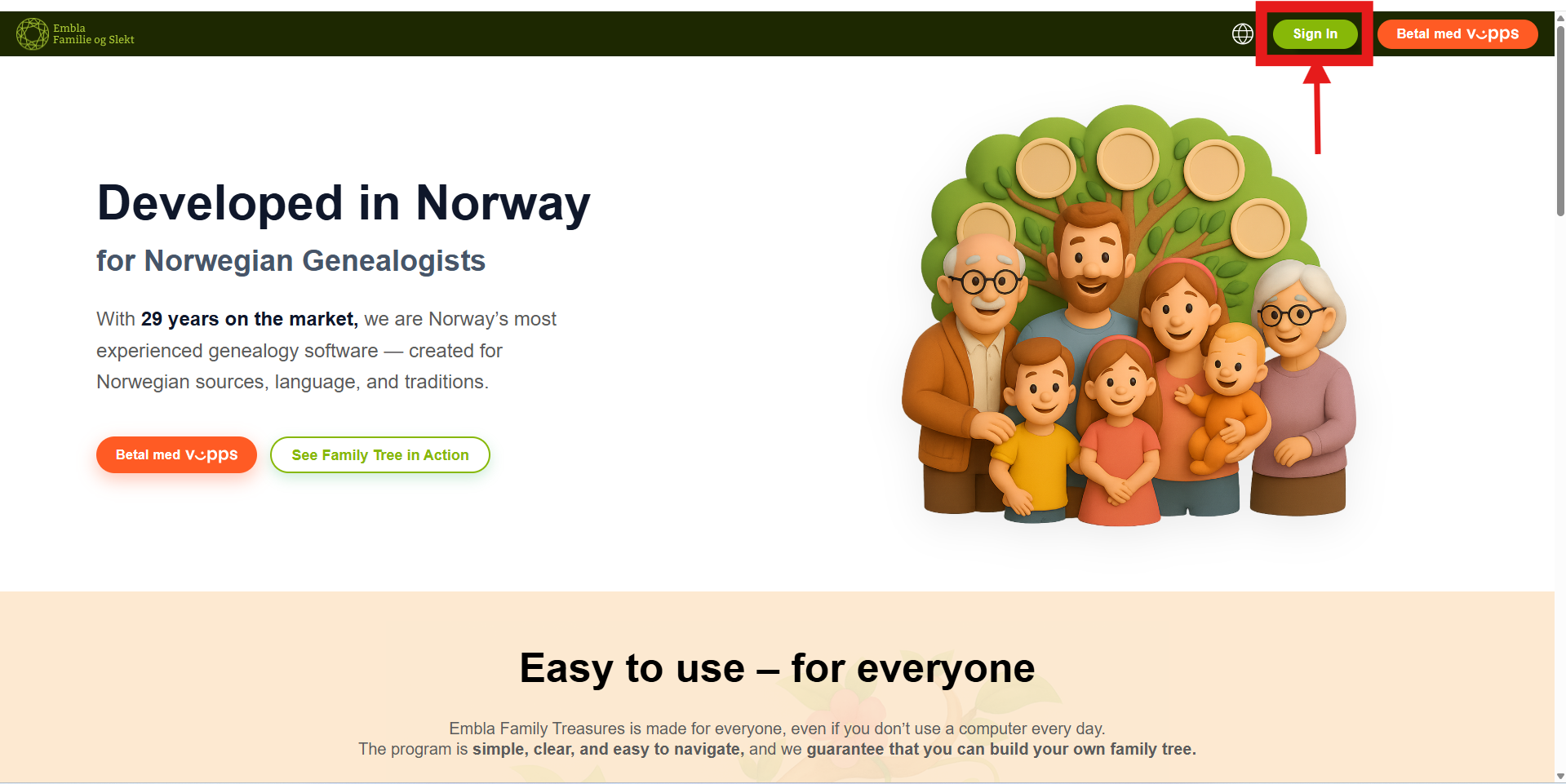
3. After that, click on the “Sign in” button.
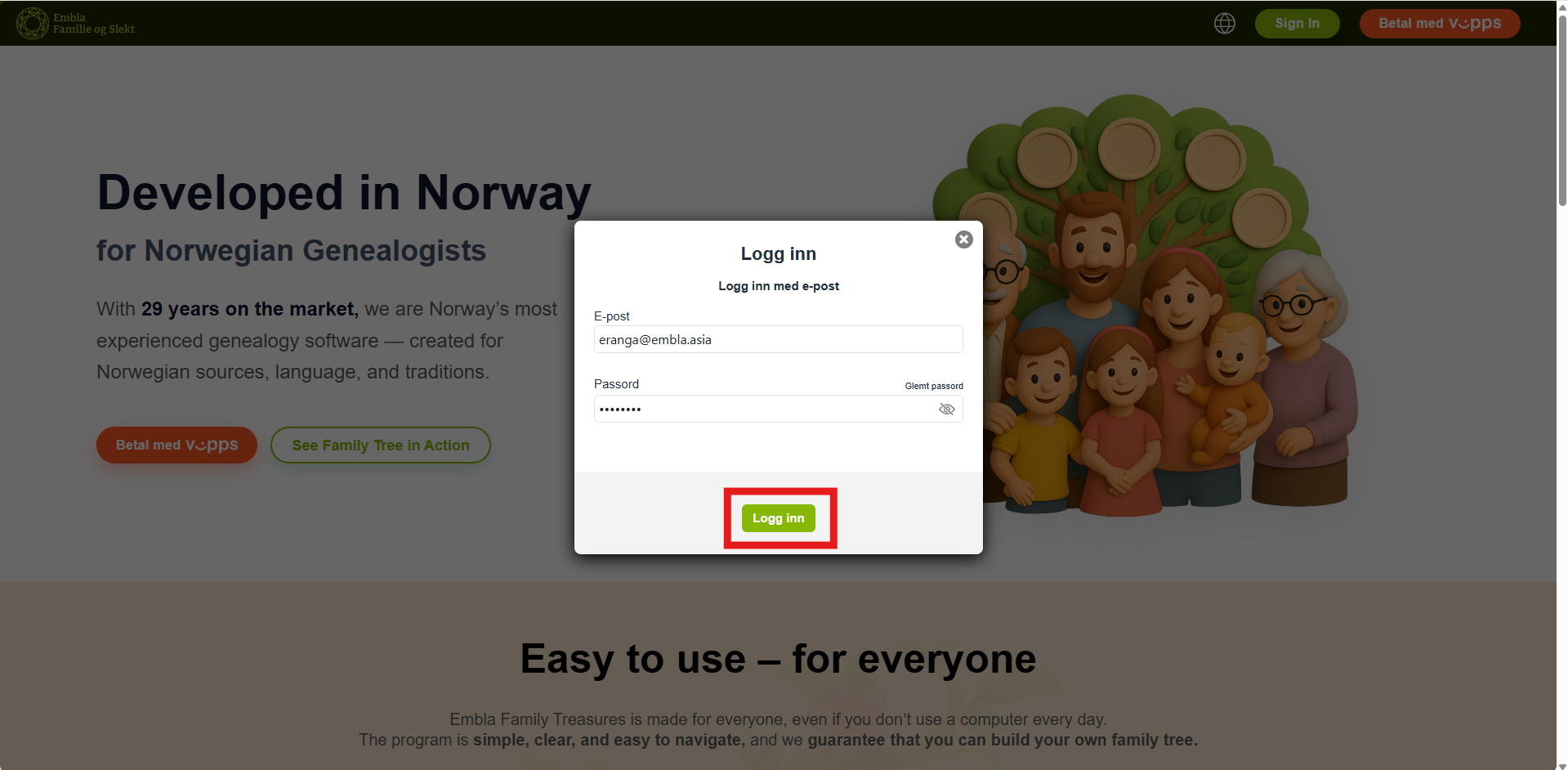
4. Enter the email and password associated with your Embla account.
5. You should now be able to access your family trees.
Solution 2:
If the “solution 1” does not work, we recommend trying to access Version 10 using incognito mode. Here is how you can do that:
1. Open your browser (Chrome, Firefox, Edge, etc.).
2. In the top-right corner, click the three dots (or lines) to open the settings menu and select New Incognito Window (or New Private Window).
Alternatively, use the keyboard shortcut:
-
- Ctrl + Shift + N (on Windows)
- Command + Shift + N (on Mac)
3. In the incognito/private window, go to www.embla.no and press Enter.
4. Once the Version 10-page loads, click on the “Sign in” button.
5. Enter the email and password associated with your Embla account.
6. You should now be able to access your family trees.
Leave a Reply