If you experience unexpected behaviours or “blocking” issues—like layouts not updating, buttons not working, or missing content—doing a hard refresh can often solve the problem. It’s a quick and easy troubleshooting step.
Here is how you can do that:
1. Go to www.embla.no using your browser (Chrome, internet Explorer, Firefox or any other).
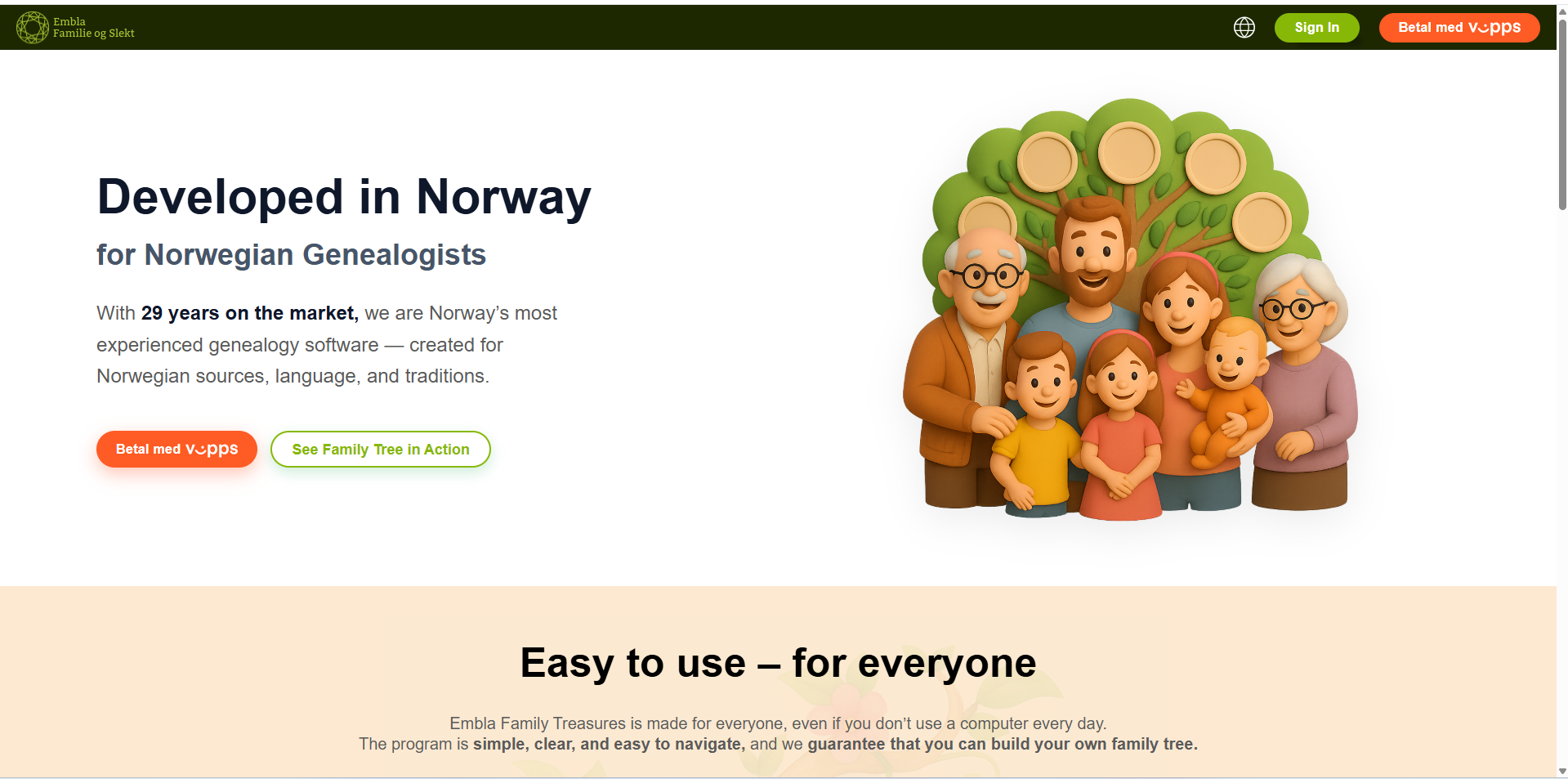
2. Hard refresh the page. To do this, follow one of the methods appropriate for your system/browser:
- Windows: Hold down Ctrl and press F5 or hold down Ctrl + Shift + R or hold down Ctrl and click the Reload button
- Mac: Hold down ⌘ cmd and ⇧ Shift and press R or hold down ⇧ Shift and click the Reload button
- Chrome or Firefox for Mac: Press Shift + Command + R
- Safari for Mac: Press ⌘ Command + Option + E to empty the cache, then hold down Shift and click Reload in the toolbar
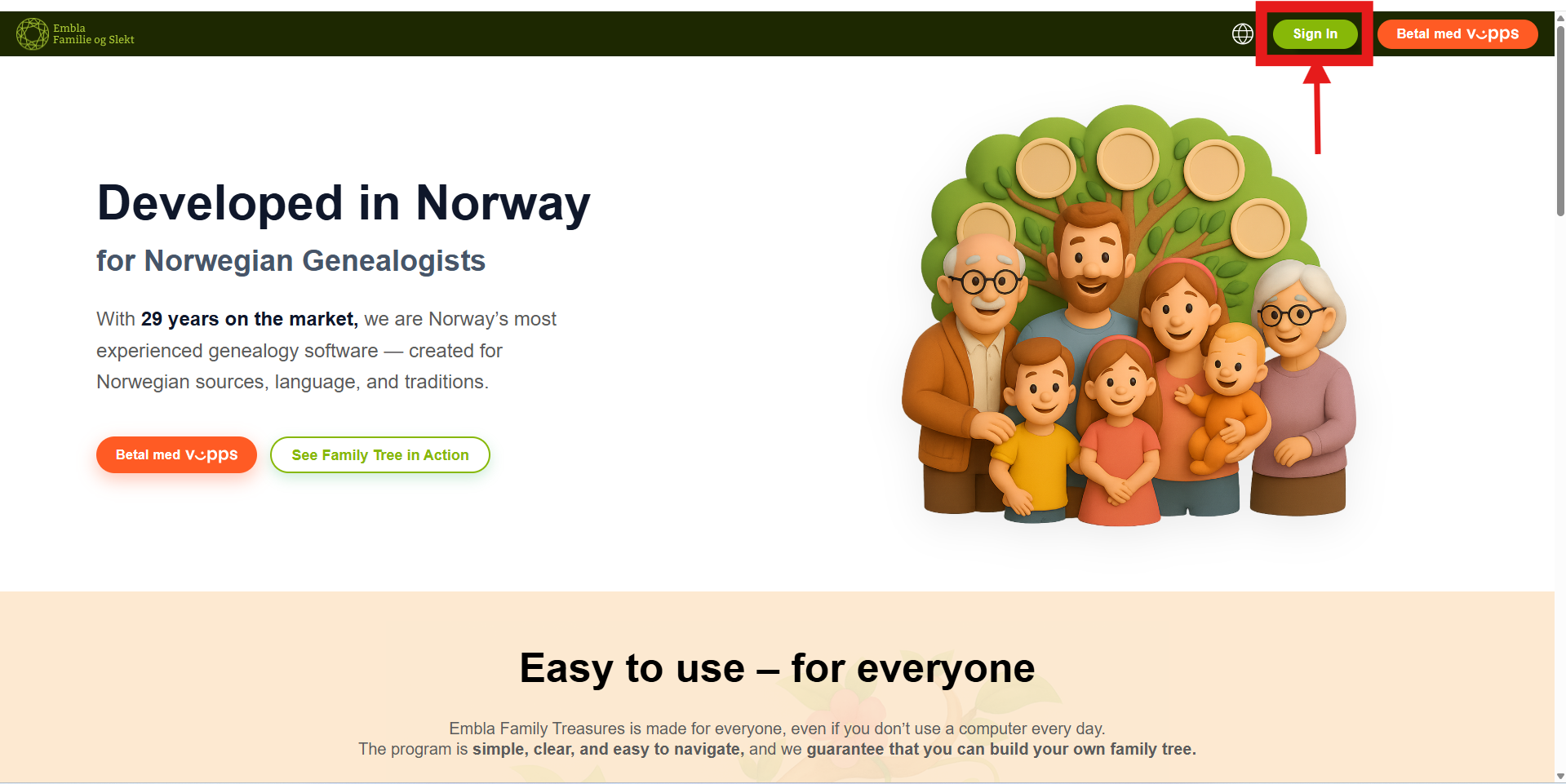
3. After that, click on the “Sign in” button.
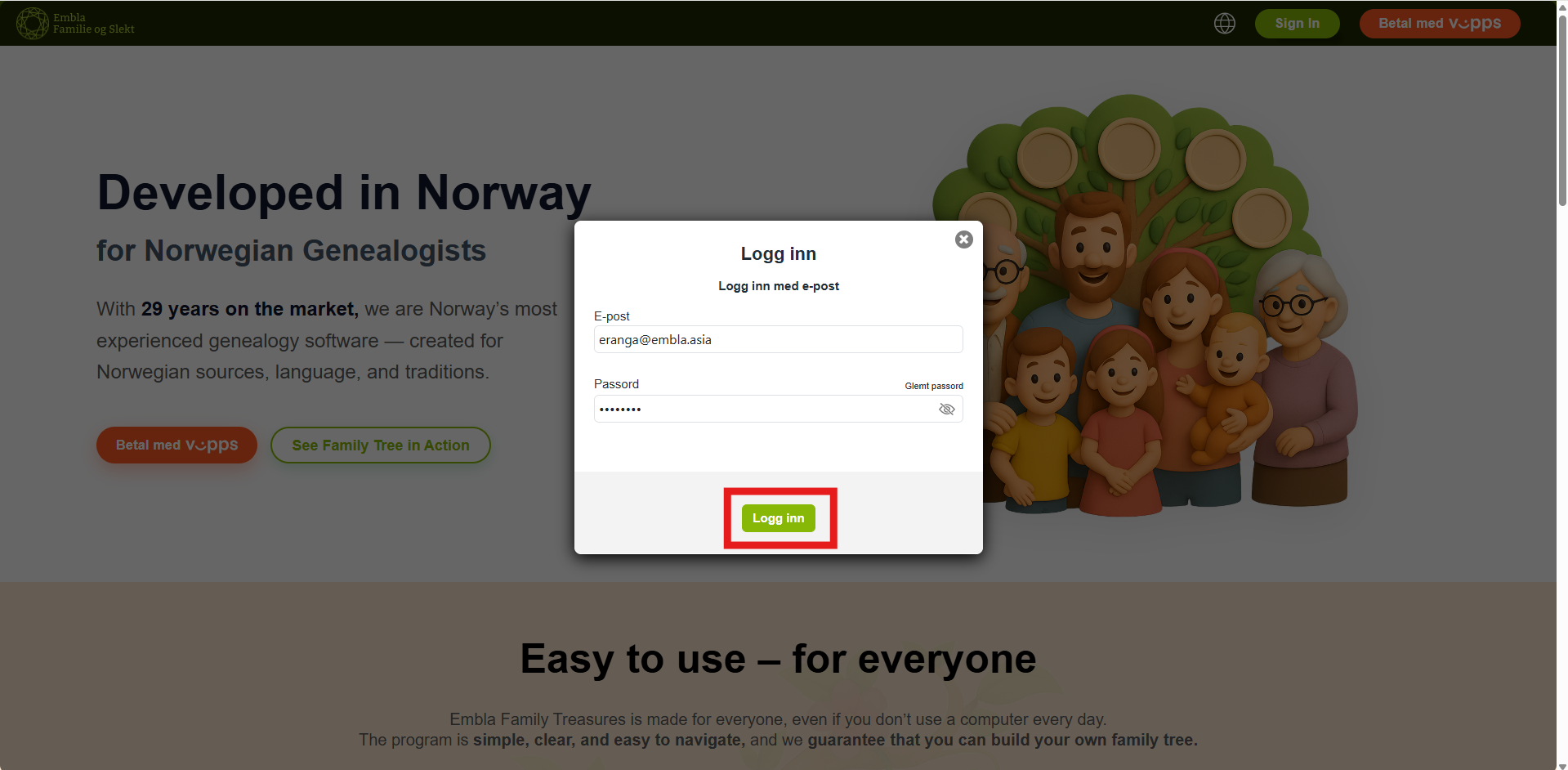
4. Enter the email and password associated with your Embla account.
5. You will be redirected to a loading page and then gain access to your dashboard (home page).
Leave a Reply