What is caching problem?
A caching problem in a web application occurs when old data is stored, causing issues like login errors, outdated information, or broken features. This can prevent users from seeing updates right away or even accessing their accounts. Clearing the cache usually fixes these issues by loading the latest data.
What are the solutions for that issue?
Caching issues in Version 10 of the application can sometimes prevent users from logging into their accounts or cause changes you make in the application to not show up right away. These problems mainly affect users of Version 10, impacting both access and updates. This guide provides two effective solutions to help resolve these issues. If you’re experiencing trouble logging in or working within the application, try these solutions first for a smoother experience.
We recommend first refreshing the browser by selecting the refresh icon (Reload button) located next to the browser’s search bar, since this can often resolve caching issues promptly.
If this does not resolve the issue, please proceed with the additional solutions outlined below.
Solution 1 – Clear cache in your browser:
- Open your browser (Chrome, Firefox, Edge or any other browser).
- Click the 3 vertical dots to open the menu.
- Select “Delete browsing data”.
- Choose a time range.
- Select the types of information you want to remove.
- Click “Delete data”.
- Open a new browser tab.
- In the address bar, enter www.embla.no and log in to your account as you usually do.
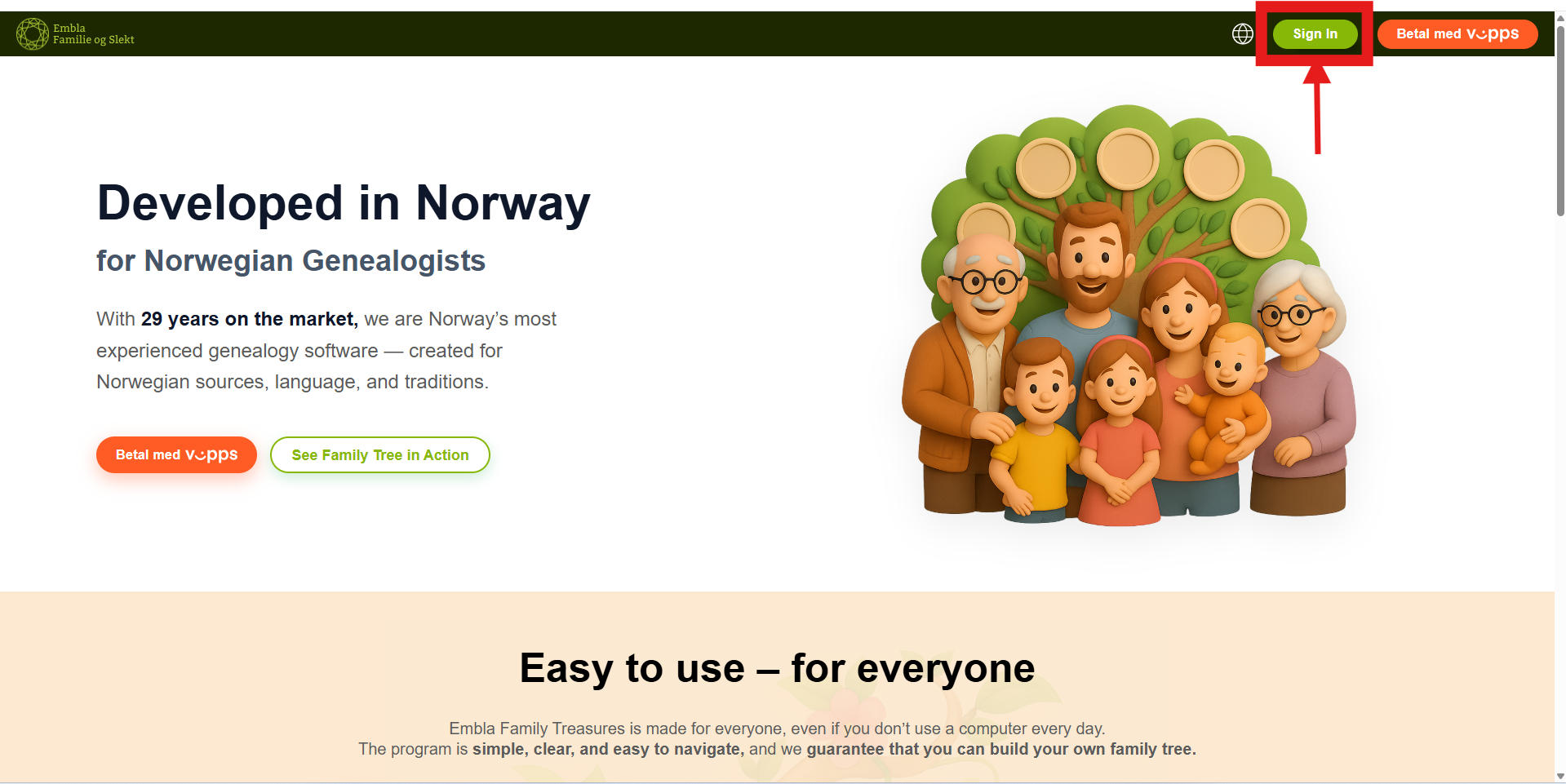
9. You should now be able to access your family trees.
Solution 2 – Hard refresh the browser:
1.Go to www.embla.no using your browser (Chrome, internet Explorer, Firefox or any other).
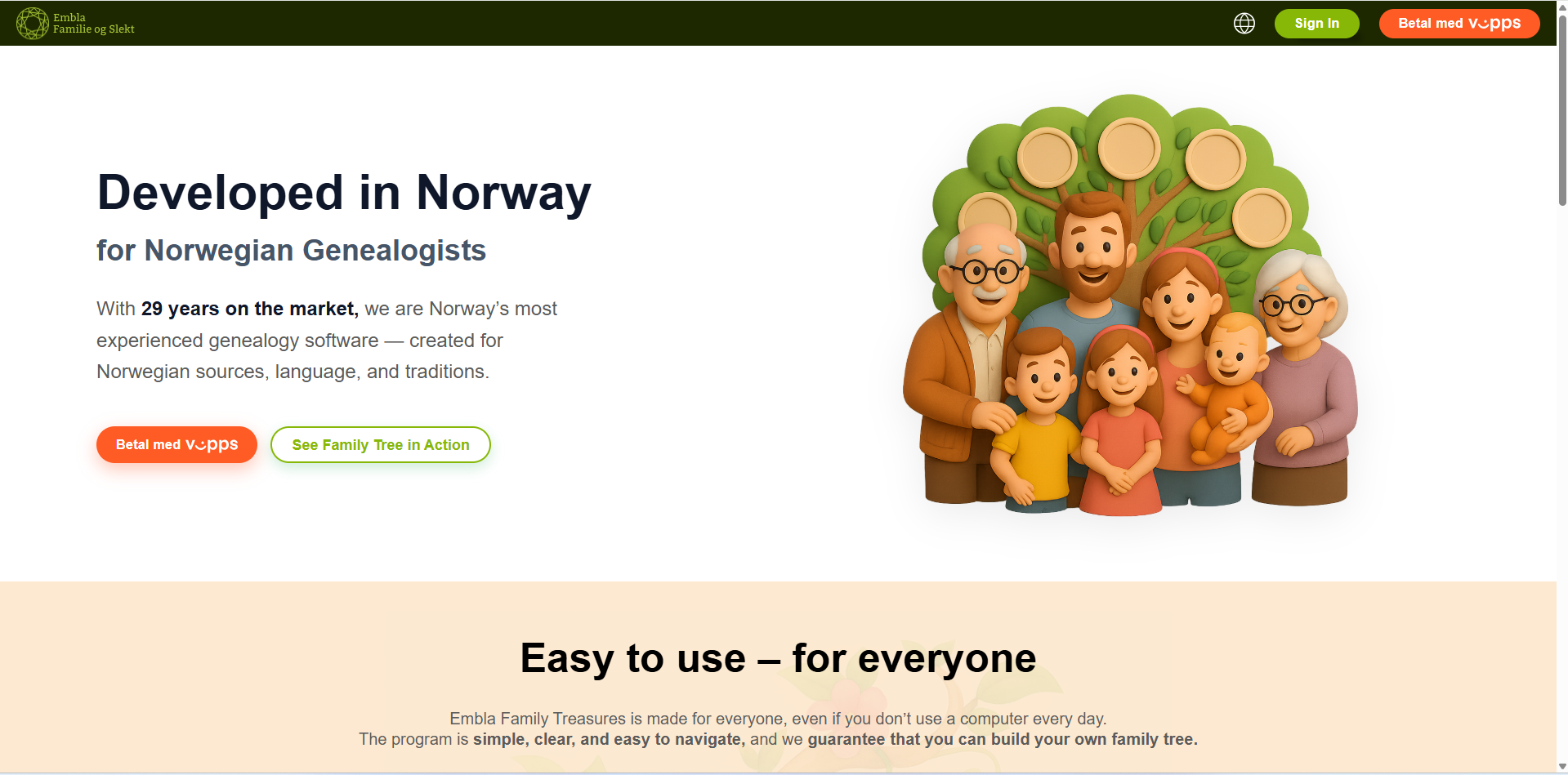
2. Hard refresh the page. To do this, follow one of the methods appropriate for your system/browser:
- Windows: Hold down Ctrl and press F5 or hold down Ctrl + Shift + R or hold down Ctrl and click the Reload button
- Mac: Hold down ⌘ cmd and ⇧ Shift and press R or hold down ⇧ Shift and click the Reload button
- Chrome or Firefox for Mac: Press Shift + Command + R
- Safari for Mac: Press Command + Option + E to empty the cache, then hold down Shift and click Reload in the toolbar
3. Now, Login to your account with email and password by clicking the “Sign in” button.
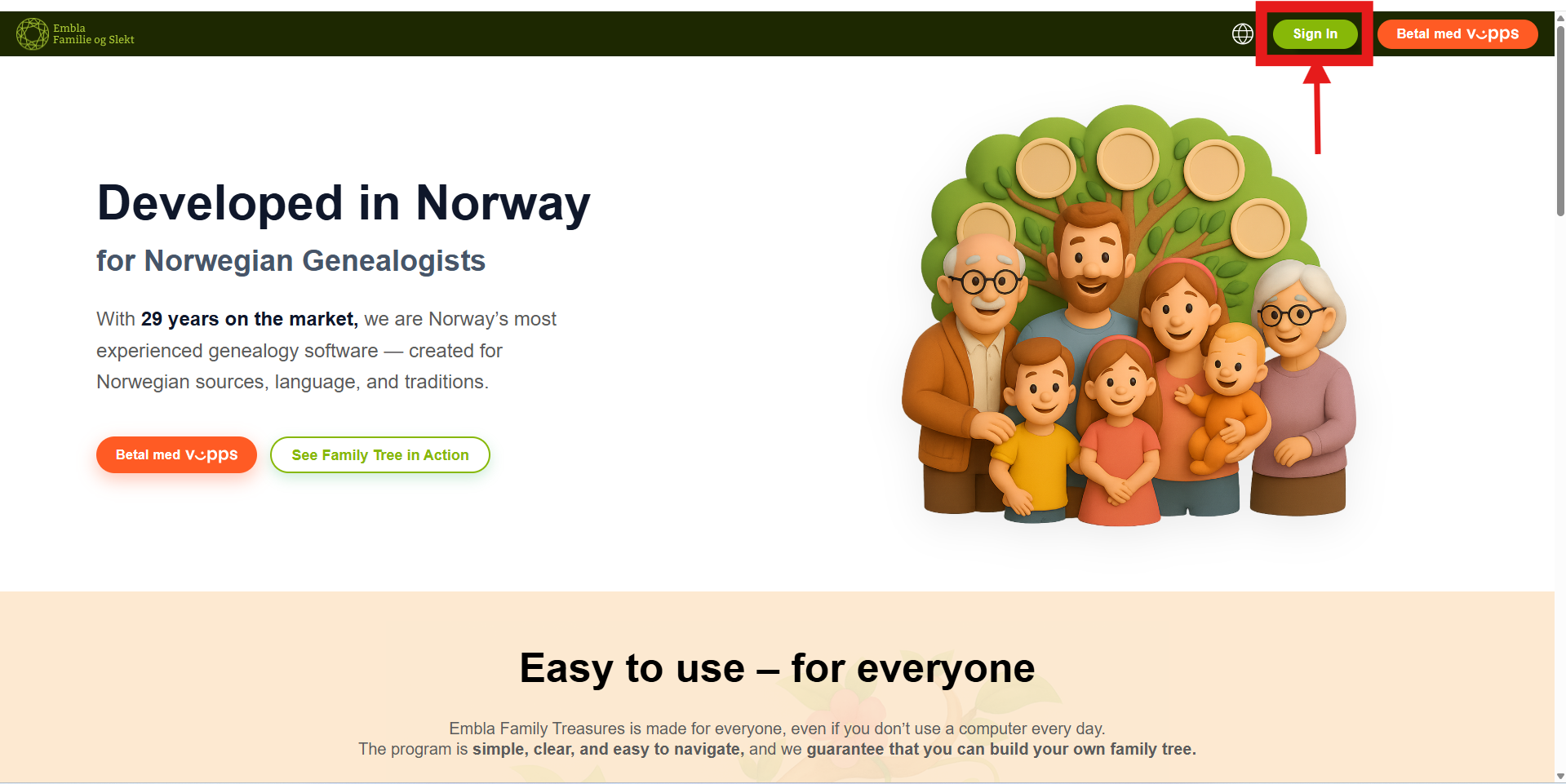
5. You should now be able to access your family trees.
Solution 3 – Open V10 through an Incognito mode:
If the “solution 1 and 2” does not work, we recommend trying to access Version 10 using incognito mode. Here is how you can do that:
- Open your browser (Chrome, Firefox, Edge, etc.).
- In the top-right corner, click the three dots (or lines) to open the settings menu and select New Incognito Window (or New Private Window).
- Alternatively, use the keyboard shortcut:
- Ctrl + Shift + N (on Windows)
- Command + Shift + N (on Mac)
4. In the incognito/private window, go to www.embla.no and press Enter.
5. Now, Login to your account with email and password by clicking the “Sign in” button.
6. You should now be able to access your family trees.
Leave a Reply