V10 is the latest version of the “Embla Norwegian Family History” and it is web – based application. Thus, it is accessible from laptop/desktops and anywhere.
It is recommended to use a stable internet connection while accessing V10, as this will enhance the efficiency of the services provided.
This article provides a step-by-step guide on how to purchase V10, ensuring a smooth buying process.
Go to the www.embla.no site through your internet browser.
You will be redirected to the “Embla Norwegian Family History” web application.
After that, click on the “Sign in” button.
You need to log in to the site because you are a member of the Embla Family History.
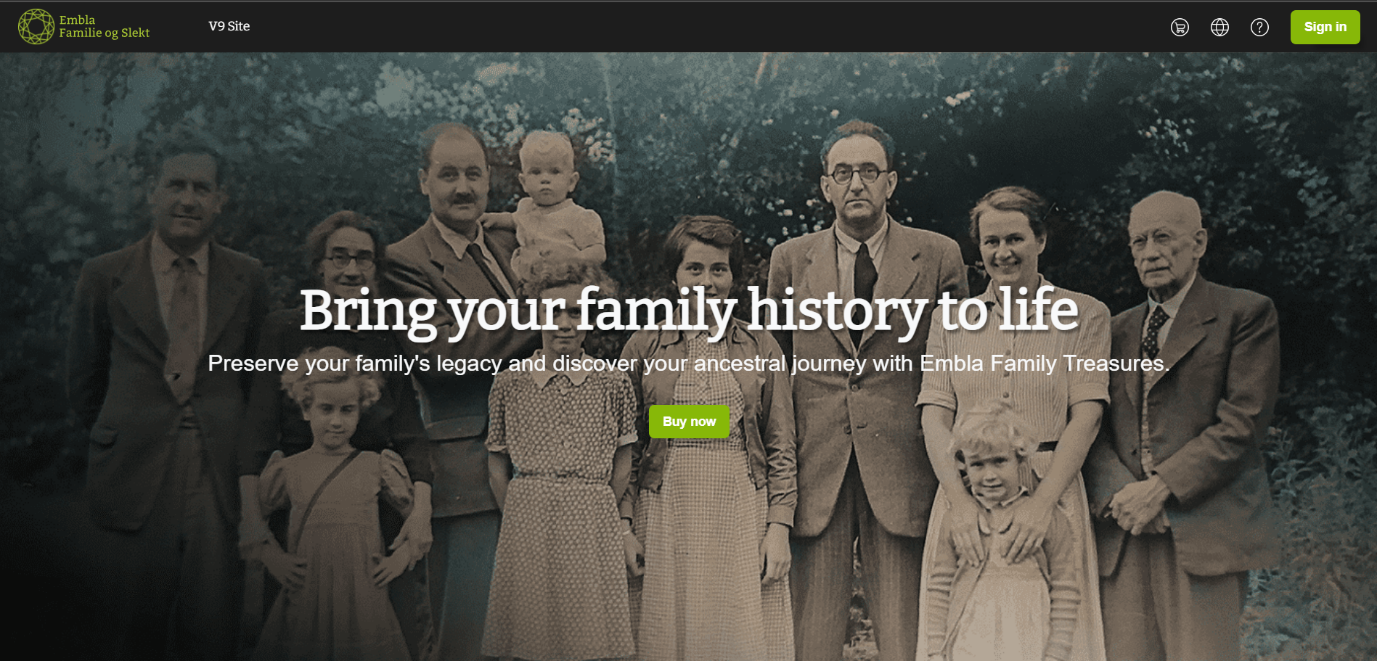
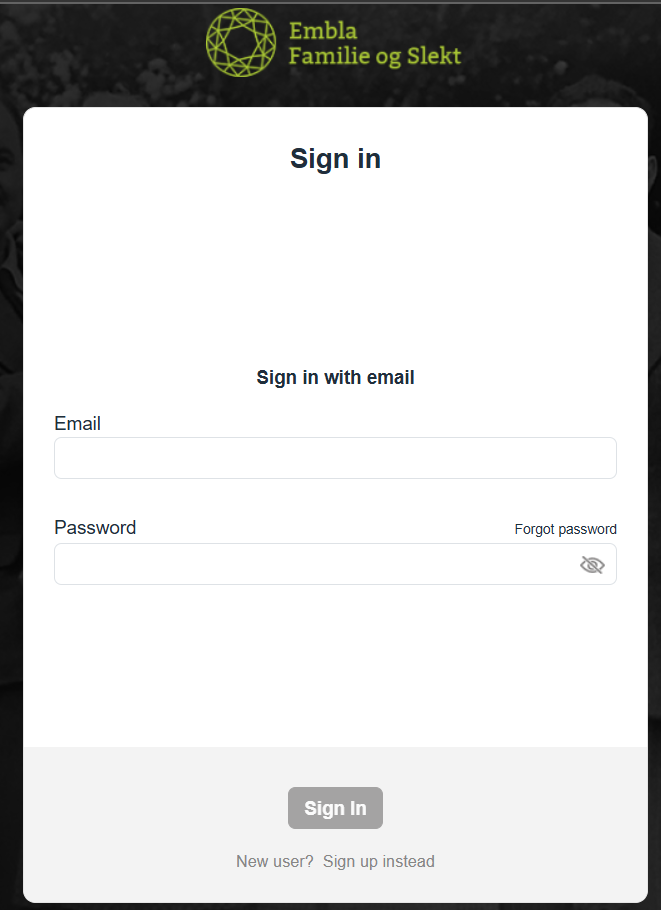
After clicking the button, a sign-in form will appear where you can fill in your email and password. Ensure you use the same email and password linked to your Embla account.
- Click on the “Buy Now” button.
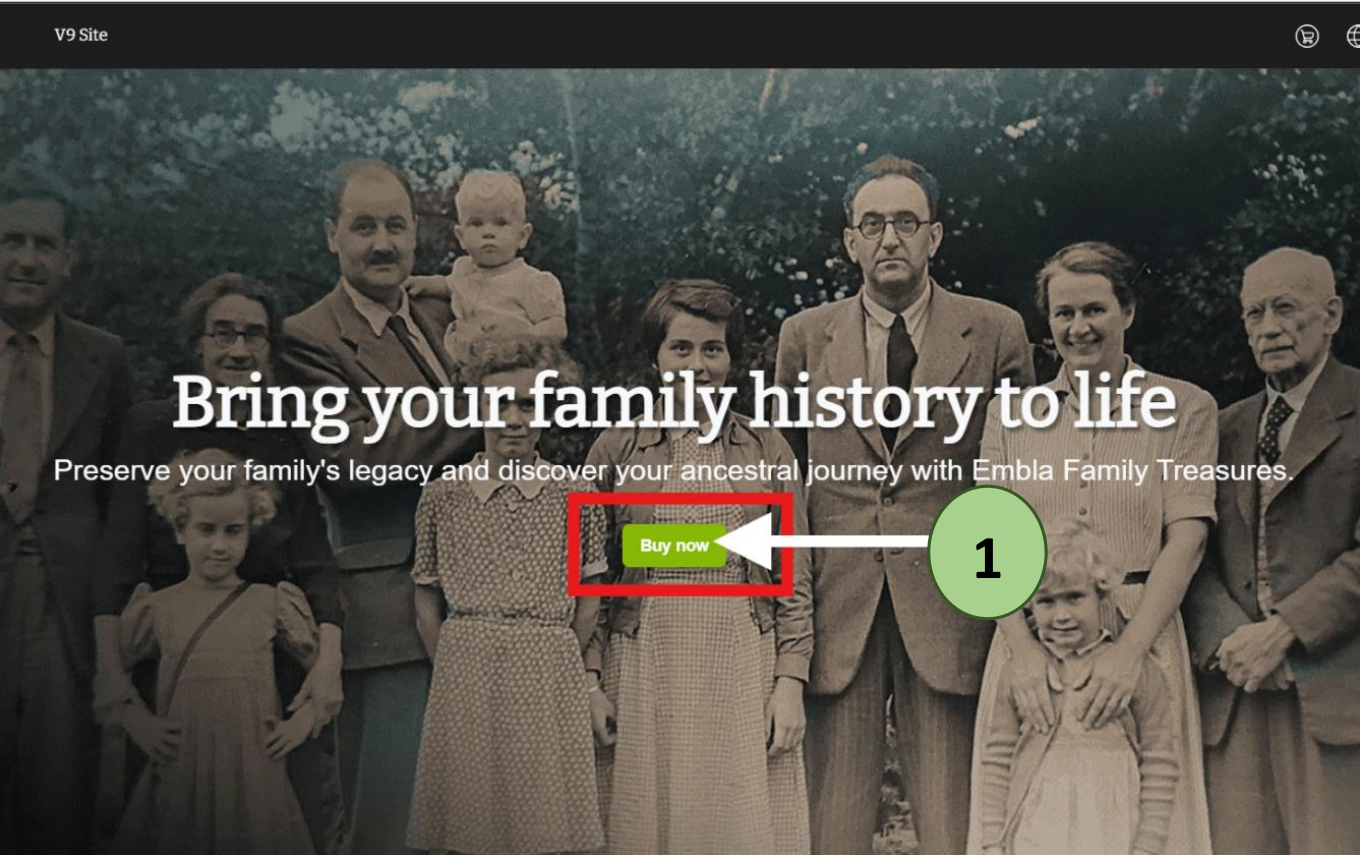
After Clicking this ‘Buy now’ button, you will be redirected to the purchasing page.
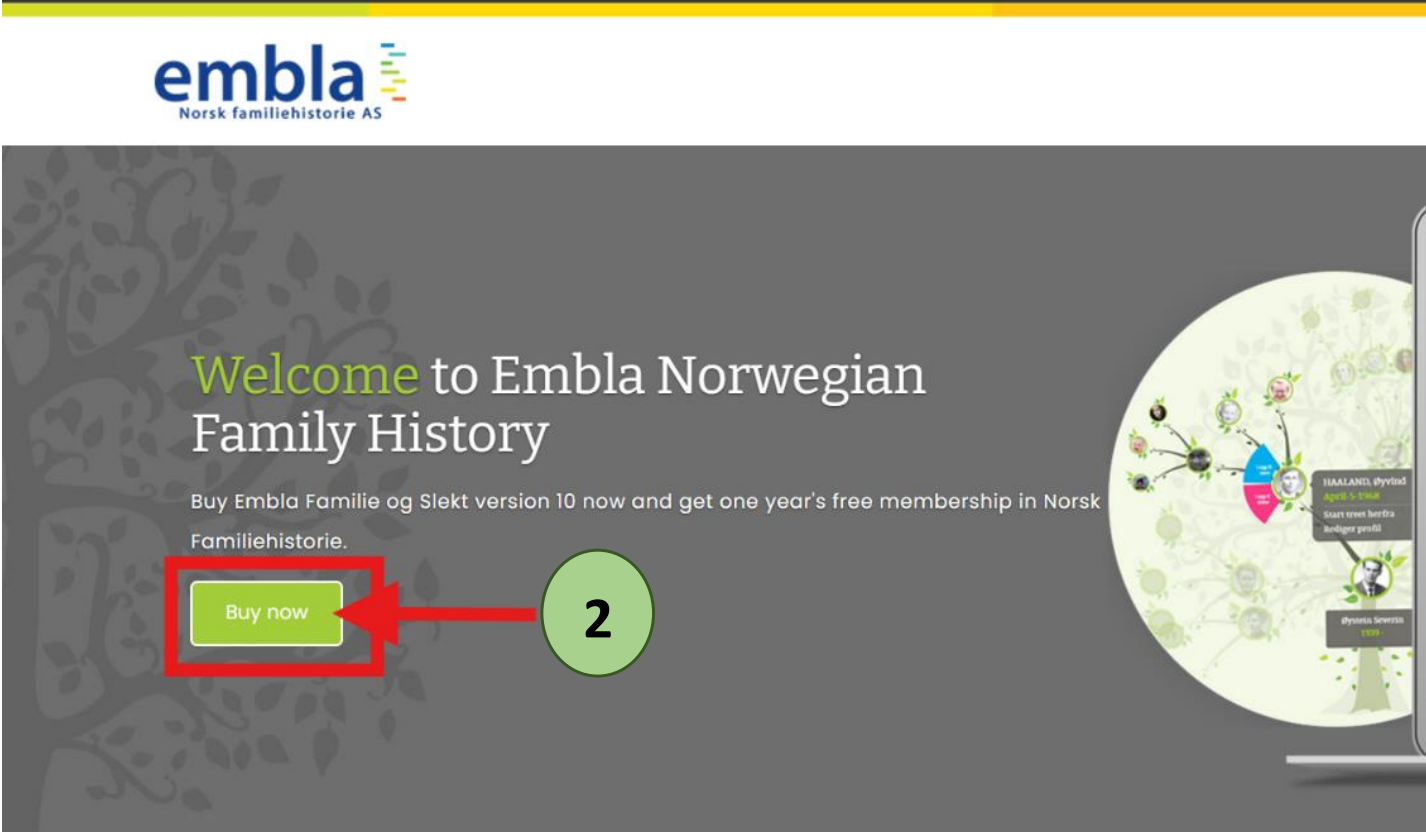
2. Click on the “Buy now” button in this page.
After Clicking this ‘Buy now’ button, you will be redirected to a forum to fill the personal details
3. Fill the relevant personal details Correctly and Click ‘Confirm’.
You need to fill the all the fields which are marked from * sign. Then after only the ‘Confirm’ button colour is changed to green Colour.
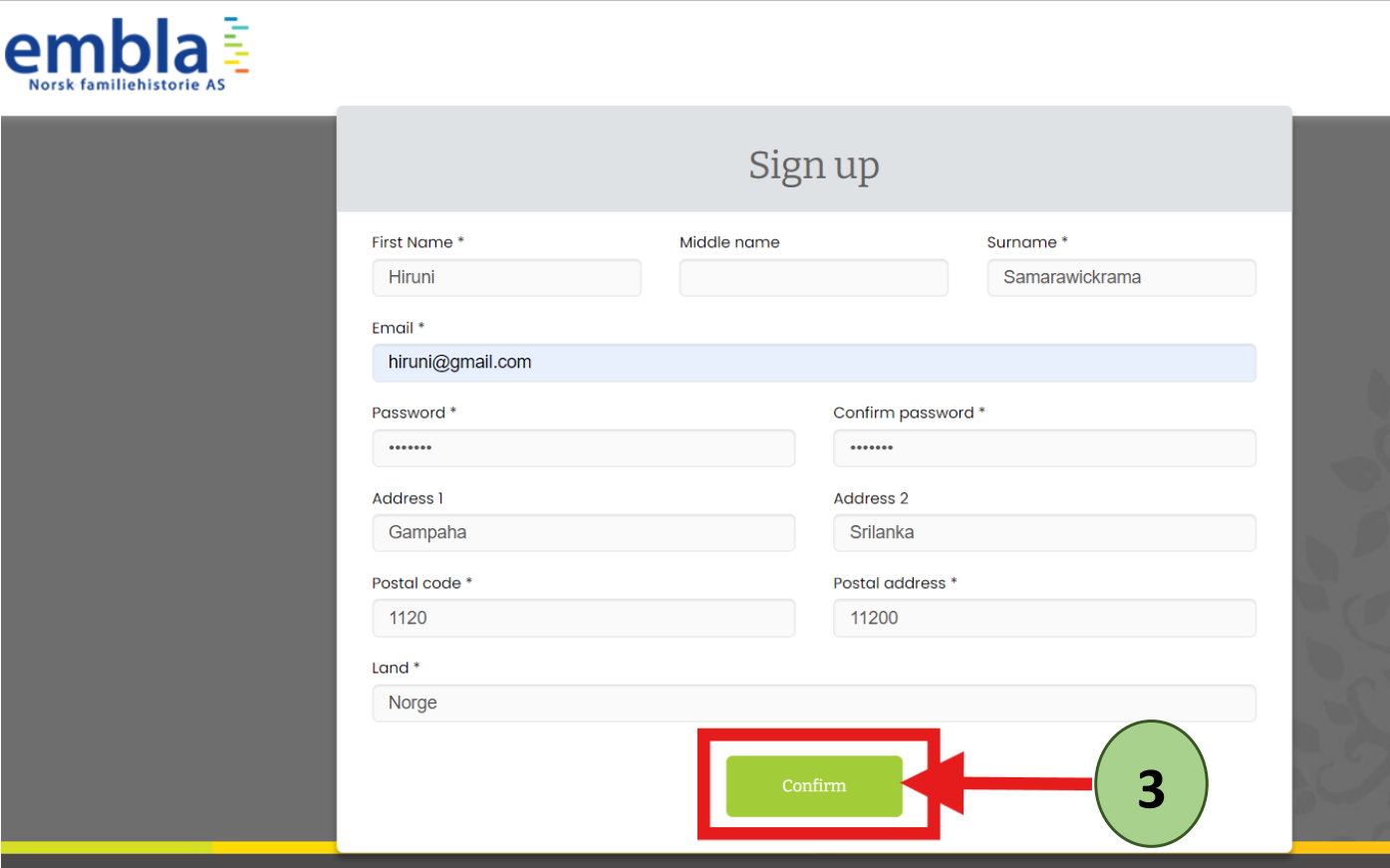
(Note: Sometimes this form will be filled automatically if you are a customer of our older versions.)
(Please remember the Email and password which you entering this forum because that email and password is needed when login for the V10. It is important to use an active email that you are currently using because we will contact you through that email for any updates or support related to your V10 experience.)
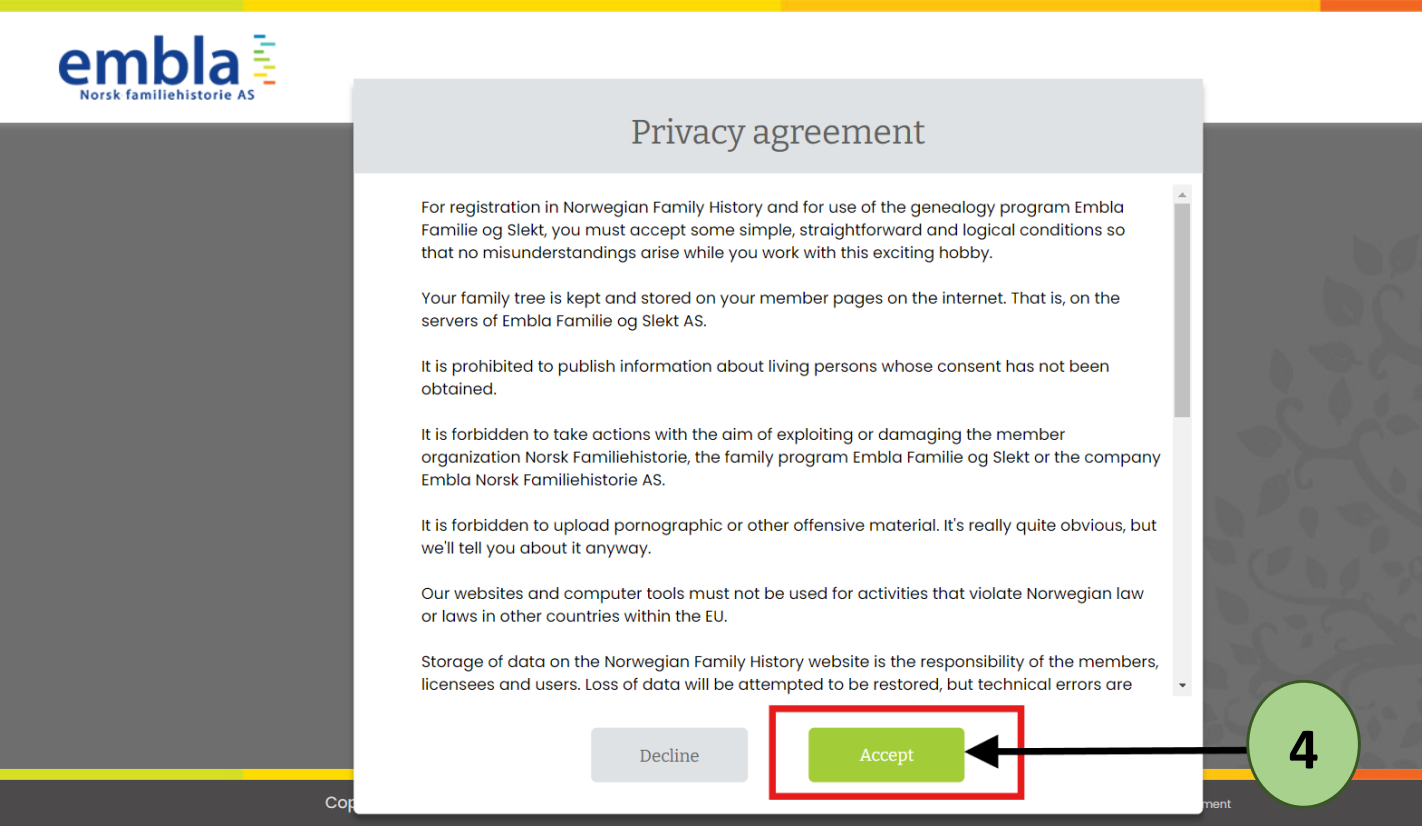
After Clicking ‘Confirm’ button, you will be redirected to the privacy agreement.
4. Click on the ‘Accept’ button.
5. Choose a Payment Method.
(Please note that you need to pay NOK 1290 when you are purchasing V10 and it includes one year of free membership for ‘Embla Norwegian Family History’)
After Clicking the ‘Accept’ button, you will be redirected to a page where you can choose your preferred method of payment. You have the following options:
Option A:
I. Select the ‘Invoice in the mail’ option.
If you choose “Invoice in the mail” for your order, our management team is notified via email. After that, we will send you an email with an invoice.
After receiving the invoice, you need to make the payment physically at a bank.
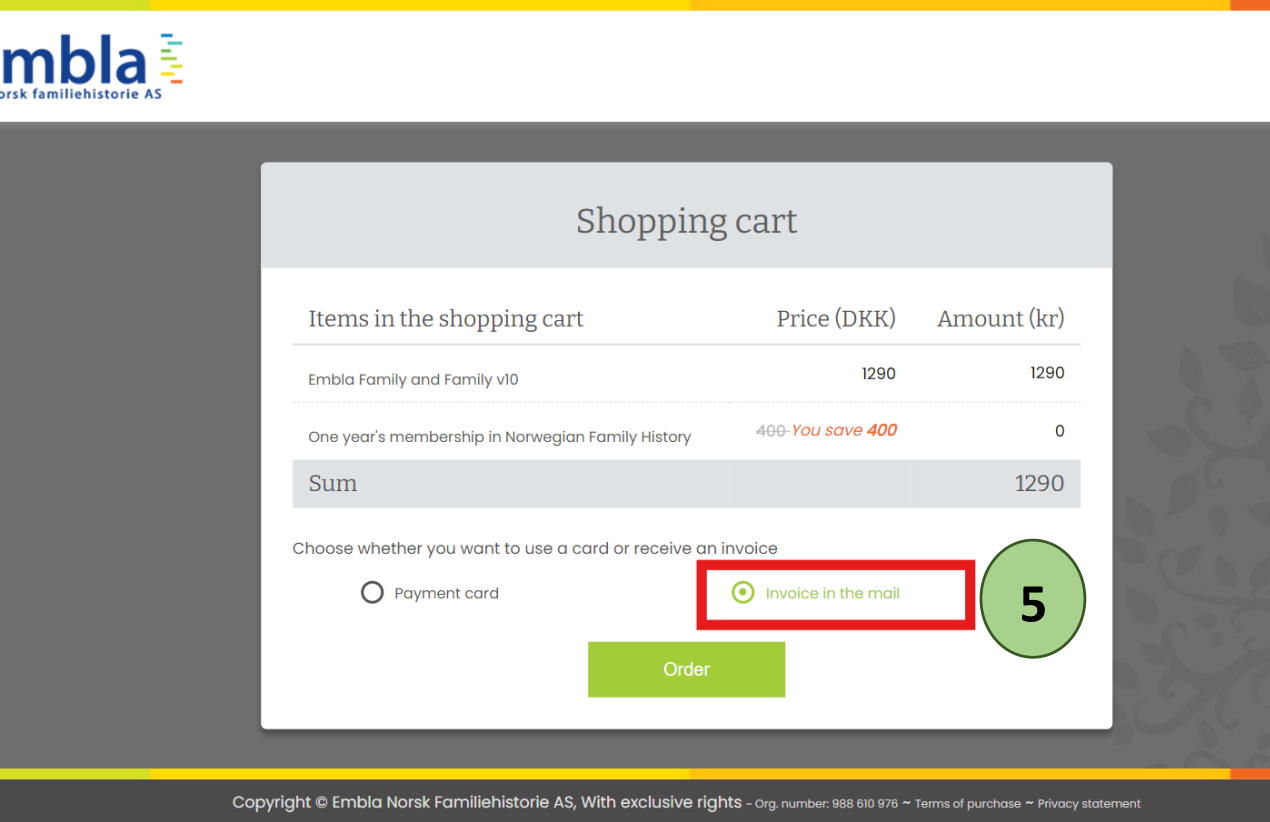
II. Click on the ‘Order’ button.
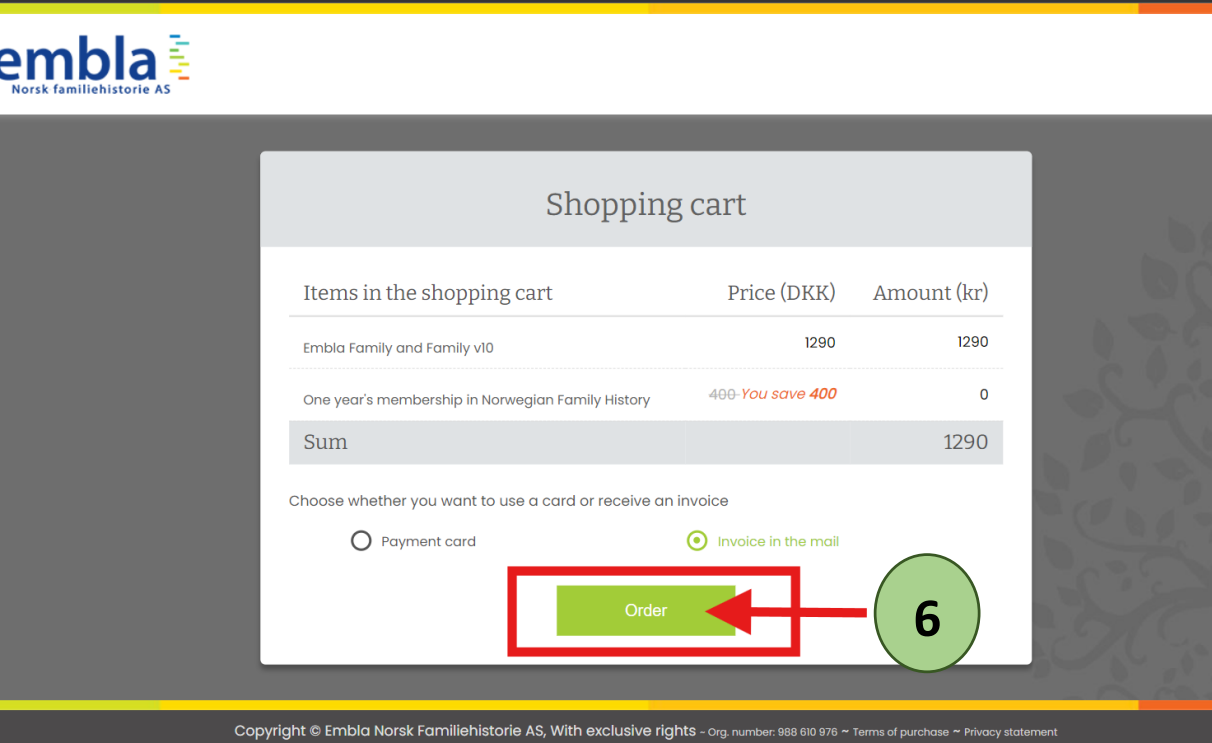
III. Click on the ‘Ok’ button.
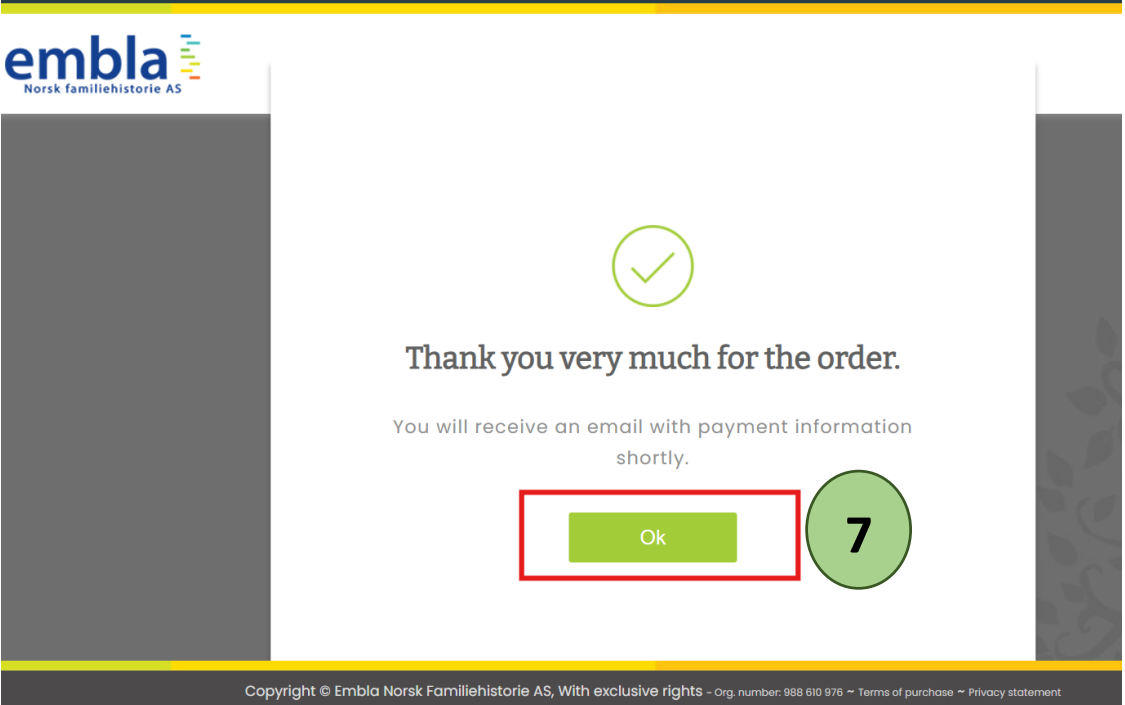 After that you will be redirected to the “Embla Norwegian Family History” Page again and you will receive an email with the invoice.
After that, You can then pay the amount stated in the invoice through your bank, ensuring that you include the KID number from the invoice.
Option B:
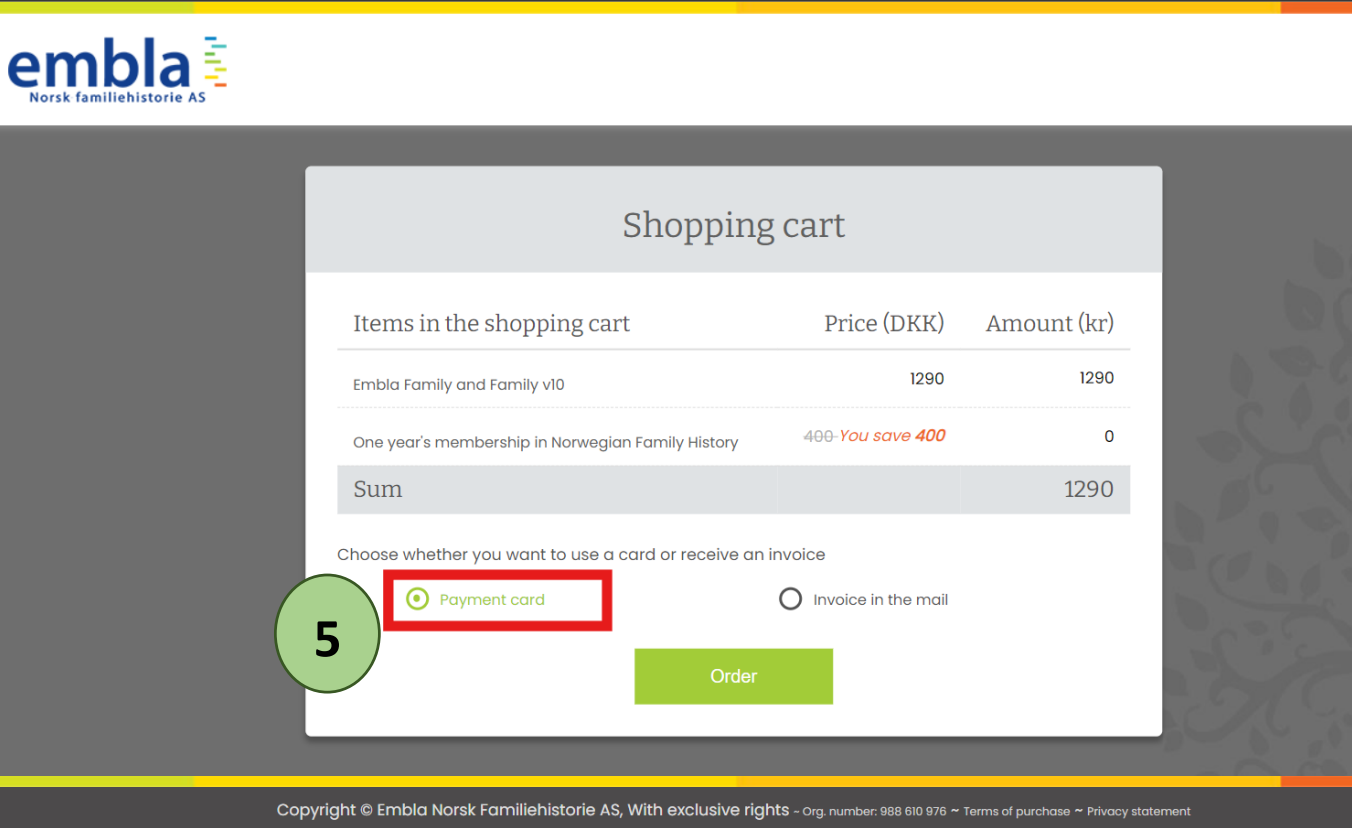
I. Select the ‘Payment Card’ option.
If you choose ‘Payment card’ option, you can make online payment using bank cards such as Visa / Master / American Express /Dinners Club / JCB.
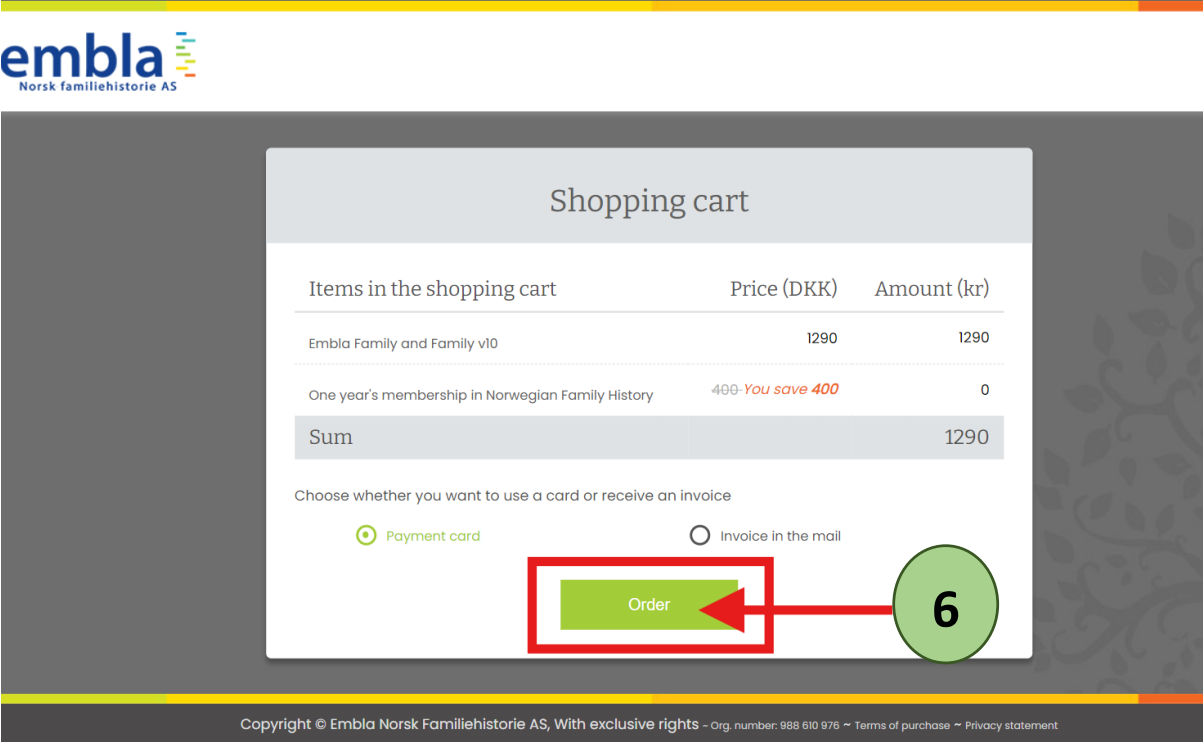
II. Click on the ‘Order’ button.
III. Click ‘OK’ on the received success message.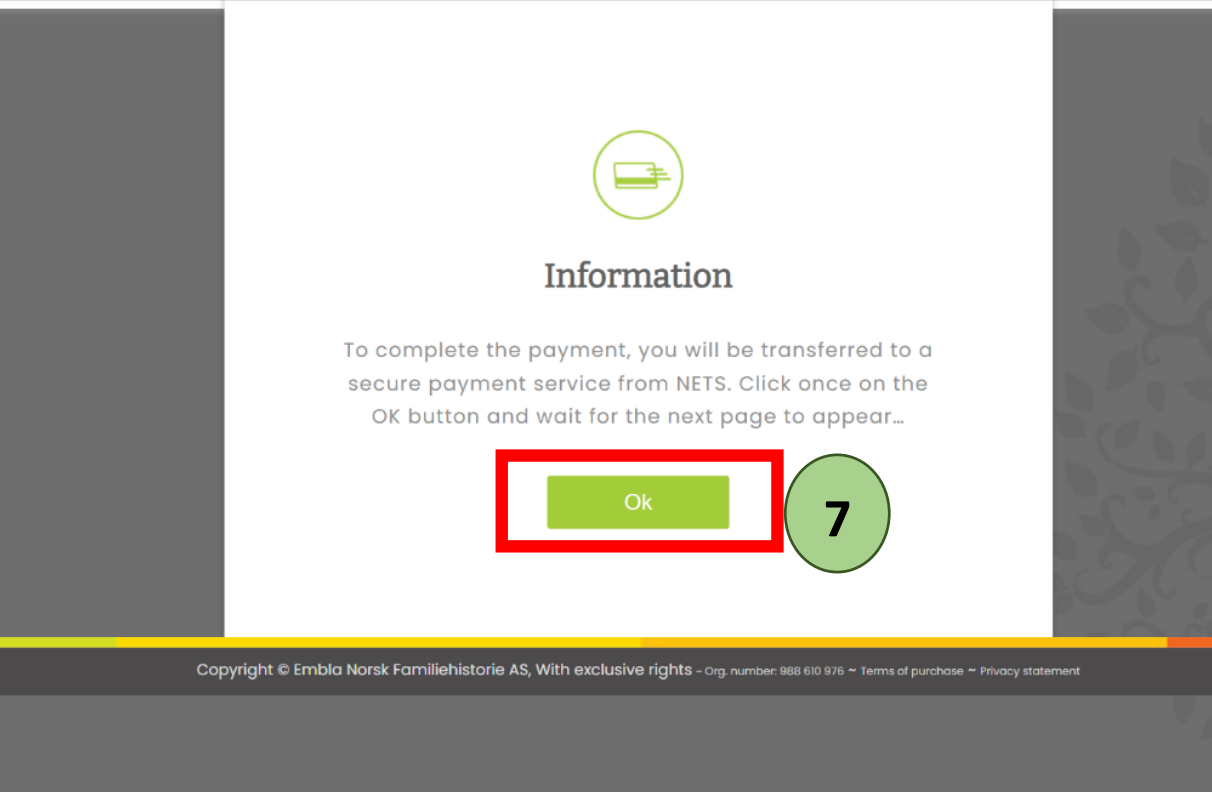
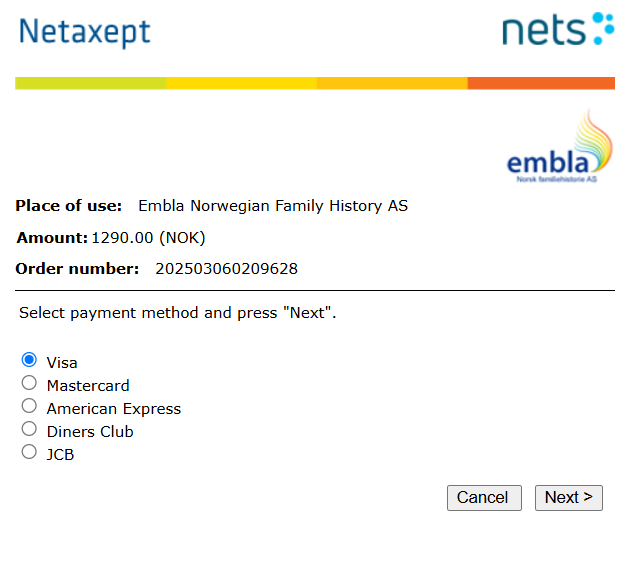
IV. Select the card type and from this onwards, you can proceed your payment giving the bank card details.
Once you have purchased the V10 using one of the methods above, then Login to the www.embla.no using the email and password which you entered in the sign-up form.
Leave a Reply