The new search feature in Embla Family History provides a powerful and user-friendly way to locate information within your family tree. With six main categories and several sub-filtering options, you can quickly refine your results and navigate directly to the relevant editors.
General Behaviour (General Tips for Using Search)
I. Click on the search bar and start typing. Results will appear dynamically as you type.

II. The default category is All, which shows results across every section.
III. Each result is labelled with its category type (Member, Location, Source, Multimedia).
IV. The number of results is displayed on the right-hand side.
V. If there are more than 10 results, a scroll bar will appear.
VI.Single-click on a result → Displays the basic details of the selected item.
VII .Double-click on a result → Opens the relevant editor (Member, Family, Location, Source, or Multimedia).
VII.Clicking outside the search box will close the search results window
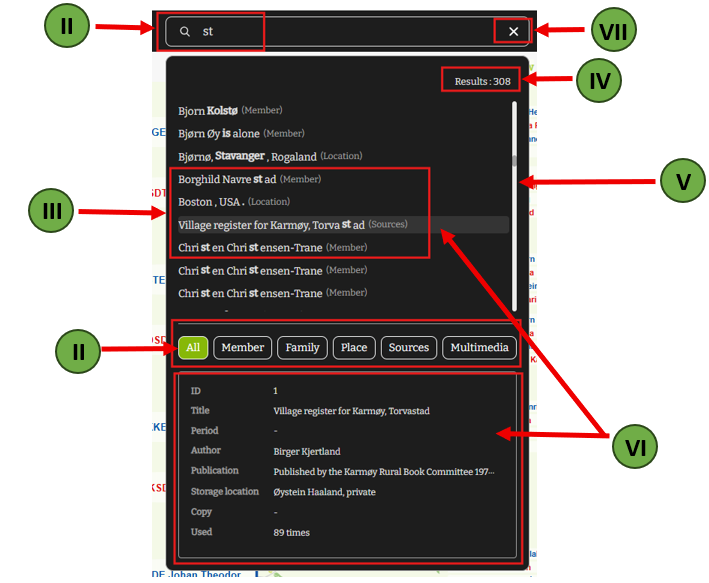
1. All Category
The All category displays results across every section: Member, Source, Multimedia, and Location.
• In this section, you can search across all categories at once, including members, sources, multimedia, and locations.
• Each result is labelled with its category type (Member, Place, Source, Multimedia).
• Exact matches appear first, followed by other results in alphabetical order.
• Useful when you are not sure where the information belongs.
• When you single-click on a result, the specific details for that item are displayed.
For example, clicking once on a source in the ‘All’ category will show its basic details
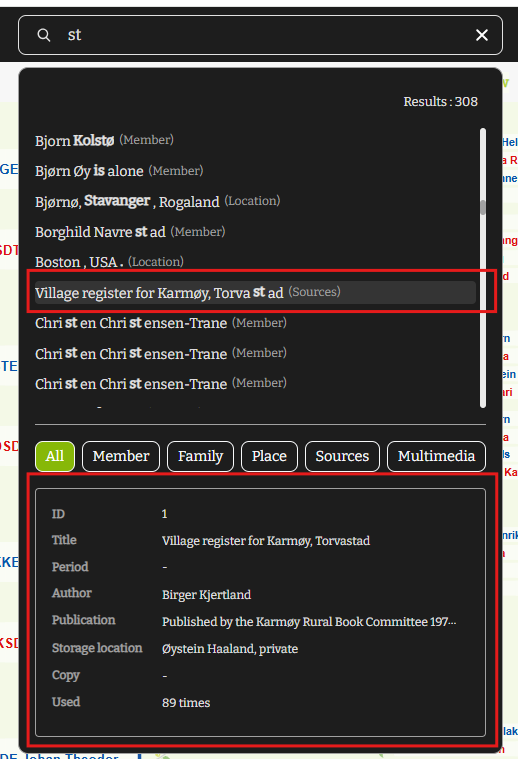
• When double click on the relevant results, its redirecting you to the corresponding editor
2. Member Category
This category shows all members within the current family tree.
Let’s See How the Results Show
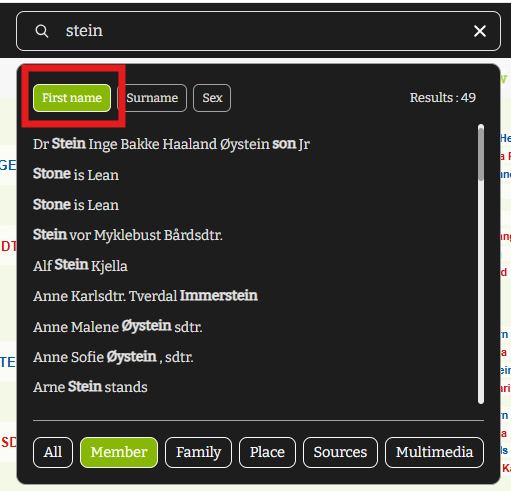
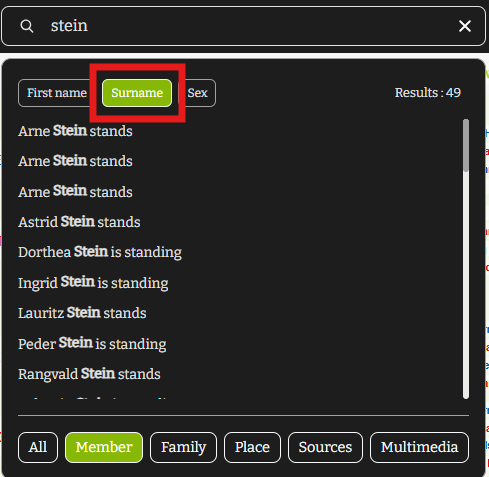
• Click on the search bar, type the name you are looking for, and select the ‘Member’ category to see matching results.
• Exact matches for the entered text appear first.
• Other matches follow in alphabetical order.
• The number of results is displayed on the right-hand side
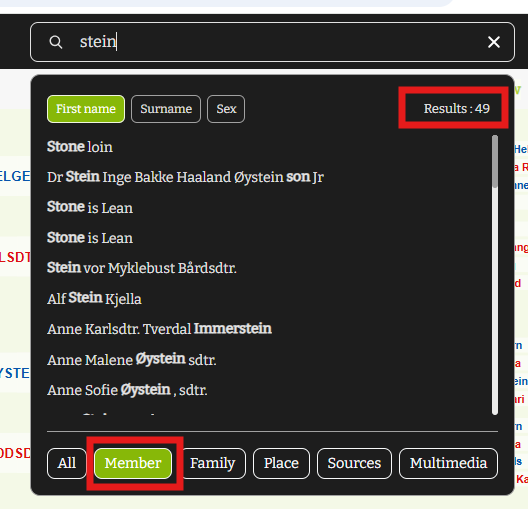
• When you click on a member, the following details will be displayed:
• Profile picture (if available)
• Sex
• Living status
• Date of birth
• Date of death
• Father’s name
• Mother’s name
• Spouse’s name
• Children names
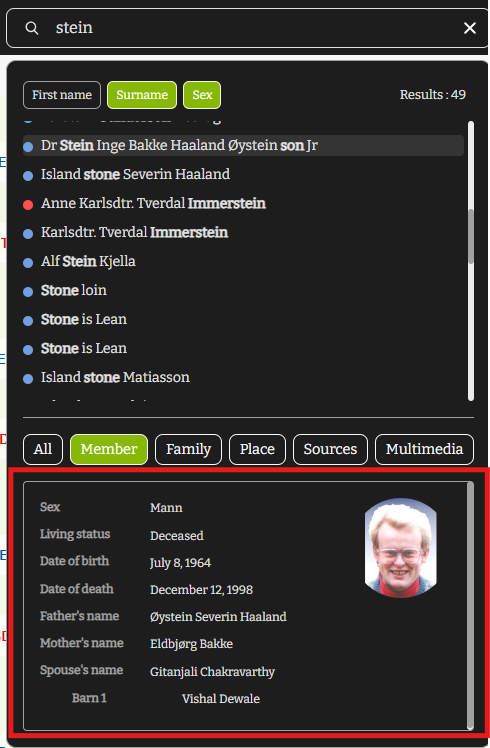 • When double-clicking a result, it opens the personal editor form
Sub-filters for Members
1.First Name → Filters results by first name.
2. Last Name → Filters results by last name.
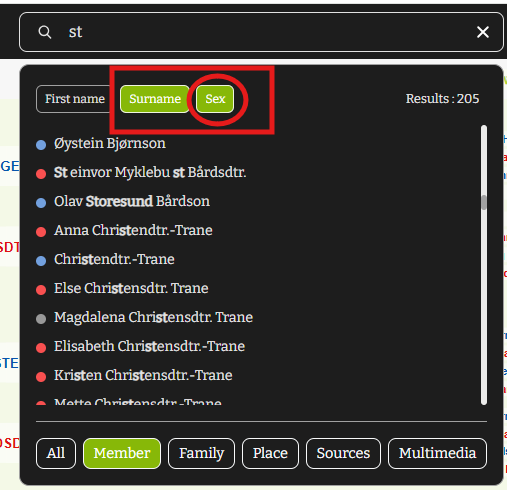
3. Sex → Filters members by gender.
• Blue point = Male
• Red point = Female
• Gray point = Unknown
Tip: When you select the “Sex” filter, either the first name or last name filter will also be enabled, allowing you to refine your search more effectively.
3. Family Category
This category displays families (husband and wife) that match the entered text.
Let’s See How the Results Show
• Click on the search bar, type the name you are looking for, and select the ‘Family’ category to see matching results.
• In “All” section, exact matches for the entered name are shown first on Partner 1’s side. Other matches follow in alphabetical order.
• The related spouse is displayed as Partner 2.
• If both partners match the entered name, the results are sorted alphabetically.
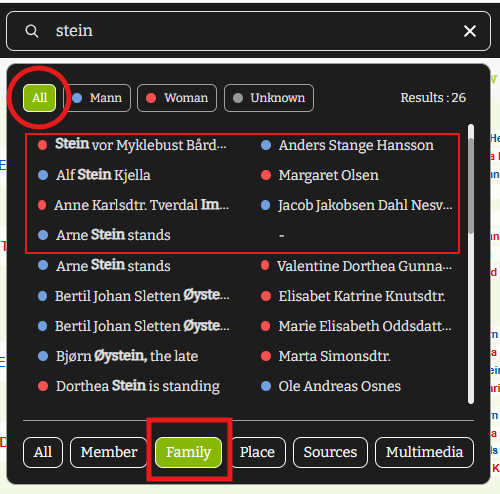
• Gender Indicators
Blue point = Male
Red point = Female
Gray point = Unknown
• When you click on a member, the following details will be displayed:
-
-
-
- Marriage date
- Place of marriage
- Children (Barn) list
- If details are missing, a “–” symbol appears.
-
-
• When double-clicking a result, it opens the family editor form.
Sub-filters for Families
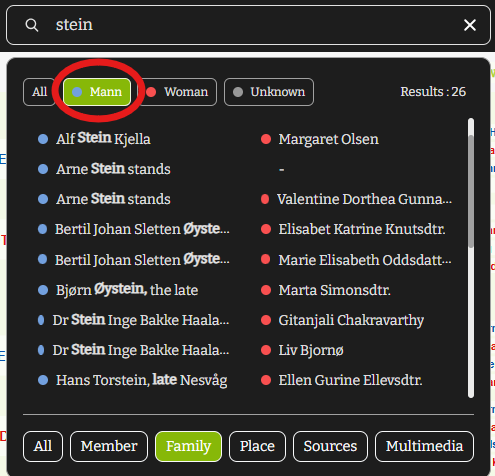
1.Male filter → Shows families where the male partner matches the entered text on the partner 1 side.
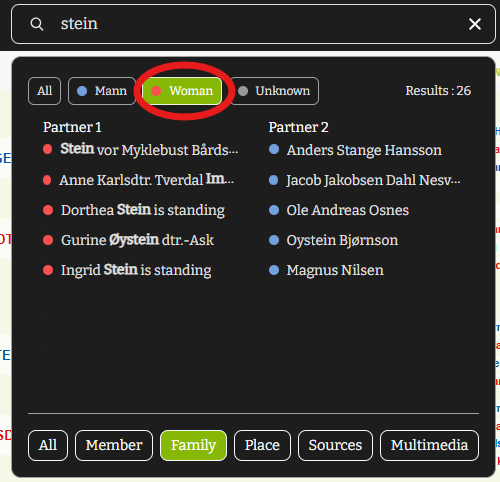
2.Female filter → Shows families where the female partner matches on the partner 1 side.
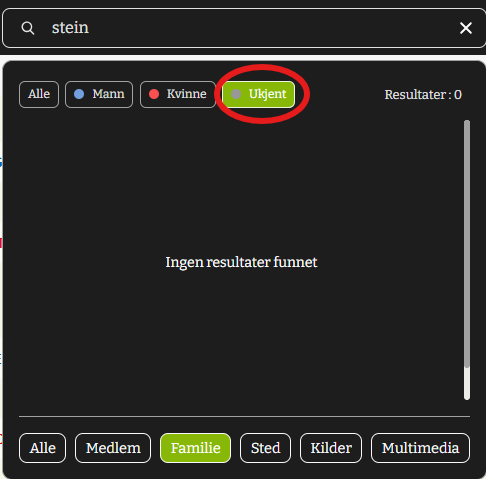
3.Unknown filter → Shows families where the partner with unknown gender matches on the partner 1 side.
4. Location Category
This category shows all places/locations that match the entered search text.
Let’s See How the Results Show
• Click on the search bar, type the name you are looking for, and select the ‘Location’ category to see matching results.
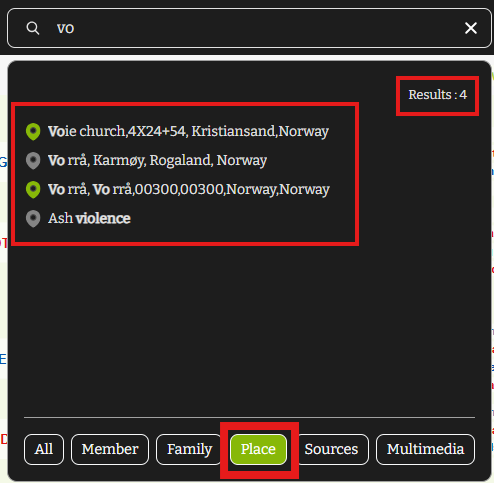
• Results containing the search text are displayed.
• Exact matches appear first, followed by other results in alphabetical order.
• Each location result includes a map icon.
• The number of results is displayed on the right-hand side.
• When you click on place, the following details will be displayed:
• Place name type
• Postal code
• Street name
• County
• Street number
• Land
• Postal code
• Latitude
• Longitude
• Used
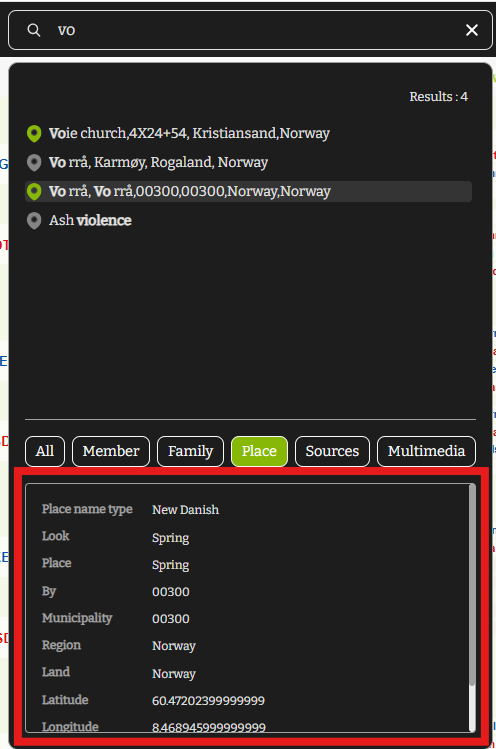
• When double-clicking a result, it opens the place editor form.
Map Icons
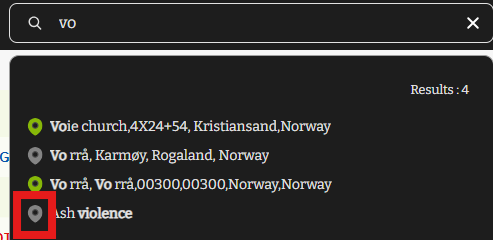
• Each location result includes a map icon, which can be either green or gray:
• Green map icon → If the location has valid latitude and longitude, clicking this icon will take you directly to the correct place on the map.
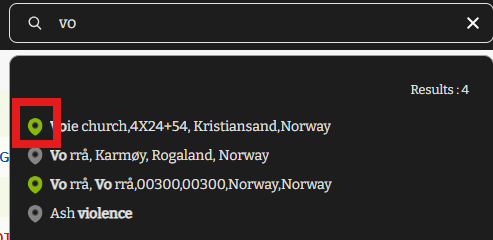
• Gray map icon → If the location does not have valid latitude and longitude but has a correct place name, clicking this icon will take you to a nearby location on the map.
When No Location Is Correctly Added
• If there are no correct or identifiable details in the place editor, clicking the map icon will simply open the map.
• You can then manually select the correct place on the map, right-click to copy the latitude and longitude, and paste these values into the relevant fields in the place editor.
Save the changes to update the location with accurate map coordinates.
5. Sources Category
This category displays all sources connected to the family tree that match the entered search text.
Let’s See How the Results Show
• Exact matches for the entered text are displayed first.
• Other results appear in alphabetical order.
• The number of results is displayed on the right-hand side
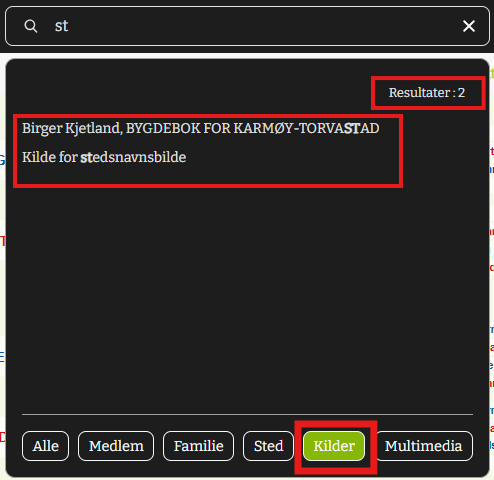
• When double-clicking a result, it opens the source editor form.
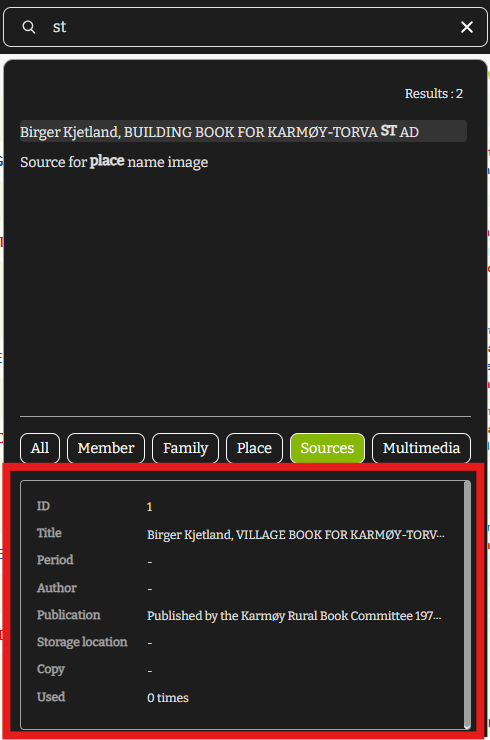
• When you click on a member, the following details will be displayed:
• ID
•Publication
•Title
•Storage Location
•Period
•Copy
•Author
•Used
6. Multimedia Category
This category lists all multimedia files (images, documents, audio, video) stored in your family tree that match the entered search text.
Let’s See How the Results Show
• Click on the search bar, type the name you are looking for, and select the ‘Multimedia’ category to see matching results.
• Exact matches for the entered text are displayed first.
• Other results are shown in alphabetical order.
• The number of results is displayed on the right-hand side
• Each result is labelled with its category type (Image, audio, video, document)
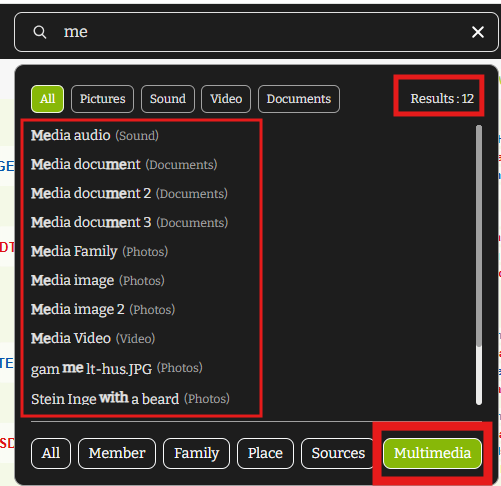
• When you click on a search result, the following details will be displayed:
• Image description
• Flagg
• Given
• Place name
• Description
• For images, the actual picture is displayed in the description.
• For videos, audio, and documents, a default media icon is shown instead of the actual file.
• When double-clicking a result, it opens the multimedia editor form.
Sub-filters for Multimedia
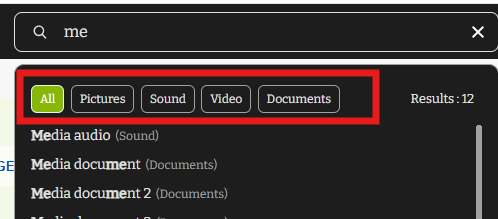
The multimedia section includes several sub-filters that help you refine your search results by type of media:
-
-
-
- Images → Shows only image files that match the entered search text.
- Videos → Shows only video files that match the entered search text.
- Audio → Shows only audio files that match the entered search text.
- Documents → Shows only document files that match the entered search text.
-
-
Summary
The updated search feature allows you to:
• Search across six categories: All, Member, Family, Location, Sources, Multimedia.
• Apply sub-filters for Members and Families (name-based and gender-based filters).
• See detailed previews with one click and open full editor views with a double-click.
This makes locating and editing information in your genealogy project faster, more structured, and far more intuitive.
Leave a Reply