We’re excited to share the latest updates to the Embla Family History program! These enhancements make navigation smoother, improve accessibility, and add a touch of visual appeal to your family tree experience.
🧭 Updated Menu Bar
The main menu bar has been redesigned for a cleaner and more intuitive layout. All the main tabs are now clearly visible on the menu bar, giving you quick access to every important feature.

Below is a short description of each tab on the menu bar:
1.Home: When the user clicks on the Home tab, the program refreshes and the user is directed to the dashboard page.
2.Overview: When the user clicks on the Overview tab, they are redirected to the Tree Editor.
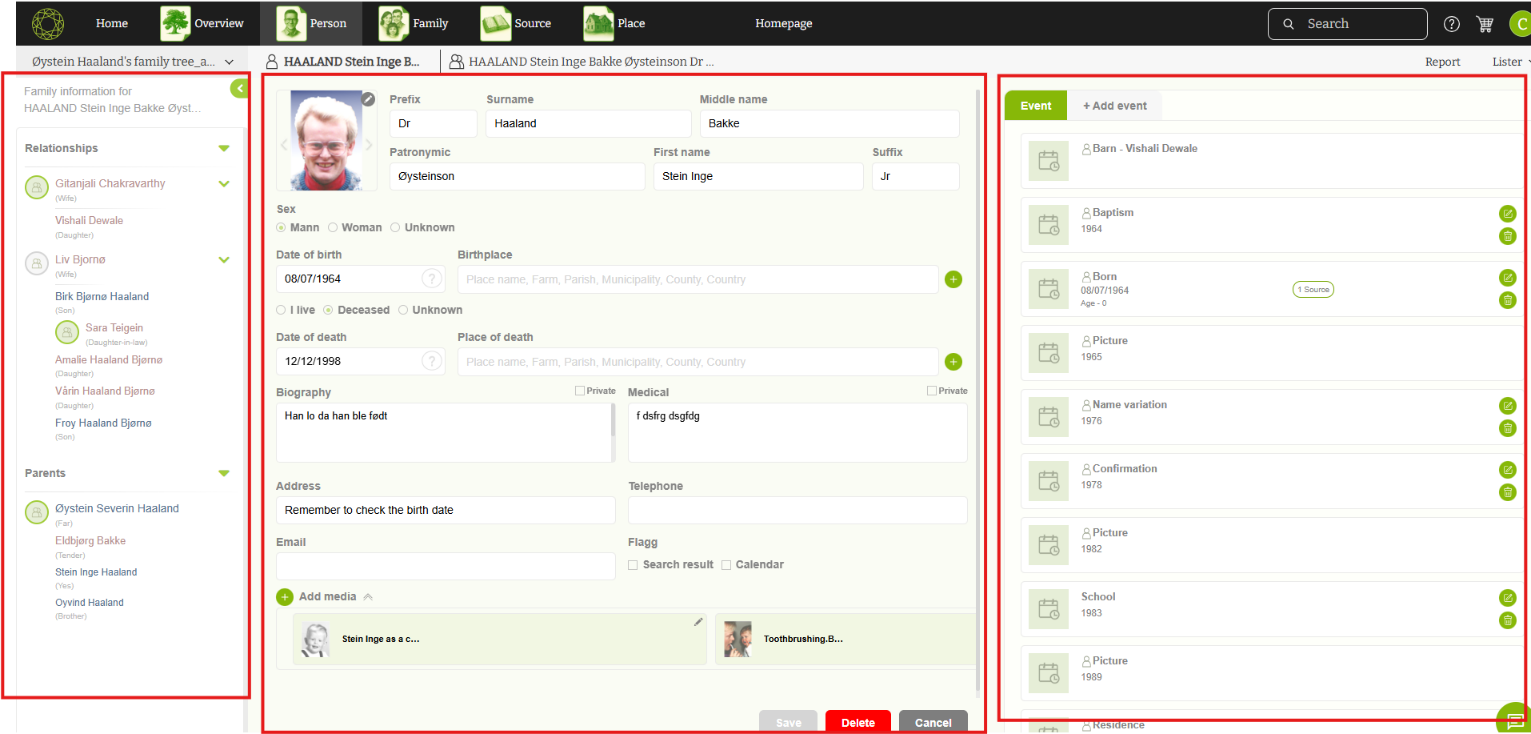
3.Person: When the user clicks on the Person tab, they are redirected to the Person Editor page, where the right side shows the event list relevant to the selected person.
The left panel is now also available on the Person Editor page, showing the person’s relationships and parent families relevant to the current rooted person, just like in the Tree Editor.
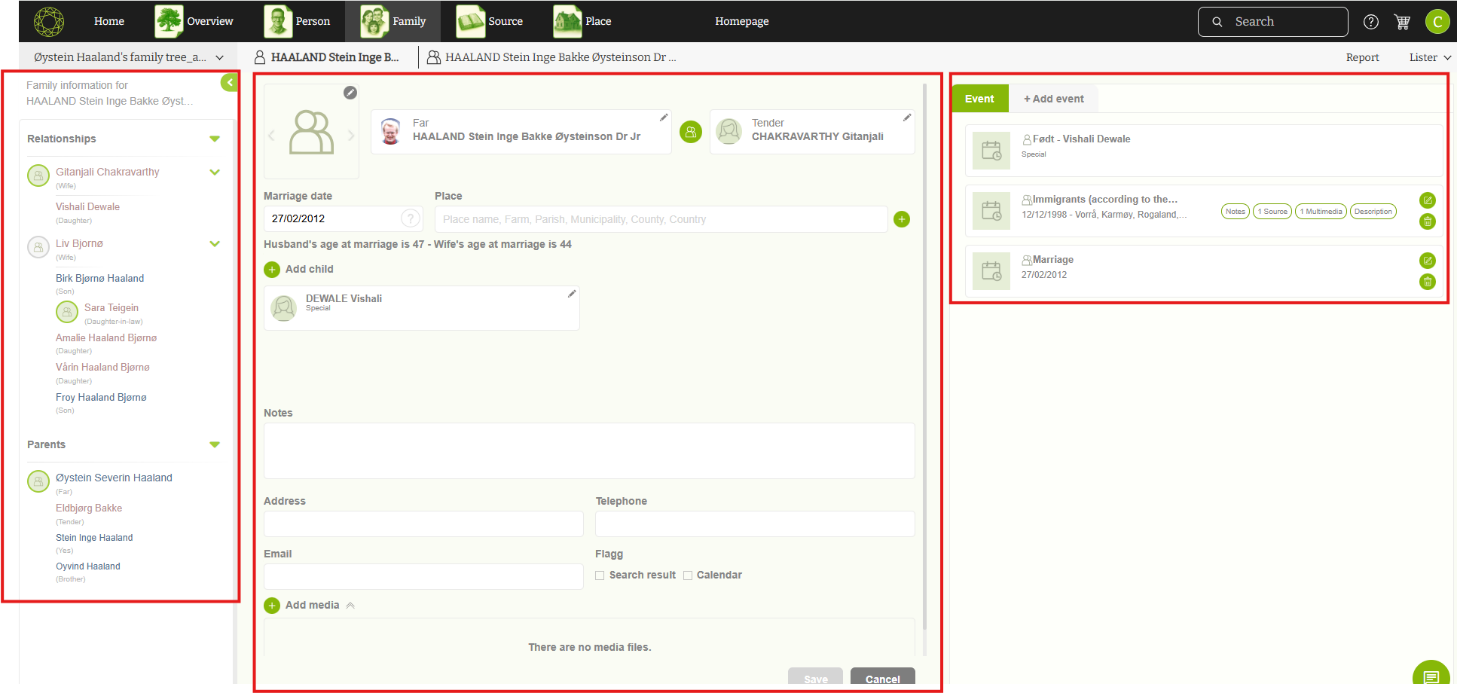
4. Family: When the user clicks on the Family tab, they are redirected to the Family Editor page, where the right side shows the event list relevant to the selected family.
The left panel is now also available on the Family Editor page, showing the relationships and parent families in the same way as in the Tree Editor.
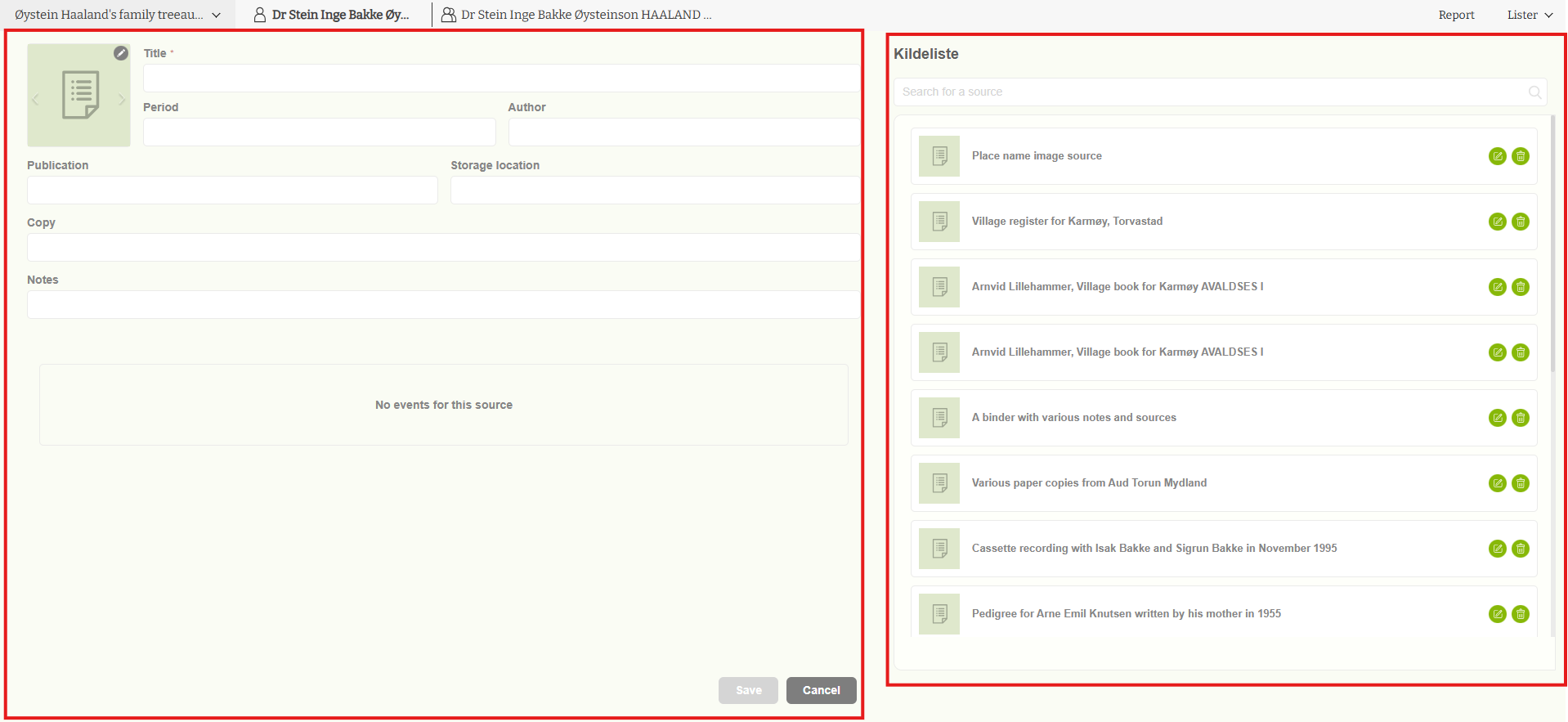
5.Source: When the user clicks on the Source tab, they are redirected to the Source Editor page, where the right side shows the source list relevant to the family.
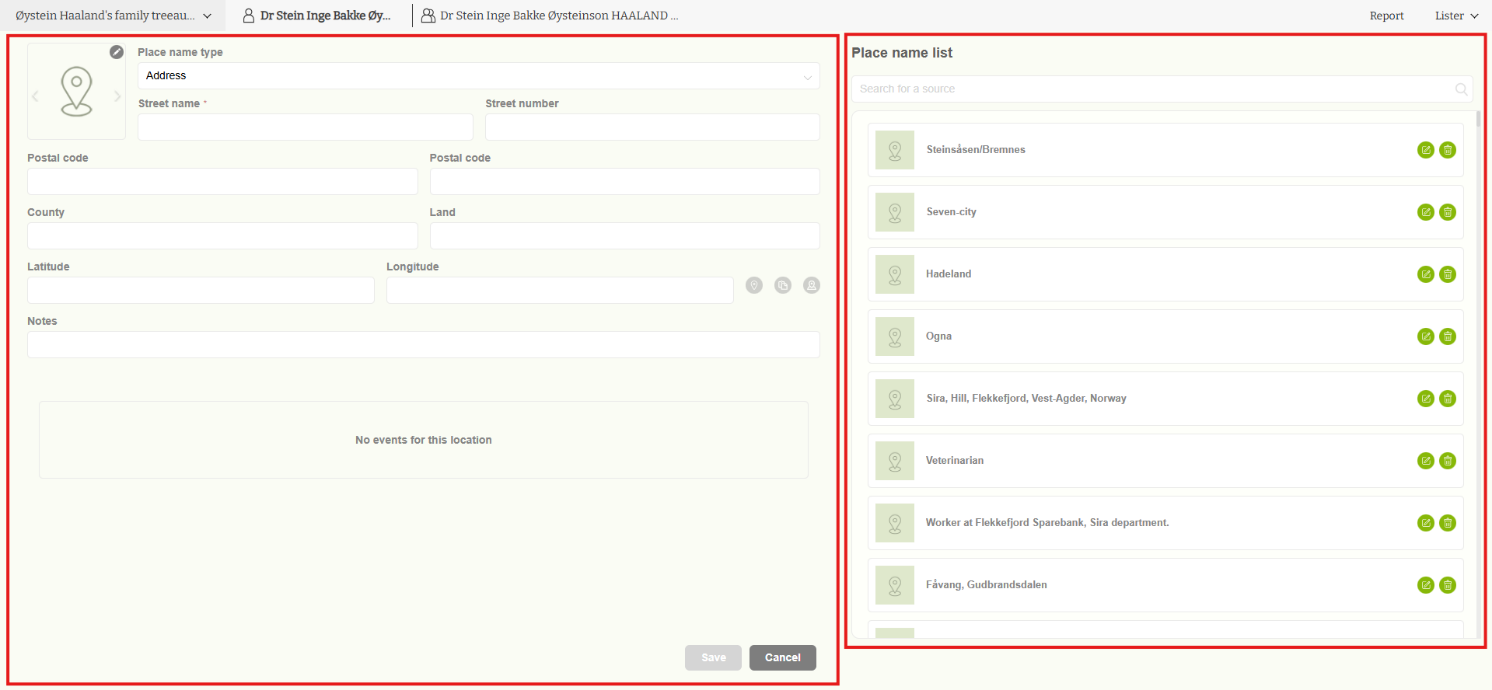
6.Place: When the user clicks on the Place tab, they are redirected to the Place Editor page, where the right side shows a list of all relevant places.
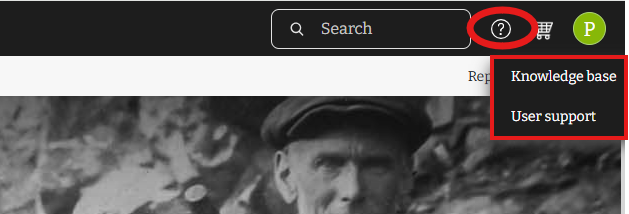
7.Help Icon: When clicking on the Help icon, two sub-tabs appear — the Knowledge Base tab and the User Support tab.
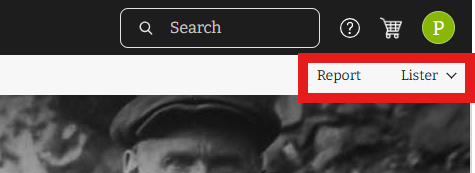
8.Report: When clicking on the Report tab, the user is redirected to the Report Panel, where they can generate and download reports.
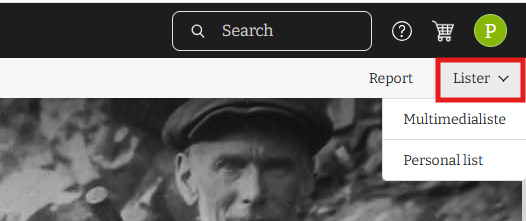
9.List: When clicking on the List tab, two sub-tabs appear — Multimedia List and Person List — which display the relevant multimedia and person lists for the family.
📄 Reports and Lists — Now in Separate Tabs
Previously, Reports and Lists were grouped in the main menu bar. In the latest update, they are now separated into two dedicated tabs for better organization and easier access.
- Reports Tab
When you click on the Reports tab, you’ll be redirected to the Report Panel, where you can easily find and generate all available reports. - Lists Tab
Under the Lists tab, you can now access both the Multimedia List and the Person List.
Simply select the desired list and open it directly from this section.
💡 Knowledge Base and Support Form
The Knowledge Base is now conveniently located under the Help icon on the menu bar.you will also find the Support Form, allowing you to contact our team directly whenever you need assistance.
🌳 New Animation for Changing Root Person
We’ve also added an animation effect when you change the root person in the Tree Overview.
This visual improvement makes the transition smoother and adds a more engaging, modern touch to your experience.
✅ Summary of Improvements
| Feature | Description |
|---|---|
| Menu Bar | All main tabs now visible for easier navigation |
| Reports Tab | Direct access to all report types |
| Lists Tab | Separate access to Multimedia List and Person List |
| Help Menu | Includes Knowledge Base and Support Form |
| Tree Animation | New animated transition when changing root person |
We hope you enjoy these updates and find the new design both practical and visually appealing.
As always, thank you for being part of the Embla Family History community!
Leave a Reply