Category: Version 10
-
View the family tree
In that article describe another way to view and edit a family tree in the version 10 web application.
-
Set as a main Family tree
If the user had more than one trees, then the user can select the default tree from that list.
-
Layout for the Family tree
Referring that article user can set up the layout of a family tree in the version 10 web application
-

Family Tree Details
Users can update the description and view the all the details related to the tree.
-

Export Family Tree
User can export a family tree as a Gedcom file in version 10 application.
-

Delete Family Tree
User can be able to delete a family tree from the version 10 application,
-
Program Setup
Use can customize the display name and date formatting in the version 10 application or selected tree.
-

Sources Editor
User can view all sources linked to the family project, search for specific sources, or add new ones to the tree.
-

Editing and Deleting a Source
This article explains, how the users can edit or delete existing sources by clicking on the respective options
-
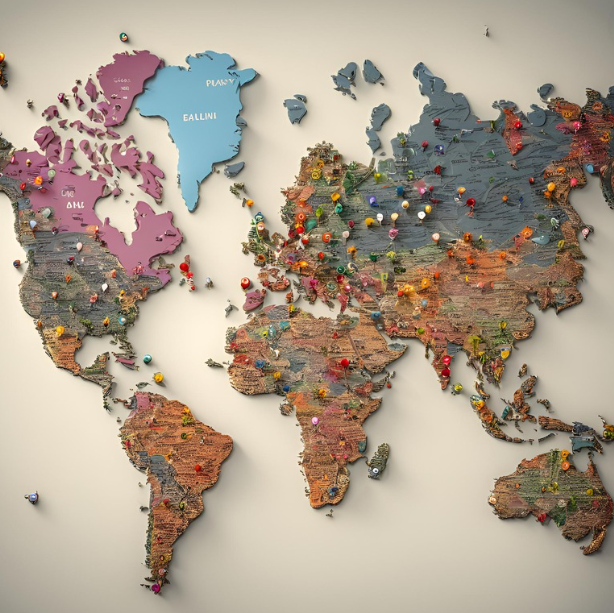
How to Use the Place Editor in Embla Family Treasures
This allows users to view, search, and add new places related to their family project through a simple interface.
-
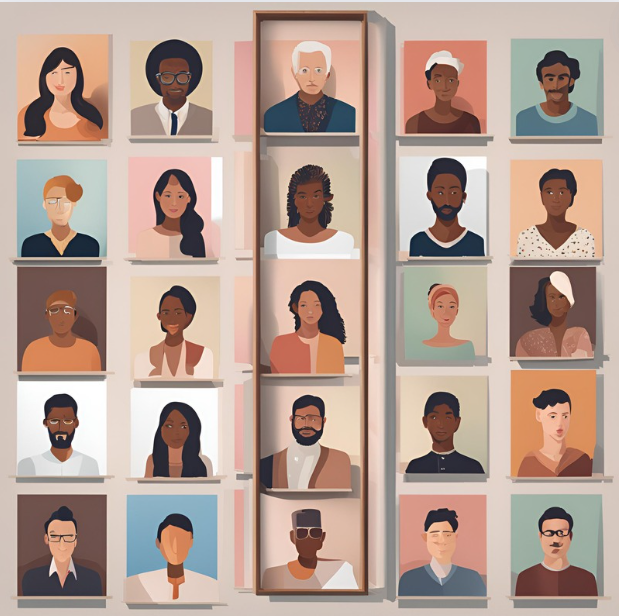
How to Use the Person list in Embla Family Treasures
User can view the all the persons in the tree and edit the person details from that.
-
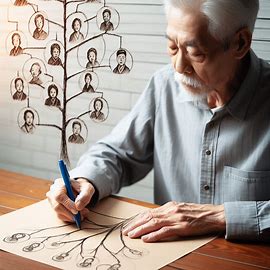
Editors
Tree overview, Person editor, Family editor are the major features in V10 application.
-

Image colorization
User can colorize their black-and-white images by that feature easily.
-
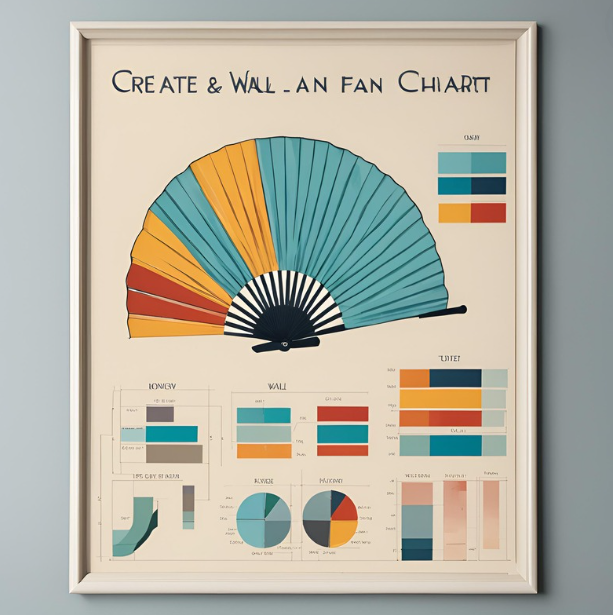
Publish fan chart
Users can easily publish the fan chart report in PDF format.
-

Report controllers
The report engine includes a function bar with various tools, such as zoom options, color customization, and chart settings.
-

Change the profile image
Users can easily change a profile image through the ‘Fan chart’ page by clicking on the member’s image.
-
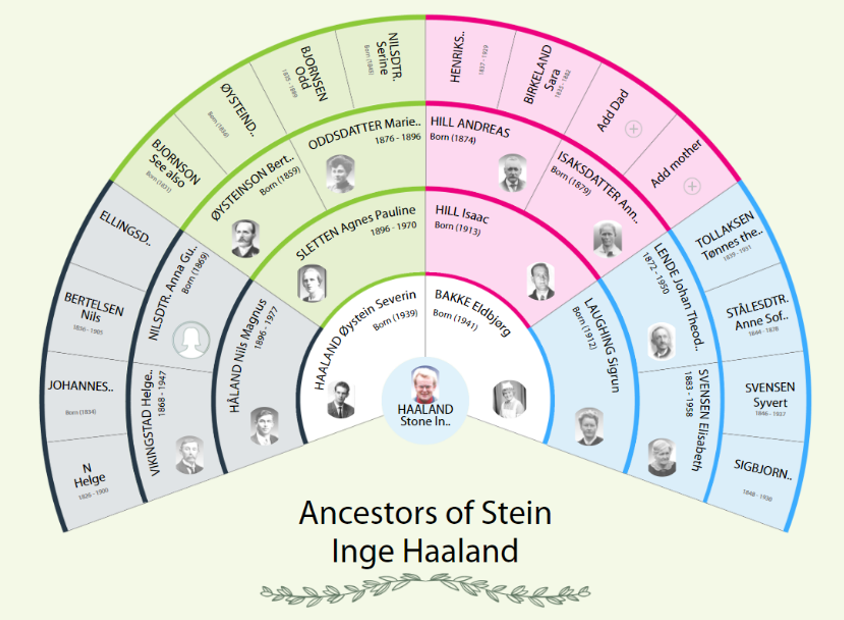
Fan Chart
A fan chart report visually represents the ancestors of a root person in a fan-shaped format.
-

View multimedia and sources
If the users want to view the attached multimedia and sources, then they can see it simply.
-

Events overview
In version 10, users can efficiently manage personal or family-related occurrences by adding them as events through the “Event” tab.
-
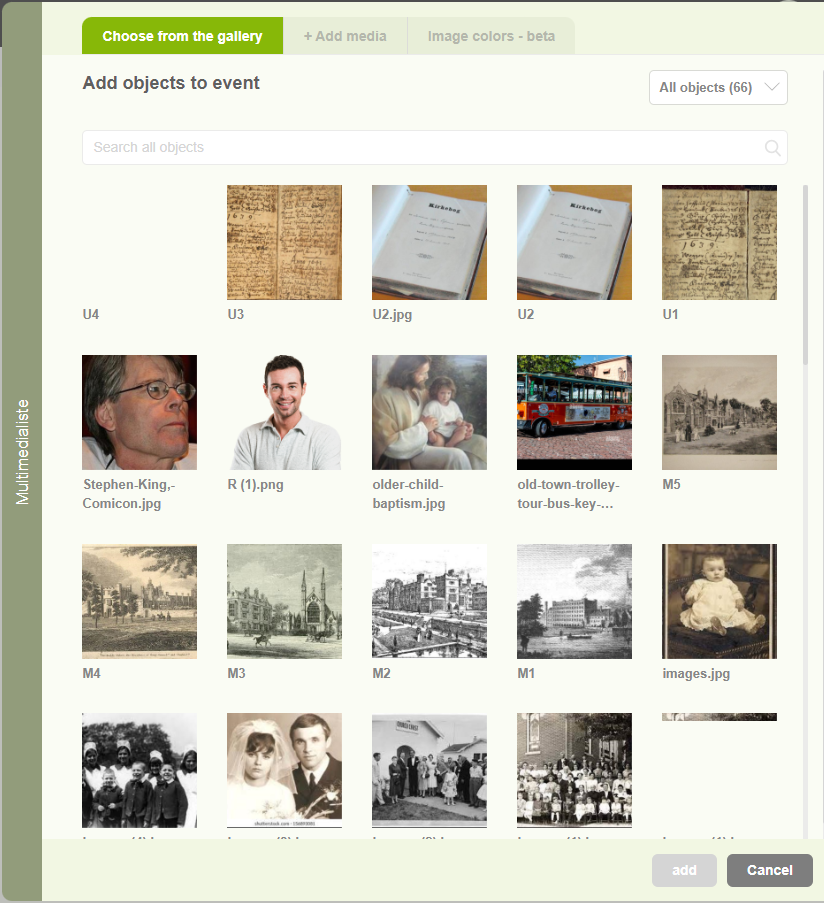
Enhance events with multimedia content
Users can add Images, Videos, Audio, and PDF files relate to the events separately.