Mindblown: a blog about philosophy.
-

Delete events
Users can easily delete the unwanted or duplicated events by using this feature.
-
Add an event location
Users can add a location related to the event by using this feature.
-

Add events
Users can add their life-story related event by using that feature.
-

Add a source to an event
The article explains how users can add references to an event using the “sources” feature.
-
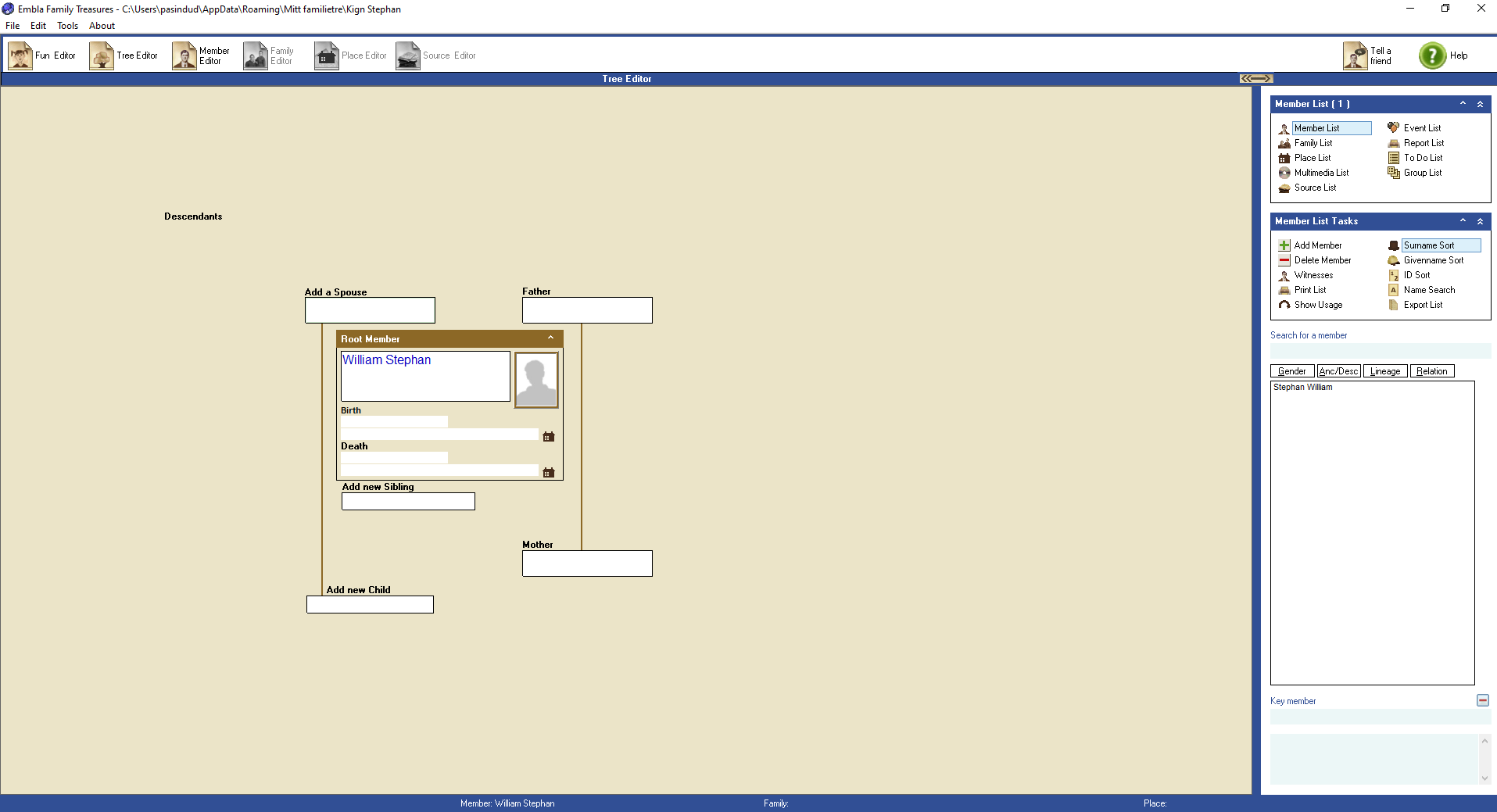
Add new person from the tree editor
The first time you start, all the fields in the family tree will be empty. To expand the tree, first select the field where you want to add a new person. To “select” means to click once with the left mouse button. There are three different color types for a selected field: Light green background…
-
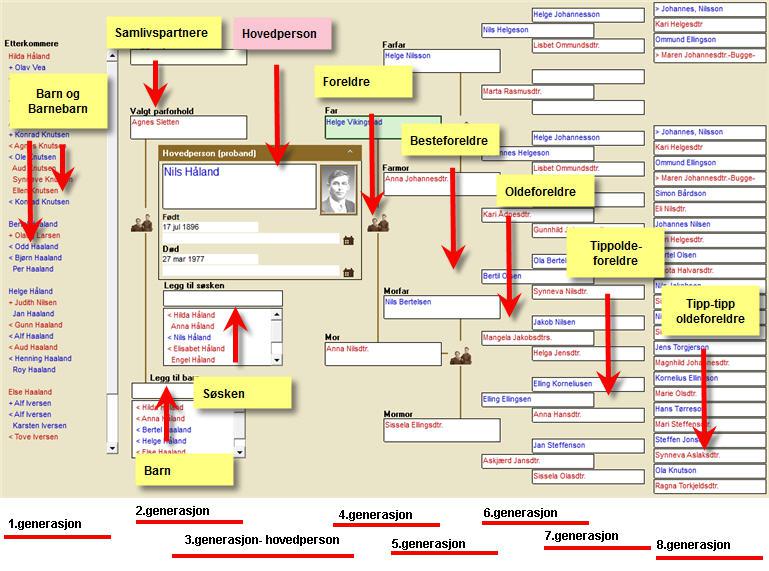
Tree editor – Overview
The overview form opens by clicking on the button with the image of a tree. In the Overview form you can see six generations with ancestors and three generations with descendants, as well as all siblings and cohabiting partners / spouses / cohabitants etc. In total you can see eight generations on one screen at…
-
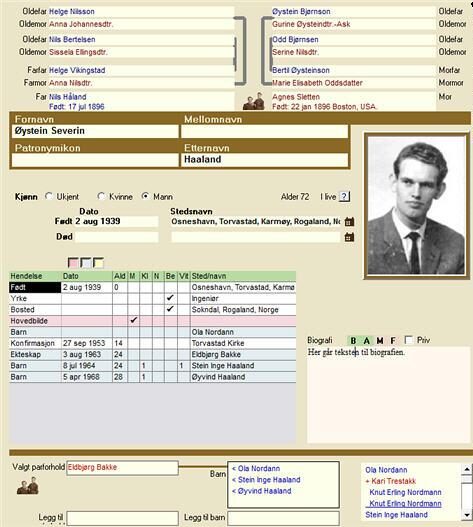
Member editor – Overview
The personal form can be opened in several different ways: By clicking on the button on the row of buttons that shows the image of a person By right-clicking on a person in the Overview Form By double-clicking on a child in the Family Form By double-clicking on one of the parents in the Family…
-
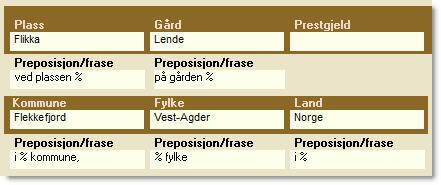
Place editor overview
The place name form can be opened in several different ways: By clicking on the image of the place name in the button row. By right-clicking an entry in the place name quick list. By double-clicking on a place name in the place name list while the Place name form is displayed. It is in…
-
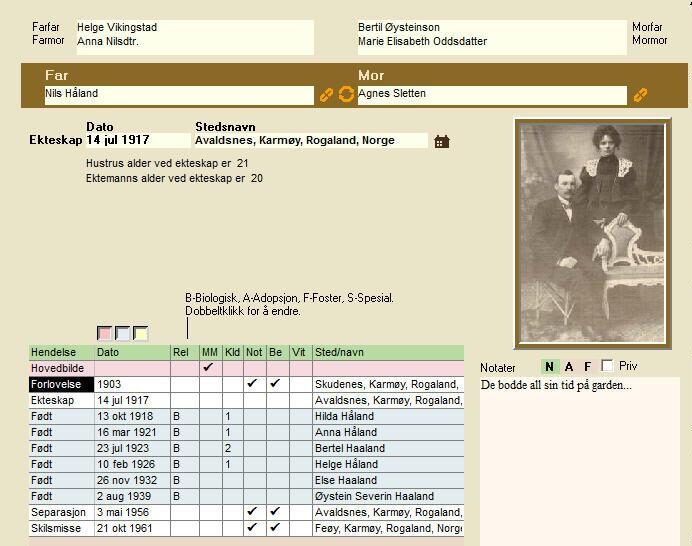
Family editor overview
The family form can be opened in several different ways: By clicking on the image of a family in the button row. By clicking on a family button in the Overview form. By clicking on a family button in the Person form. By double-clicking an entry in the quick list for families. By double-clicking…
-
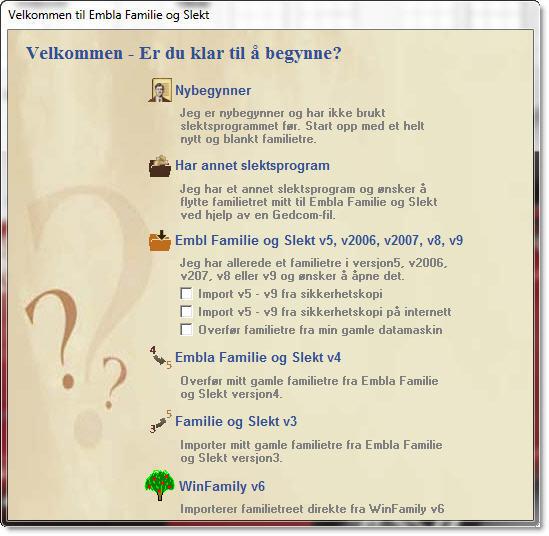
How to get started
Menu selection at first start-up When the program is started for the first time, you will be presented with a start menu. You will only see this menu at the very first start-up. New user – start with a new family tree for the very first time. Has another family program – and wants to…
-
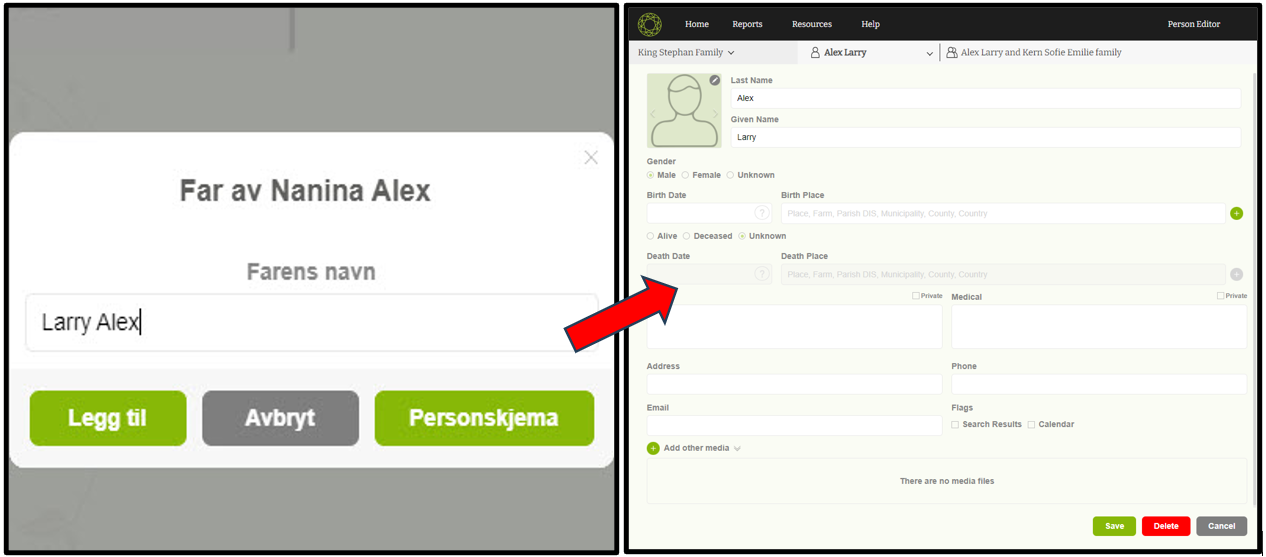
Navigate to ‘Member editor’
This is a one method to navigate to the member editor form simply.
-
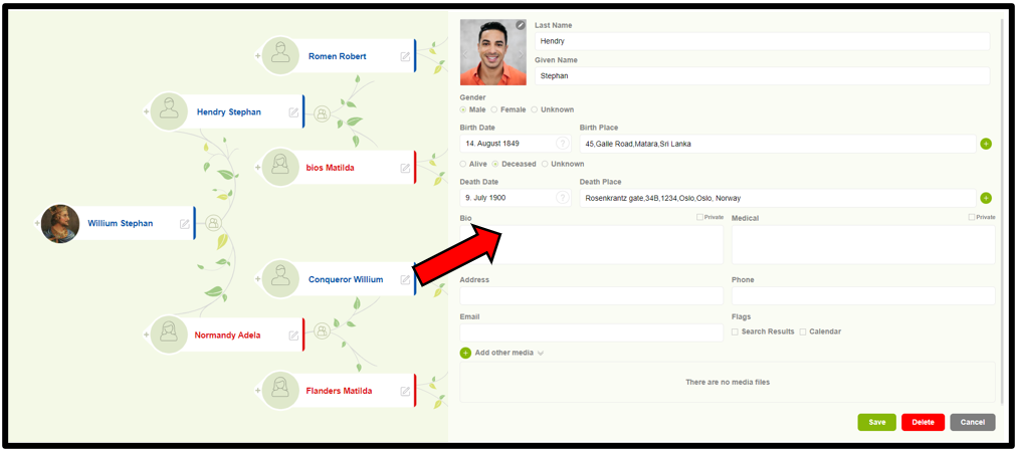
Edit a person details
Users can now easily edit a member’s details with one step.
-
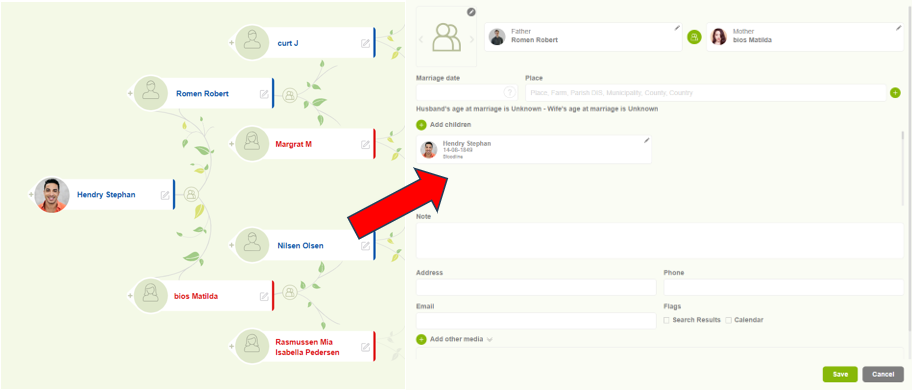
Navigate to Family editor
Users can access the “Family Editor” to view and update the family details.
-
Change the root person
Simple methods to change the root person through the tree overview.
-
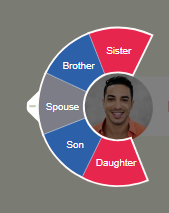
Add spouse, children, and siblings
Users can easily add family members such as spouses, children, and siblings.
-
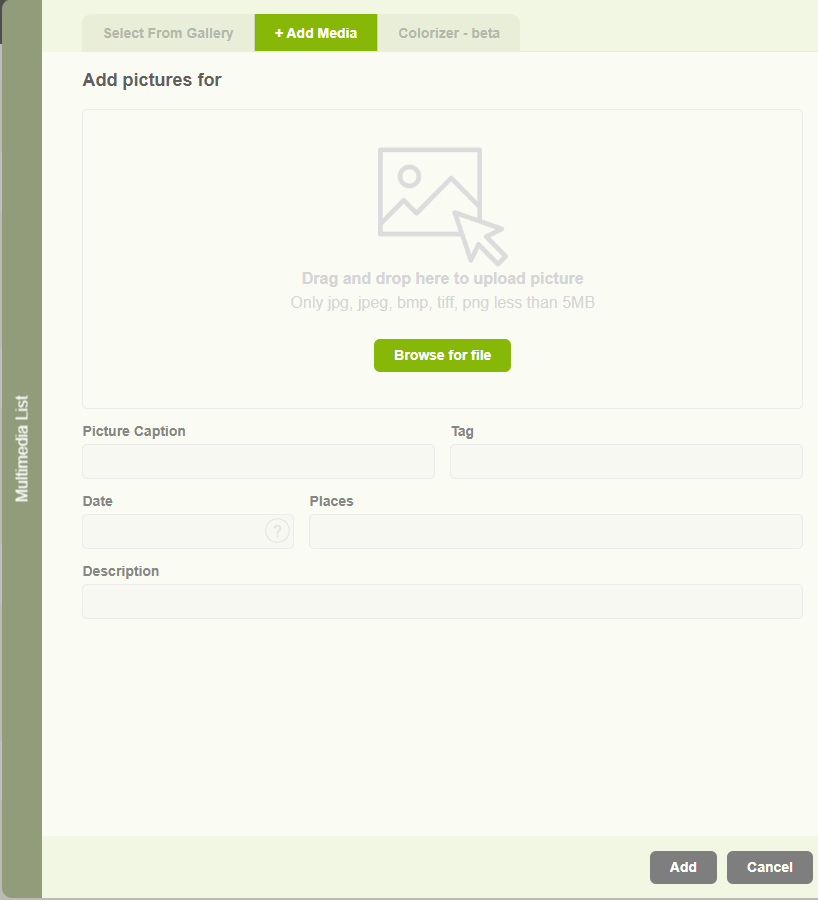
Add a profile image to a member
This is the way to add profile image to the individuals.
-
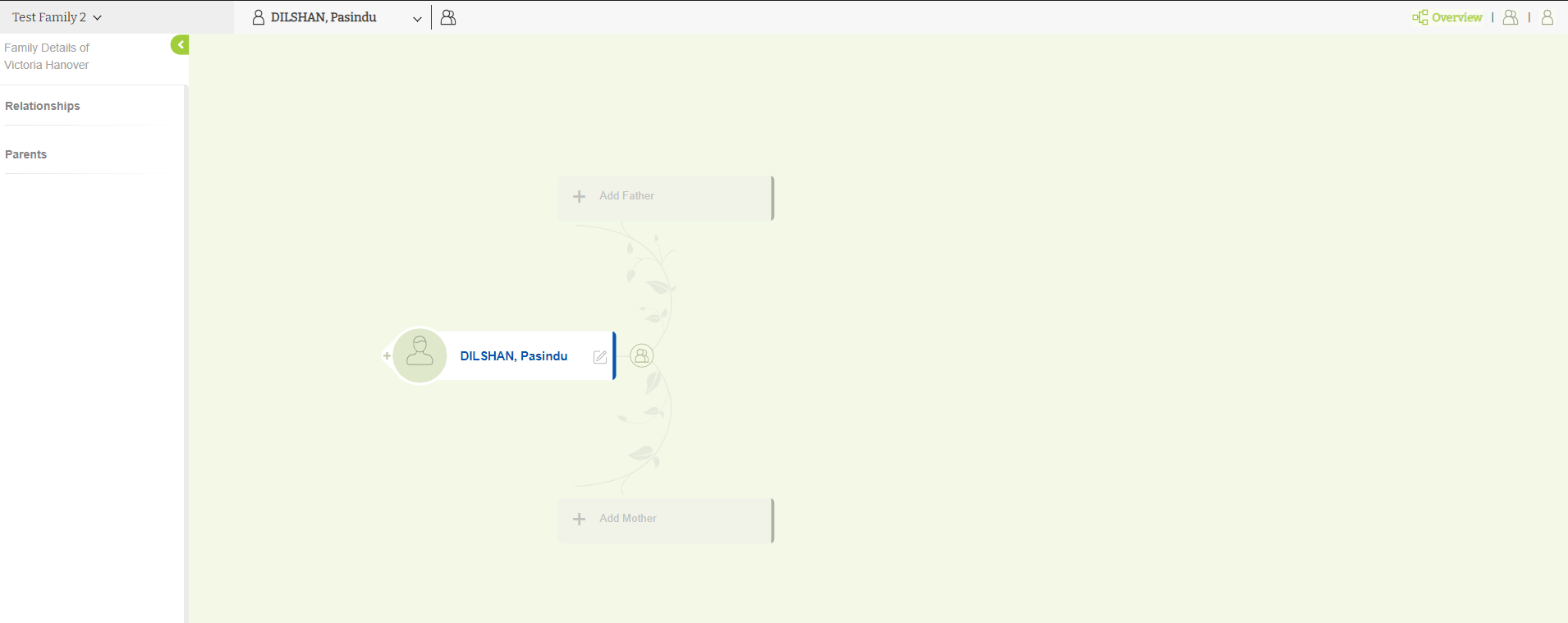
Tree editor overview
Basic view of the Tree overview in Version 10.
-
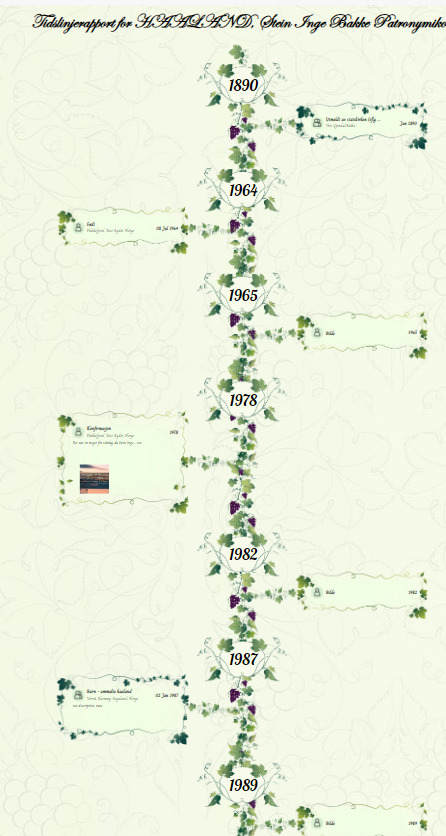
Timeline report
Timeline report showcases various life events alongside the years pertinent to the selected root member.
-
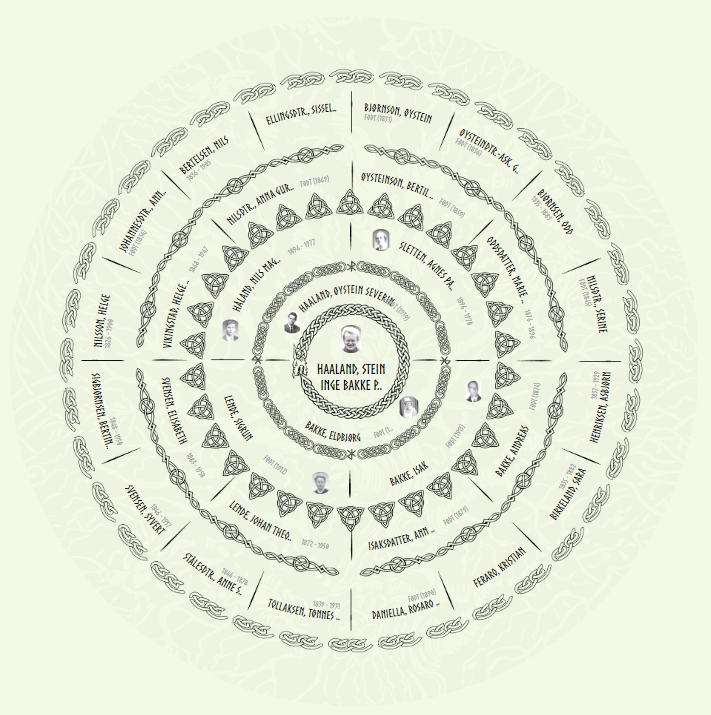
Sun chart
The Sun chart is a report which displays the ancestors in a circular report.
-
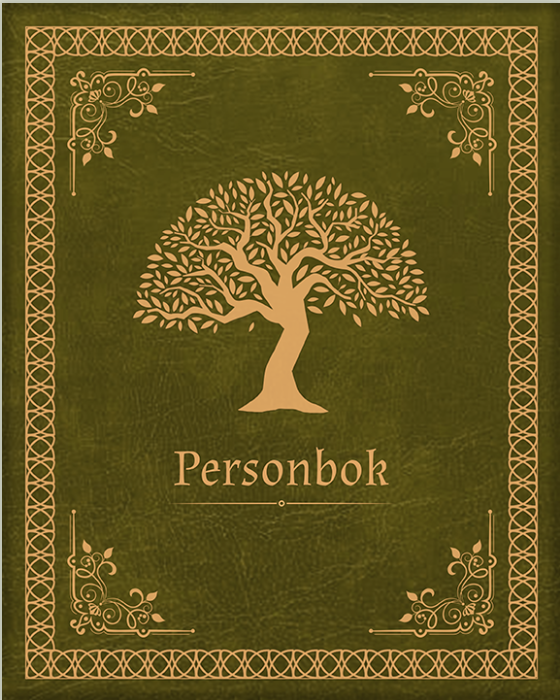
Person book
The Person Book is a visual representation of a family tree, where users can flip through pages to explore individual family members.
Got any book recommendations?