Tag: Create family tree
-
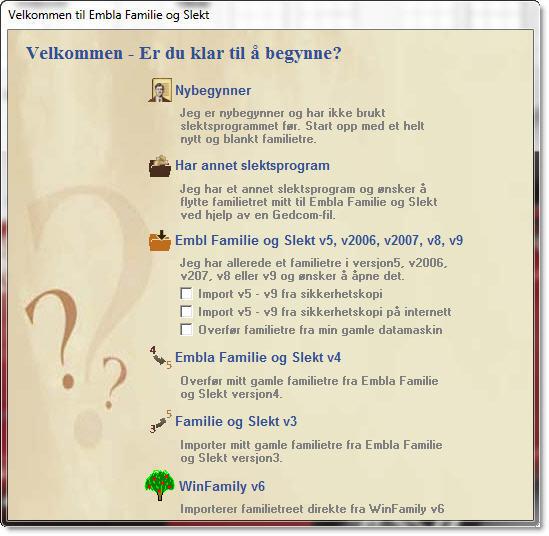
How to get started
Menu selection at first start-up When the program is started for the first time, you will be presented with a start menu. You will only see this menu at the very first start-up. New user – start with a new family tree for the very first time. Has another family program – and wants to…
-
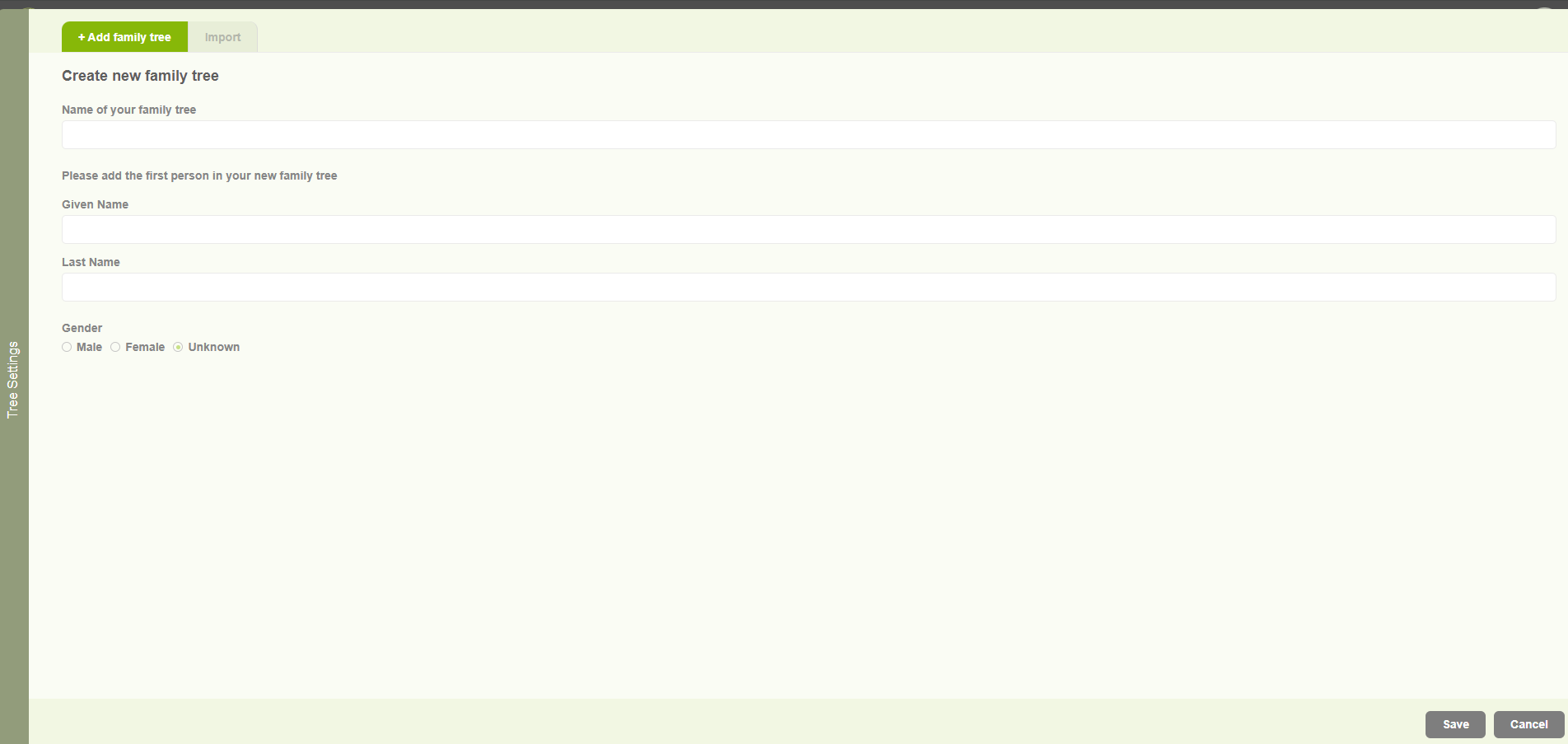
Create family tree for existing user
Begin the journey with Version 10 application and build your family tree.
-
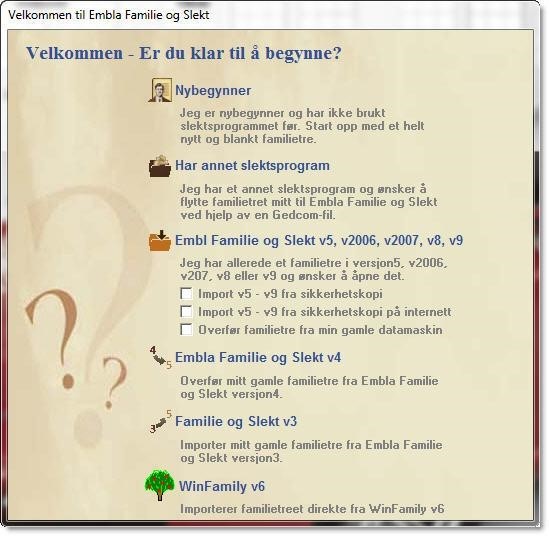
New users create a family tree for the very first time
When the program is started for the first time, you will be presented with a start menu. You will only see this menu at the very first start-up. New user – start with a new family tree for the very first time. Has another family program – and wants to transfer via Gedcom. Has a…
-
Create a family tree after the first tree created
Open the “Embla Familie og Slekt v9” application. Click the “File” option and then click the “New Family project” option in the drop-down list. 3. Add a name for the family and click the “OK” button. 4. If the user adds invalid characters for the name, then display that pop-up. You can only use letters,…
-
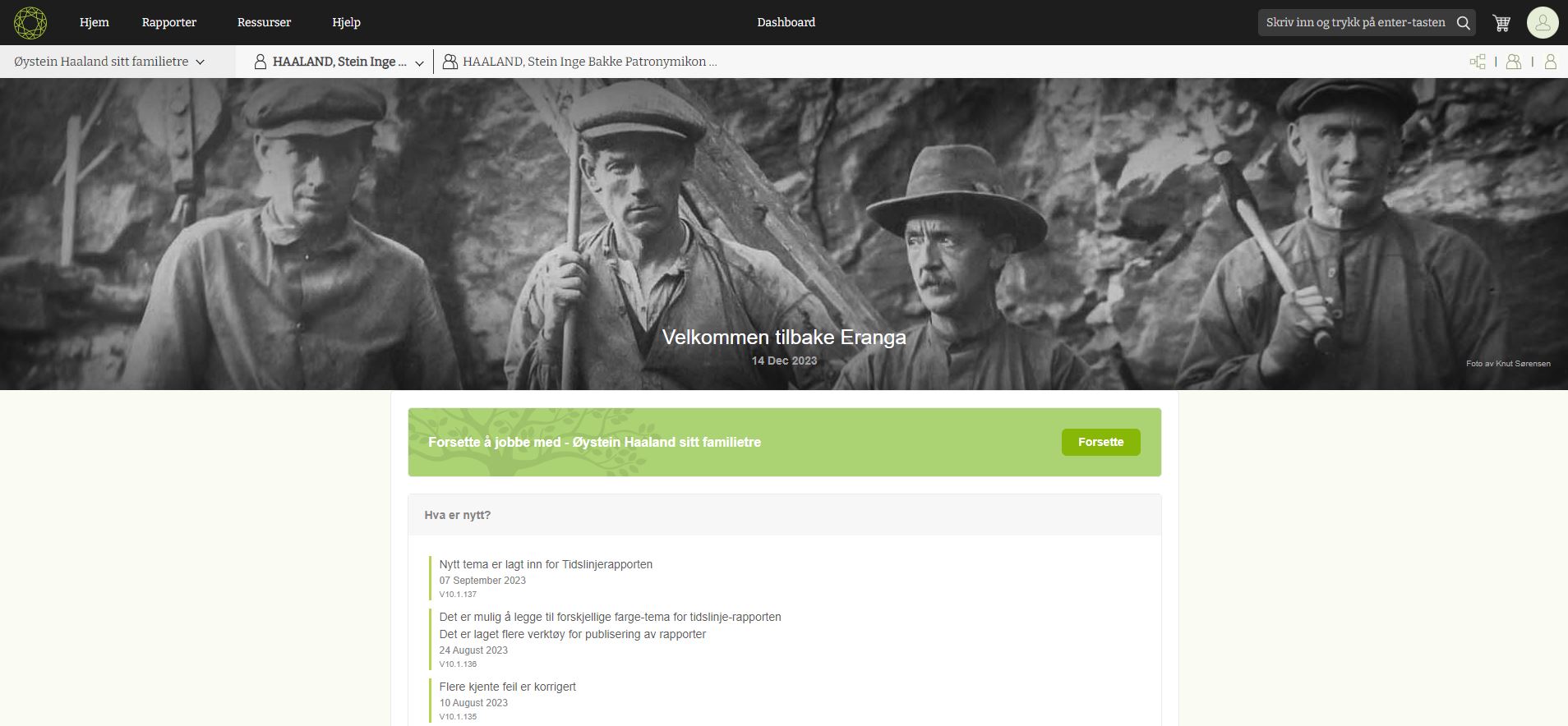
Getting started as a new user
Start the creating your tree after purchased the Version 10 product.