The AI Report feature in Embla Program helps you quickly generate genealogy reports using artificial intelligence. It can save time and make it easier to explore your family history.
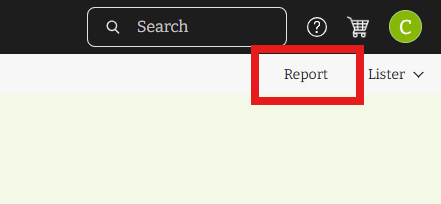
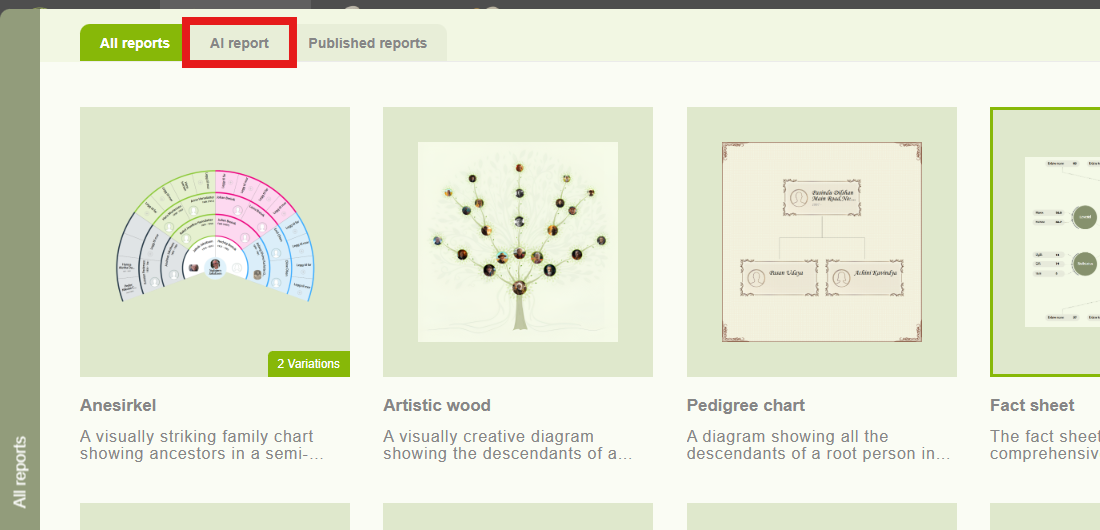
You can find AI Report inside the Reports section as a separate tab.
1. Overview
The AI Report allows you to:
-
-
- Generate reports quickly using ready-made templates or custom questions.
- View and continue previous chats in the History tab.
- Easily manage chat history by deleting old conversations.
- Preview reports instantly in a left-side panel and expand them for full view.
-
Note: The AI may sometimes generate people or details that are not in your family tree. Always review the results carefully before using them.
2. Opening the AI Report
- Go to the Reports section in Embla.
- Click the AI Report tab
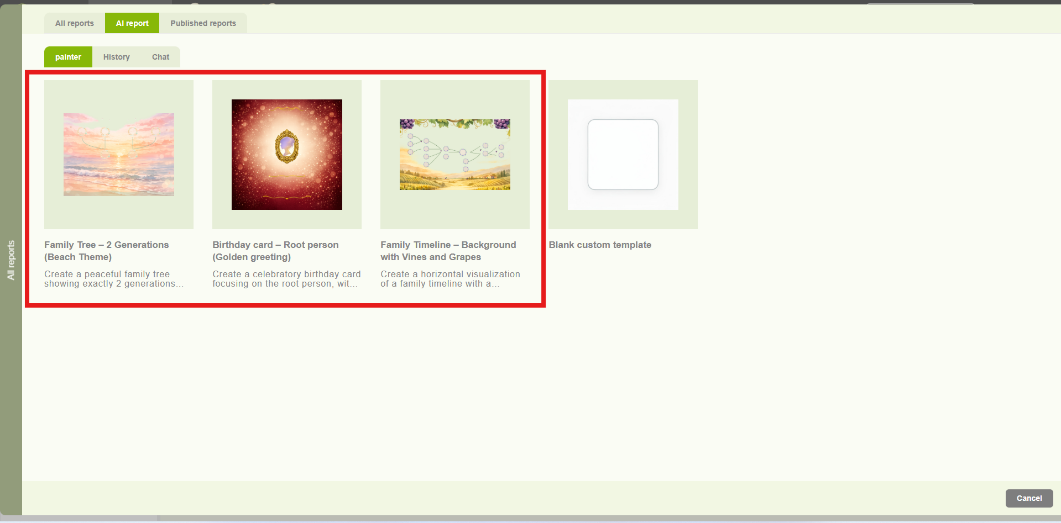
- You will be redirected to the Template Page, which includes:
- Pre-made templates
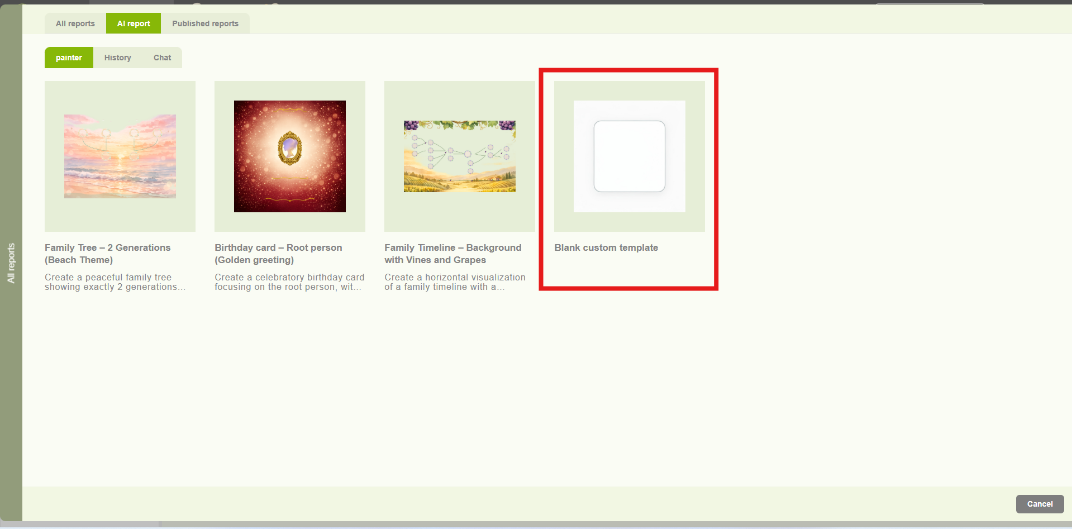
- Blank Chat (default template)
3. Using Templates
Templates make it easier to create reports quickly.
- Select one of the available templates.
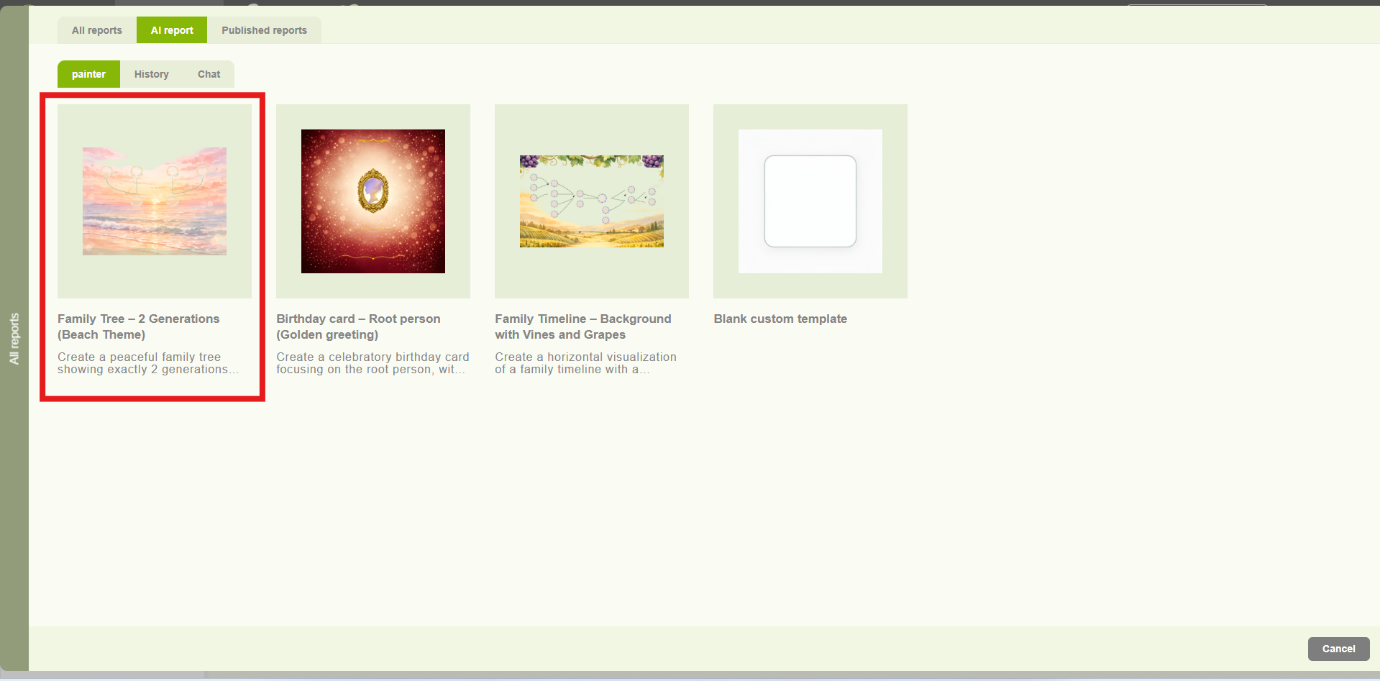
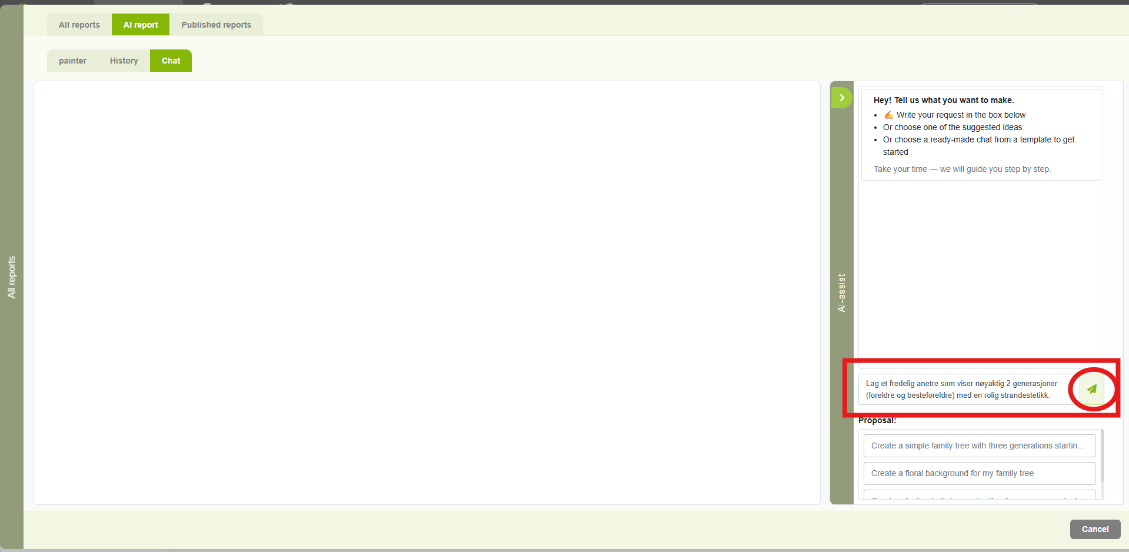
- When you click a template, the system will then open the AI Chat page with that prompt already prepared.
- Then, you can:
- Click Send to generate the report immediately, or
- Edit the prompt before sending it if you want to adjust the request.
Generated report:
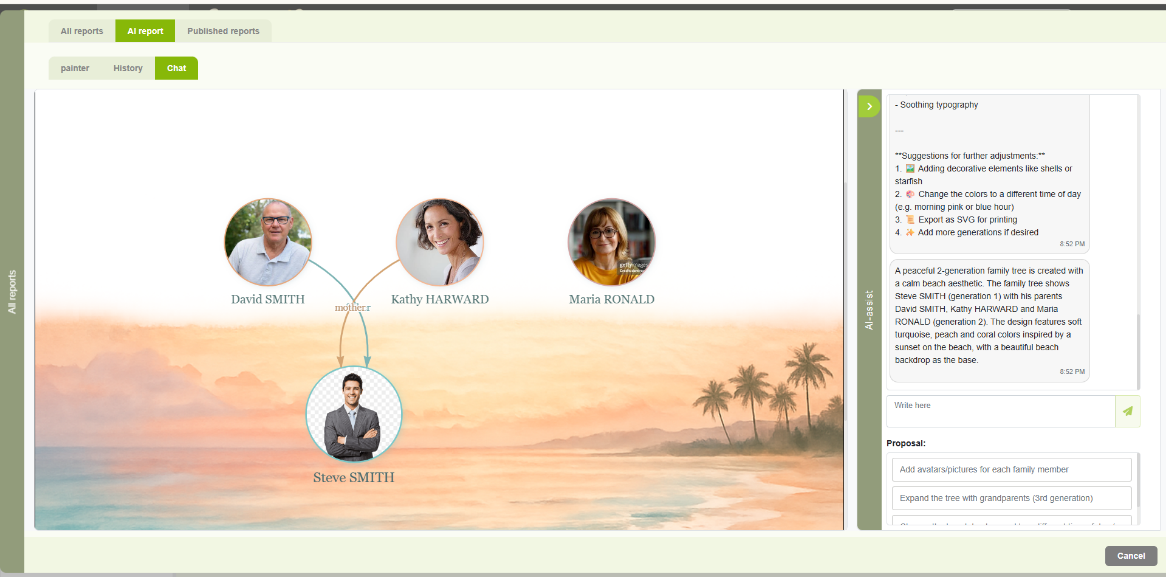
This allows you to easily create reports without writing the question yourself.
4. Credits
When you first use the AI Report, you receive 100 free credits to get started. Each AI report generation uses a number of credits.
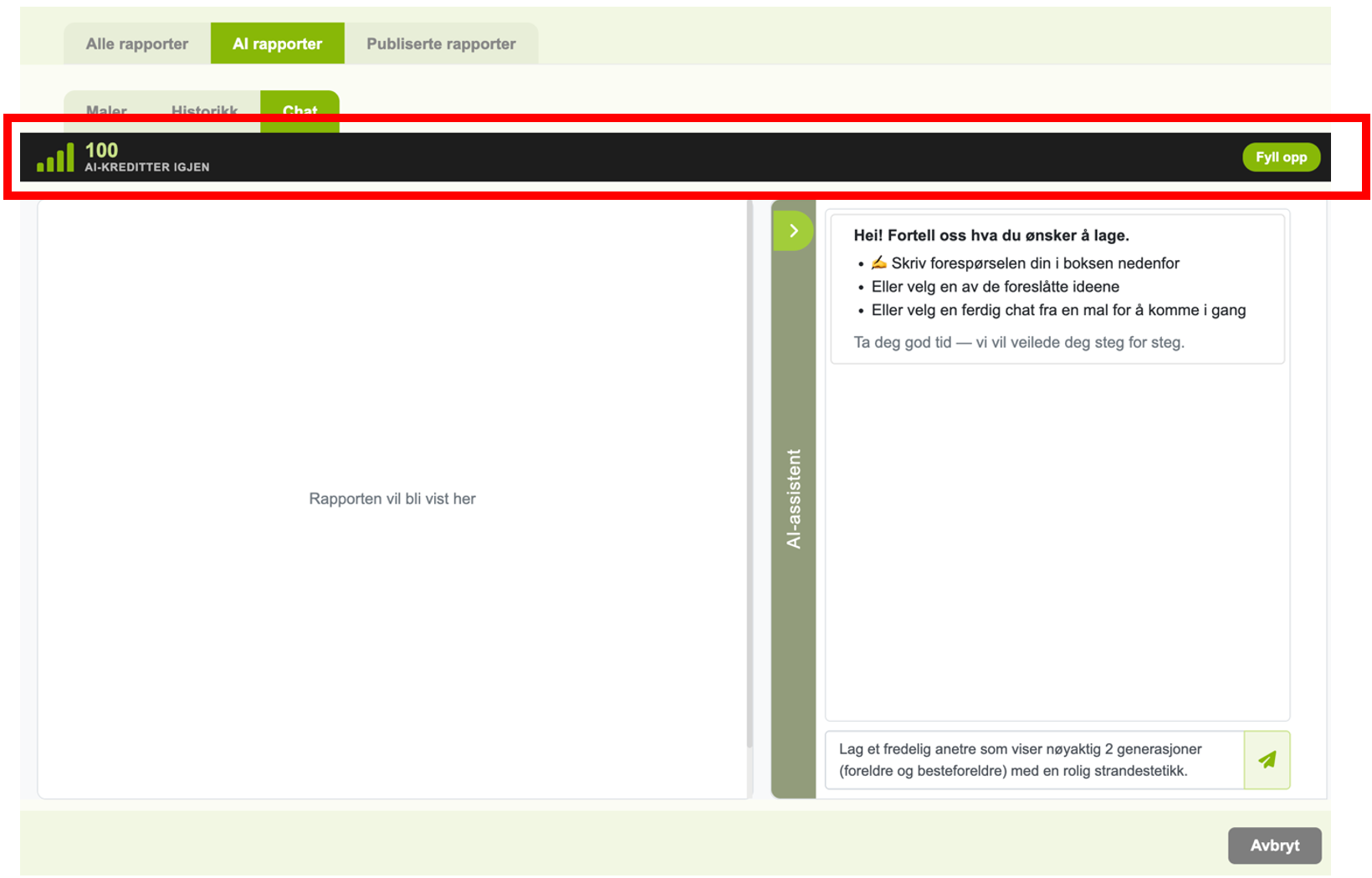
Once your credits run out, you will need to purchase additional credits by clicking on ‘Fill up’ to continue using the AI Report feature.

Note: You can check your remaining credit balance at any time within the AI Report section.
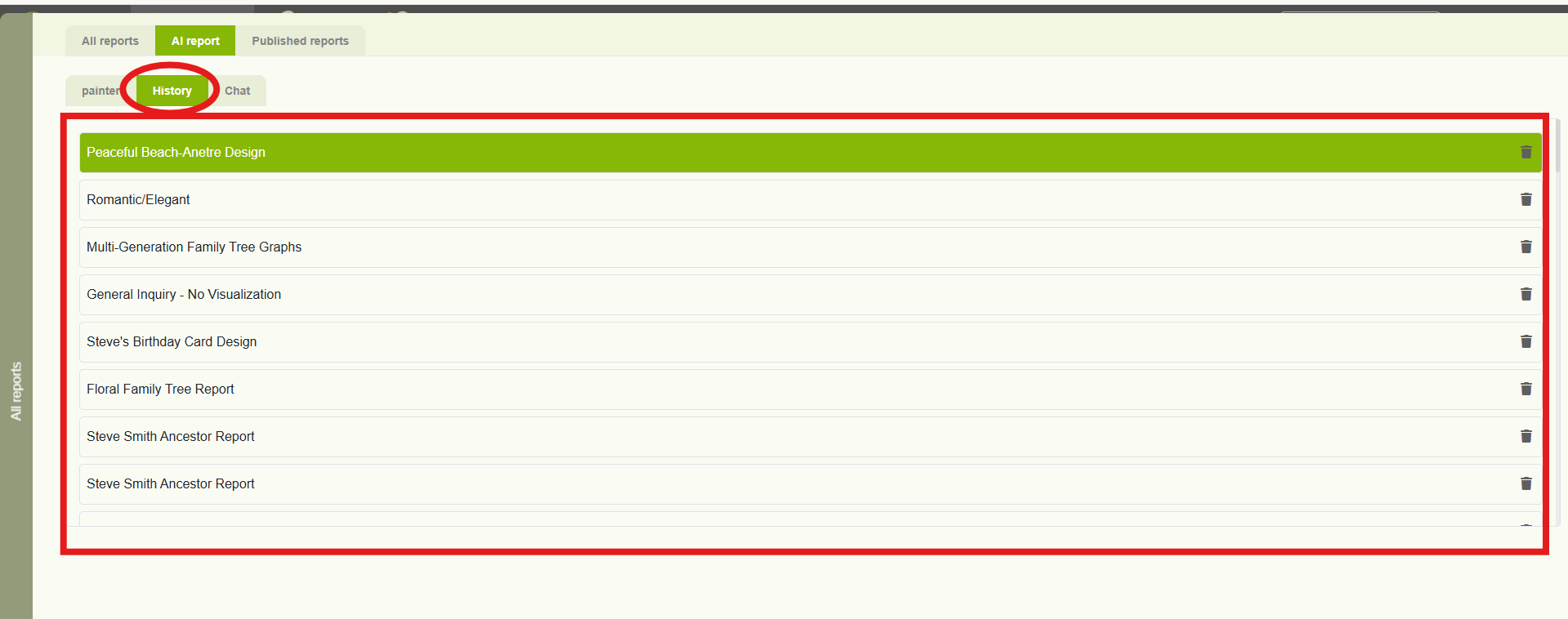
5. History Tab
The History tab stores your previous AI conversations:
- Latest chats appear at the top.
- Click any chat to view the full conversation and generated report.
- You can continue a conversation if needed.
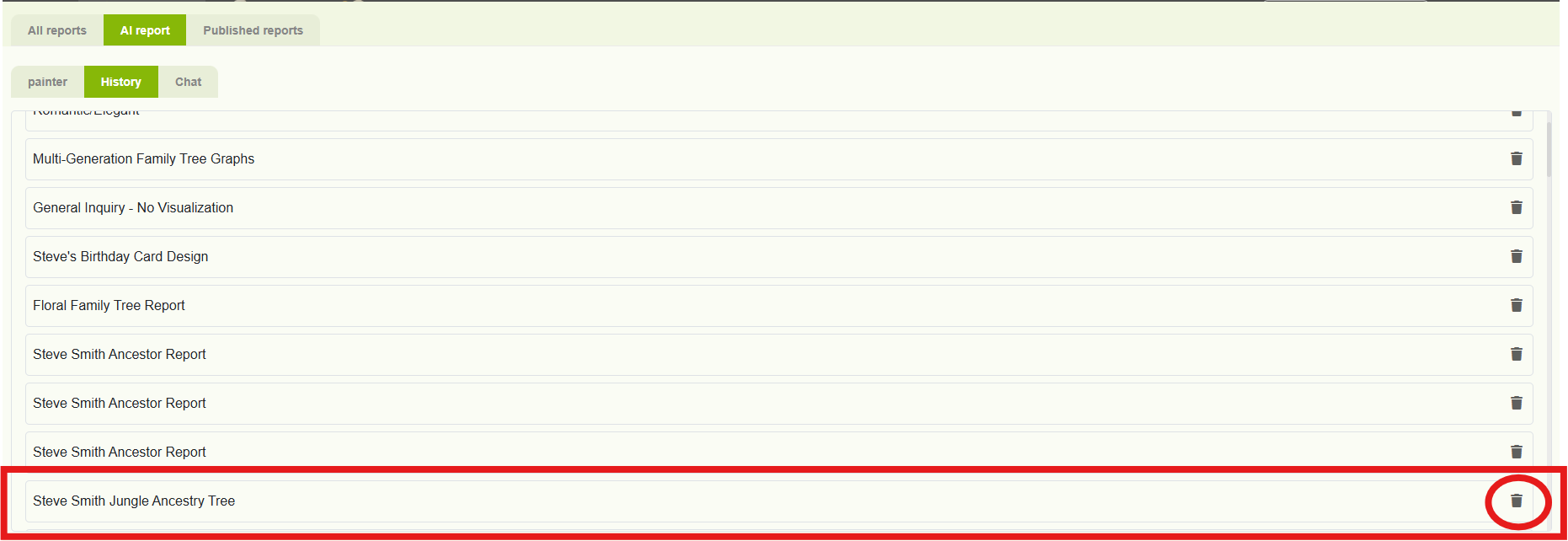
6. Deleting a Chat
- Click the Delete icon next to a chat.
- A confirmation message will appear.
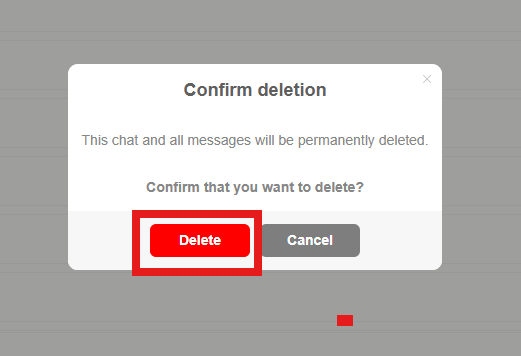
- Click OK to permanently delete the chat.
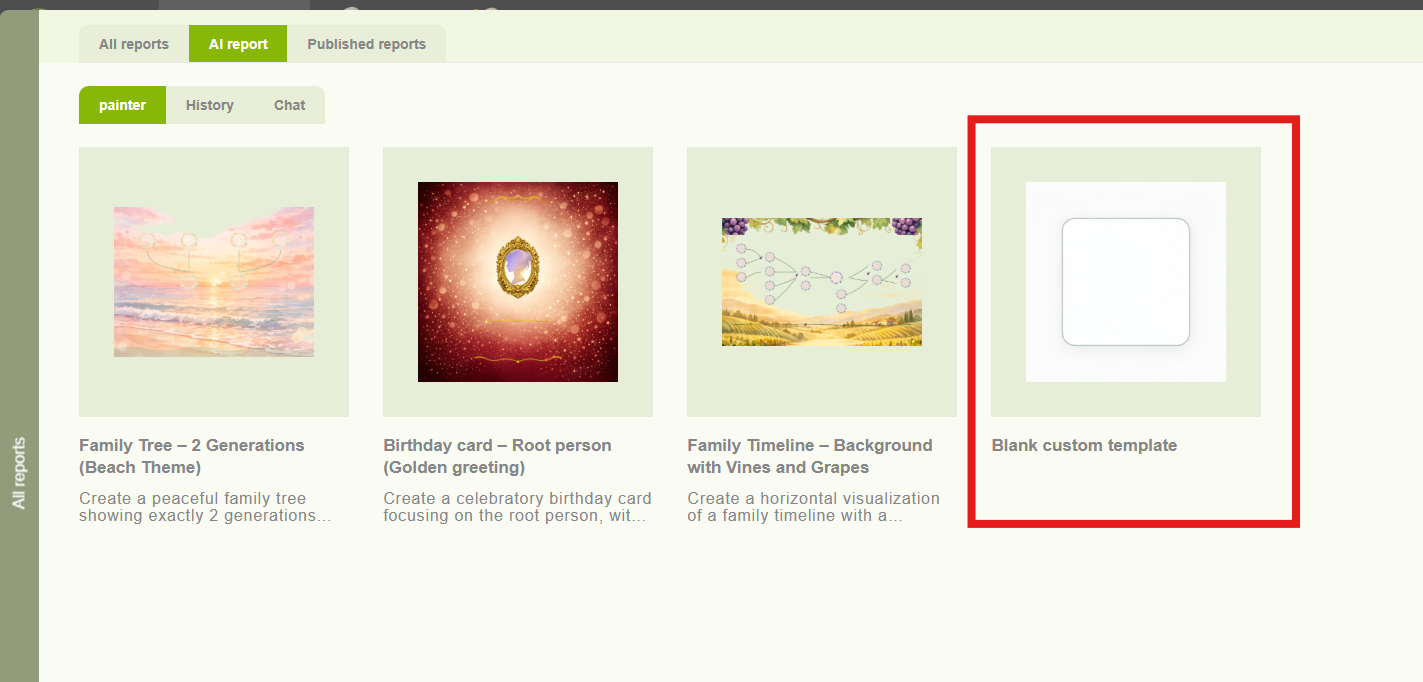
7. Using the Blank Chat (Default Chat)
The blank chat allows you to ask your own questions:
- Click the Blank Chat template.
- Type your question in the chat box.
- Click Send.
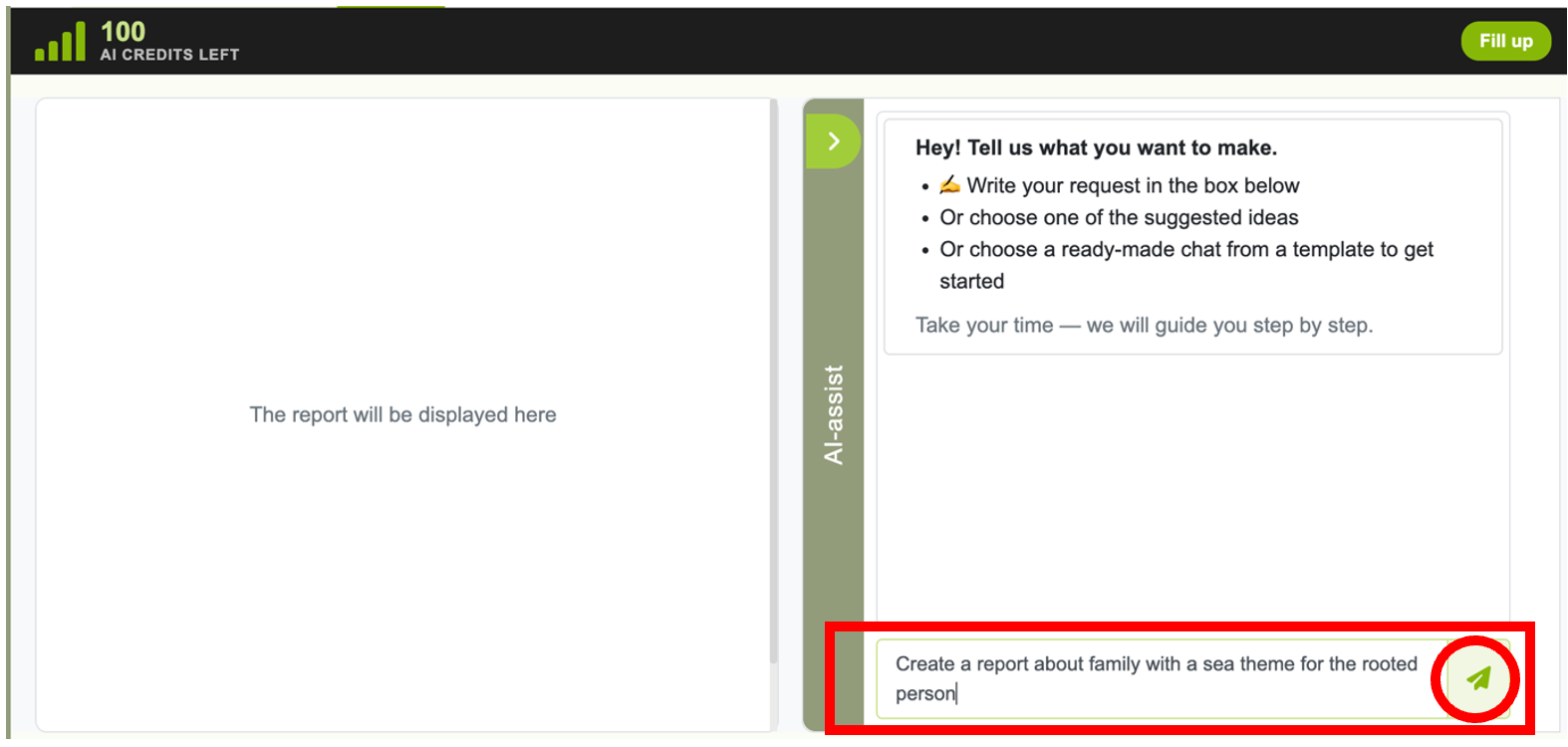
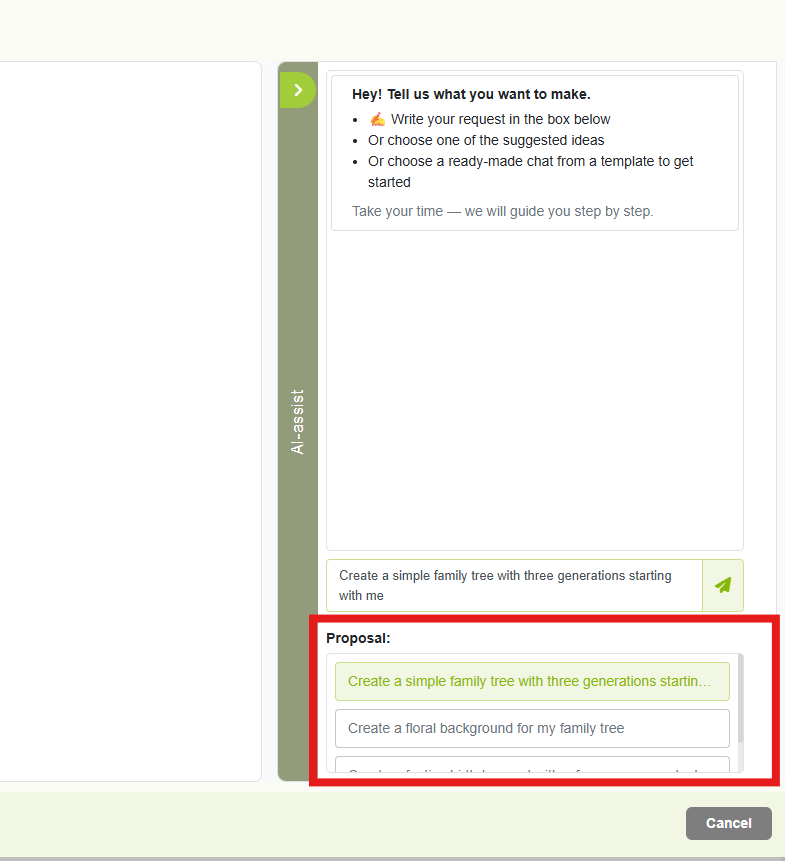
- You can also use prompt suggestions provided to help form your question.
- The report will appear in the left panel.
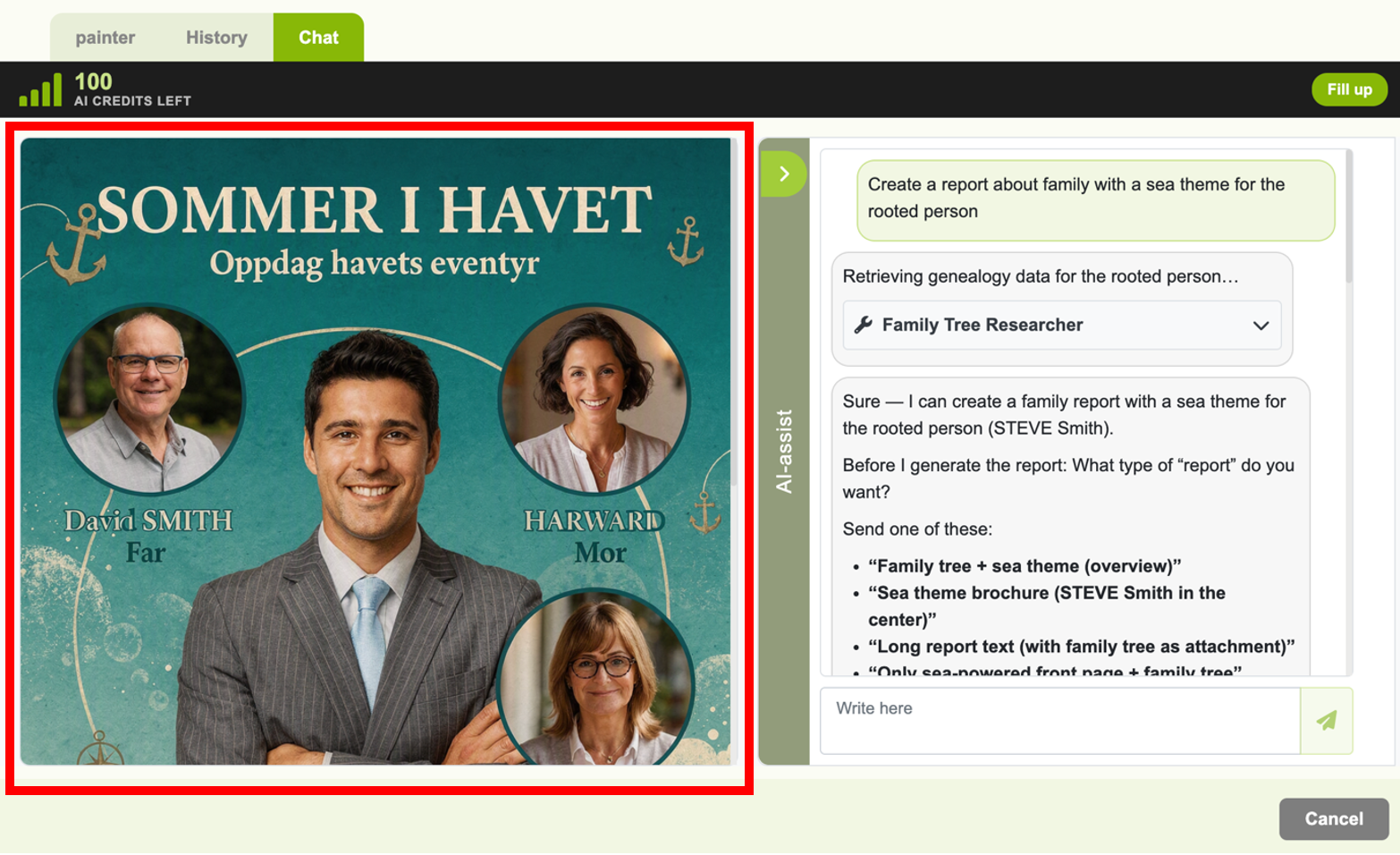
- Click the arrow icon to expand it for full view.
Tip: Use clear and simple questions for better results.
8. Chat Tab
- The Chat tab opens a new AI chat session.
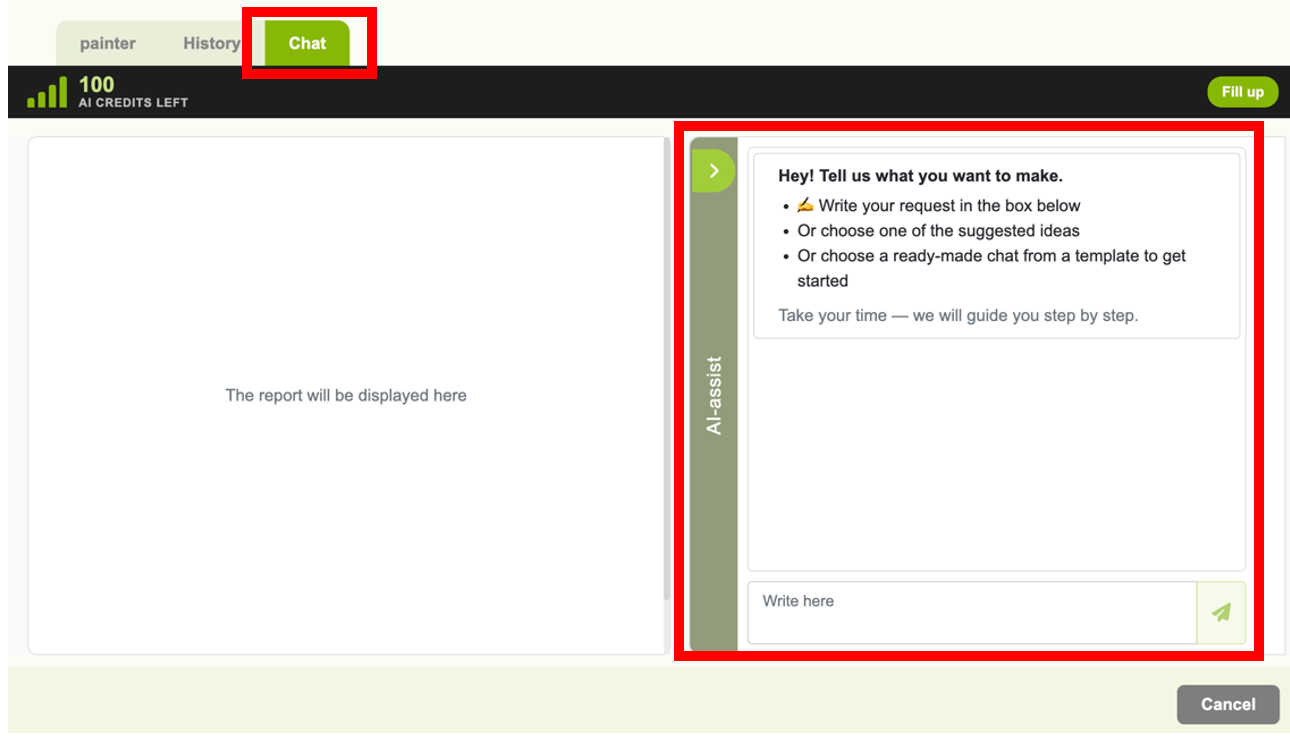
- Switching between tabs will keep your current chat.
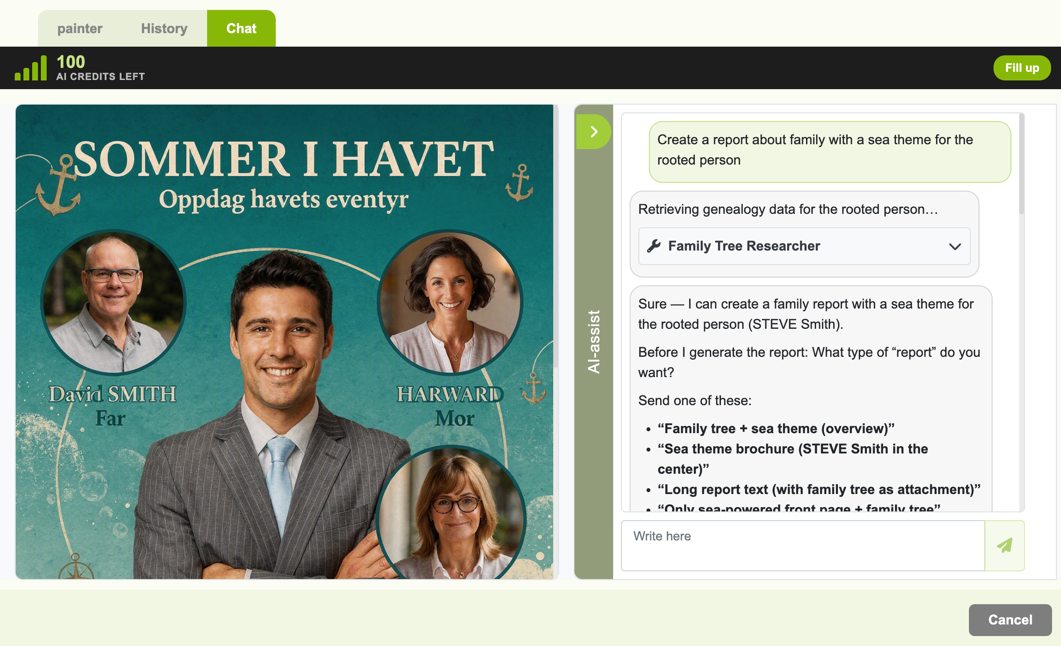
- If you leave the AI Report section and return later, a new chat session starts.
9. Tips for Best Results
- Use short, clear, and specific questions.
- Use templates if you are unsure what to ask.
If you need assistance with AI Report:
- Contact our customer support team.
- We can guide you through generating reports or troubleshooting issues.
Leave a Reply